
September 25, 2026 · 5 min read
Approve-before-show Q&A: work the live moderation queue
Studio walkthrough of PollsLive Q&A moderation: pending count, Approve, Reject, Hide, Restore, and what the audience sees before a question hits the board.
When you run a town hall or conference Q&A, you do not want every phone submission on the projection the second someone taps Send. Approve-before-show puts each question in a host-only queue first. You approve what the room should see, reject the rest, and only then does the board fill in.
This is a Studio walkthrough of that live queue: the pending count, APPROVE and Reject, what the audience sees while something is waiting, and Hide / Restore after the fact. It is the practical complement to the higher-level audience Q&A with upvotes guide. Here we stay on the presenter console and shoot the real controls.
Tip
Moderation is on by default for new Q&A slides. Leave it on for a stage or all-hands. Turn it off only when you trust a small room and want questions to land on the board immediately.
Turn on approve-before-show in the editor
Open your deck in Studio and select a Q&A slide. Under the slide options you will see Approve questions before showing them. With that switch on, every submission waits in the host console until you approve it. The sibling switch, Let people upvote questions, only matters after a question is on the board: upvotes cannot promote something that is still pending.
You can also add an Open text slide with the same approve-before-show behavior when you want short free-text answers moderated the same way. Unmoderated open text is different: the host panel focuses on awarding points, not an approve queue. This walkthrough sticks to moderated Q&A, which is what most town halls need.
Go live and find the Moderation panel
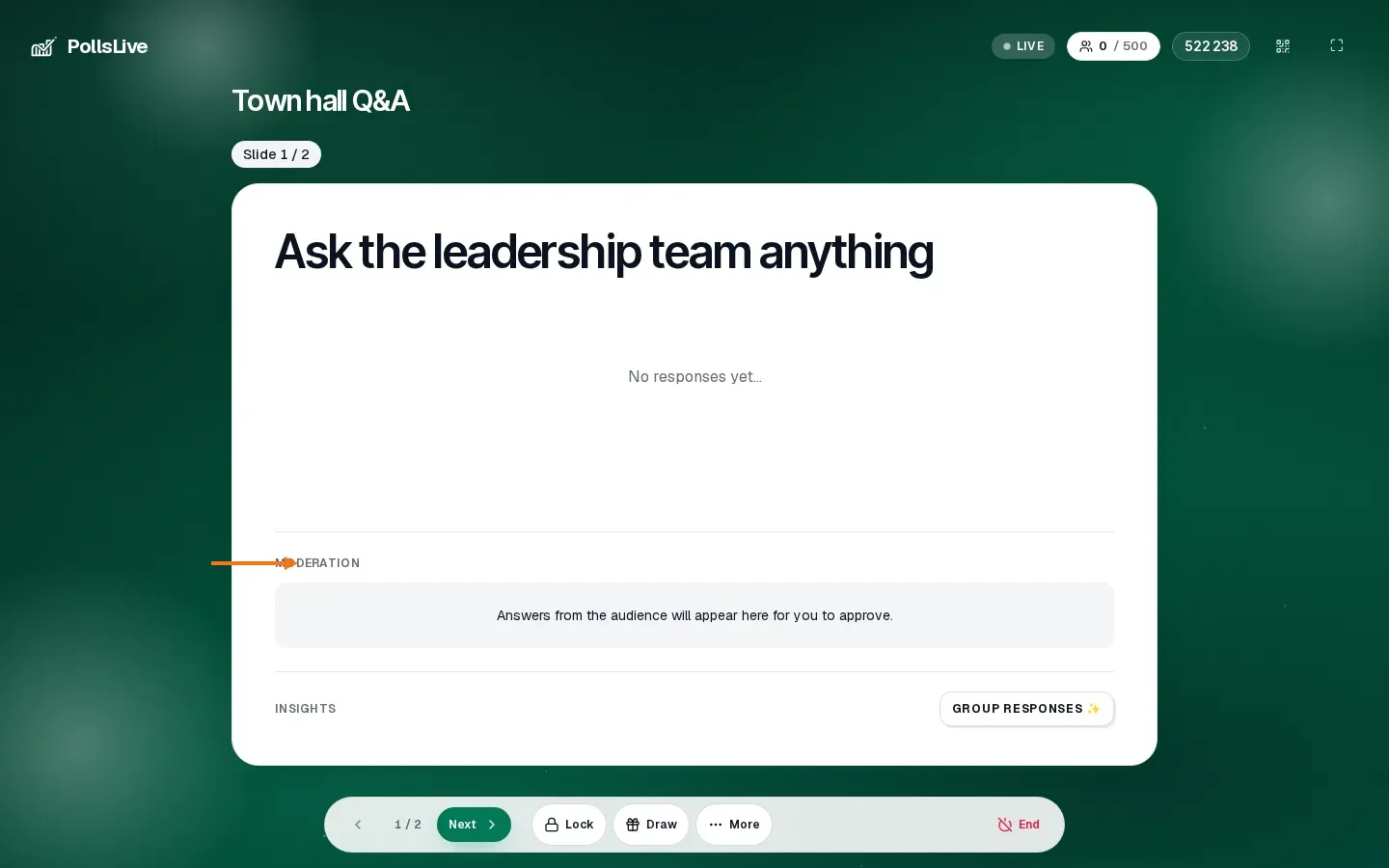
Click Present live, share the PIN or QR, and stay on the Q&A slide. Below the big prompt you will see a MODERATION section. When the queue is empty it says answers from the audience will appear here for you to approve. The projection area above it still reads No responses yet… That empty board is intentional. Nothing public appears until you approve.
What the audience sees when they send
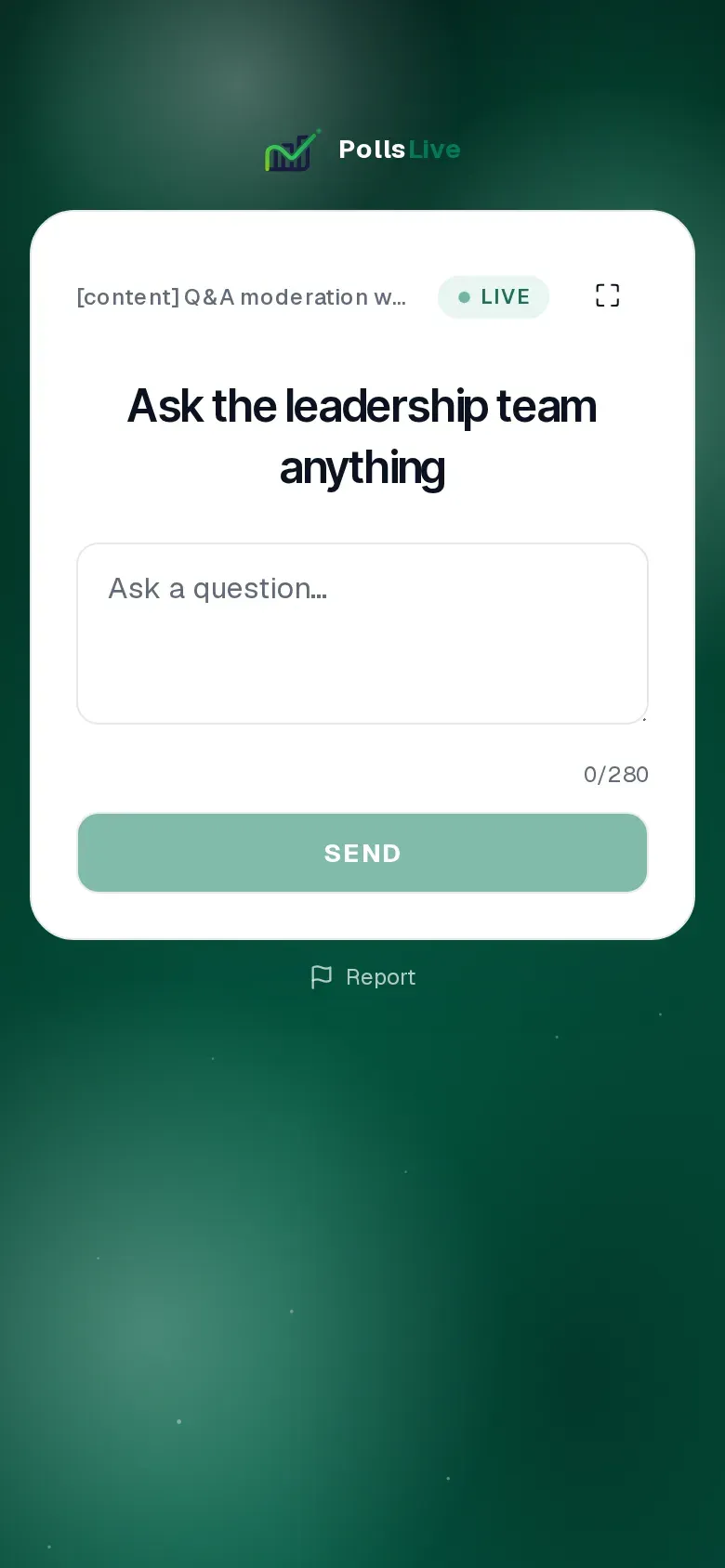
On their phone, people get a simple compose card: the prompt, an Ask a question… field, and SEND. After they send, the card flips to Answer received ✓. That confirmation is not the same as appearing on stage. With moderation on, their question is in your pending list only.

Work the pending queue
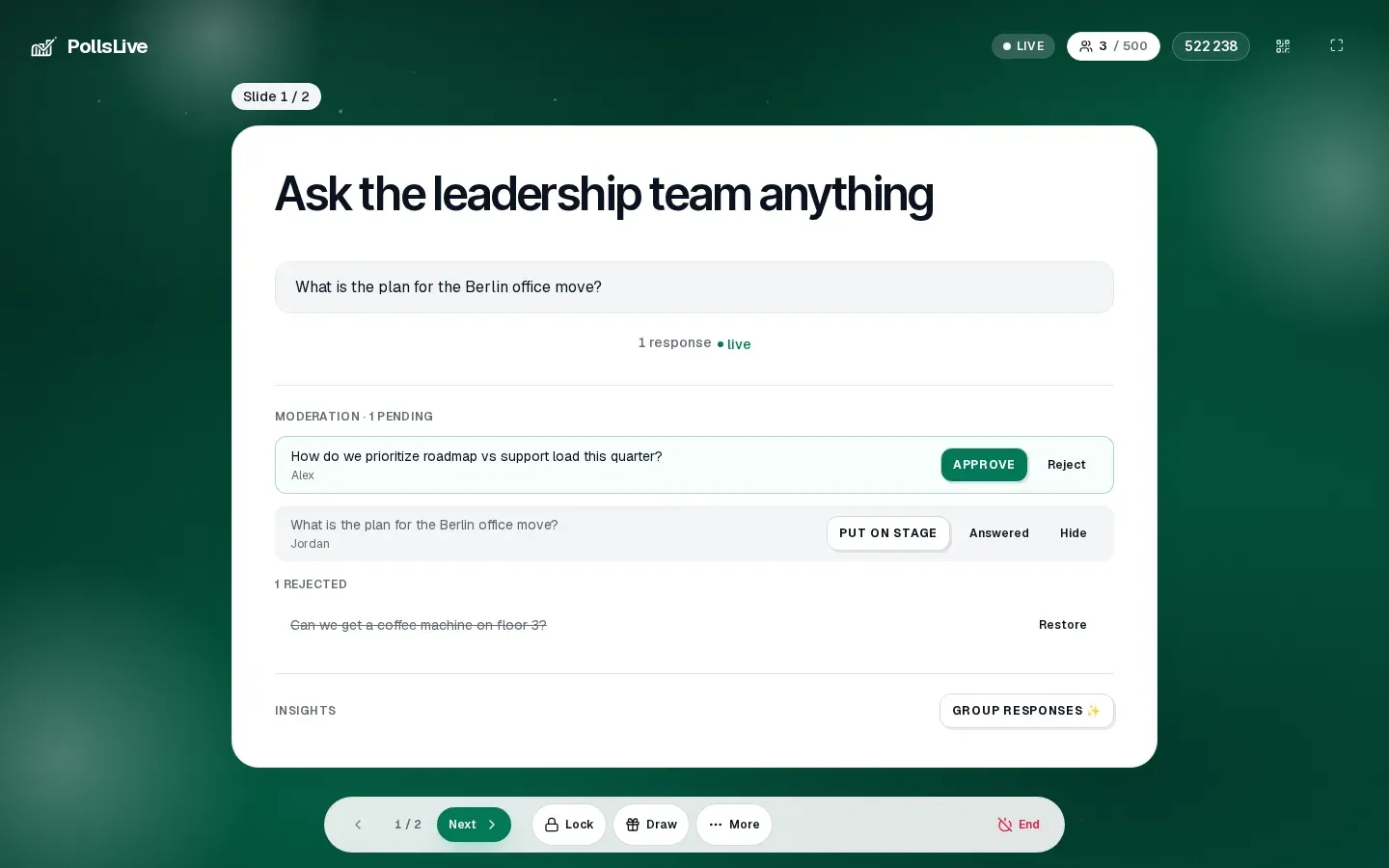
As questions arrive, the panel title becomes MODERATION · N PENDING. Each row shows the text, the nickname if you collect names, and two actions: green APPROVE and Reject. The board above the panel stays empty until at least one row is approved, even if three people have already submitted.
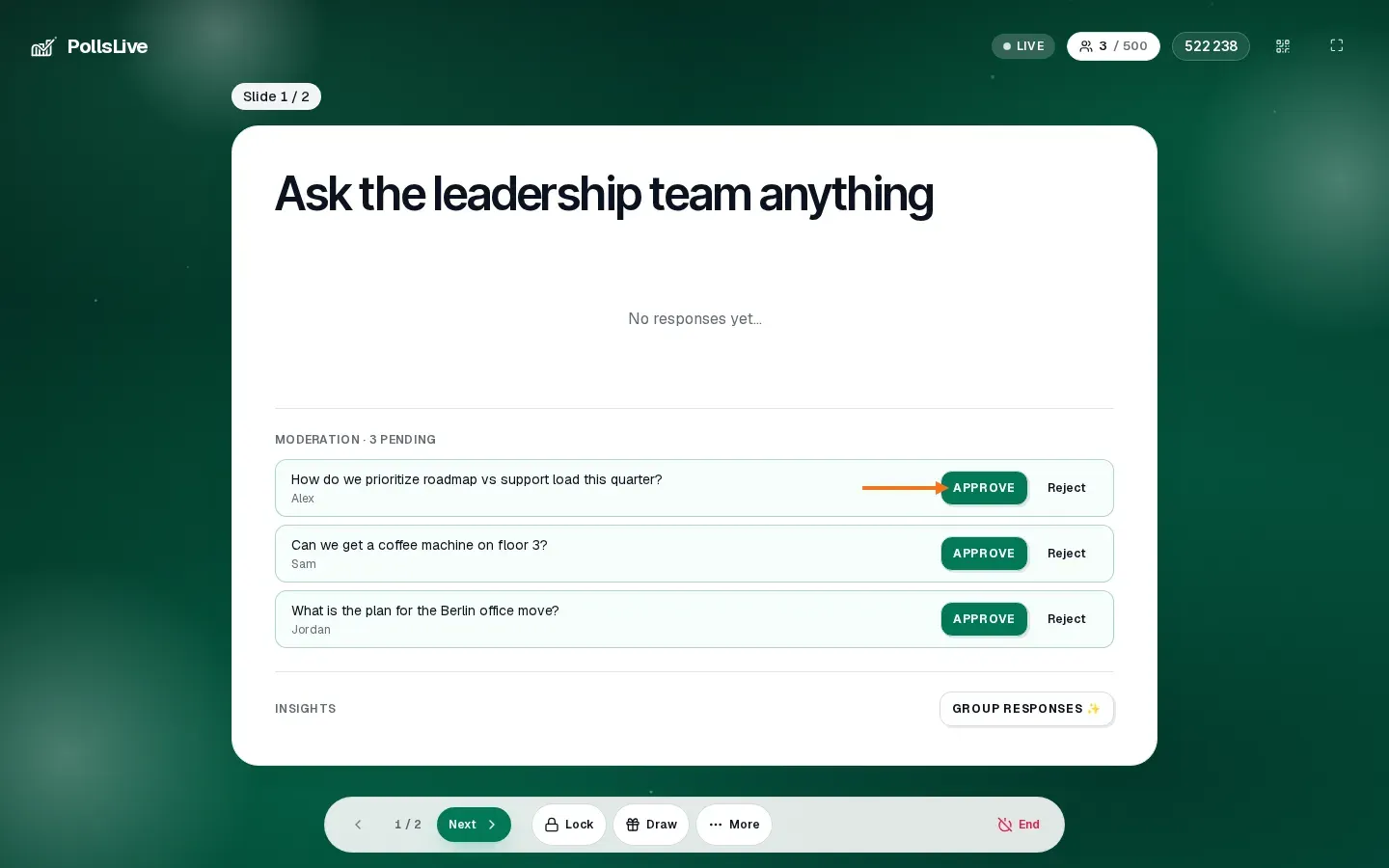
- APPROVE moves the question onto the live board so the room (and upvotes, if enabled) can see it.
- Reject dismisses it into a rejected list. It never appears on the board unless you restore it later.
- Work top-down or by topic. You do not have to clear the whole queue before you talk. Approve one, answer it, then come back.
After approve: board, stage, answered, hide
Approved questions appear in the main board area with a live response count. In the Moderation list they grow extra controls: PUT ON STAGE, Answered, and Hide. Rejected rows sit under N REJECTED with a Restore button if you change your mind.
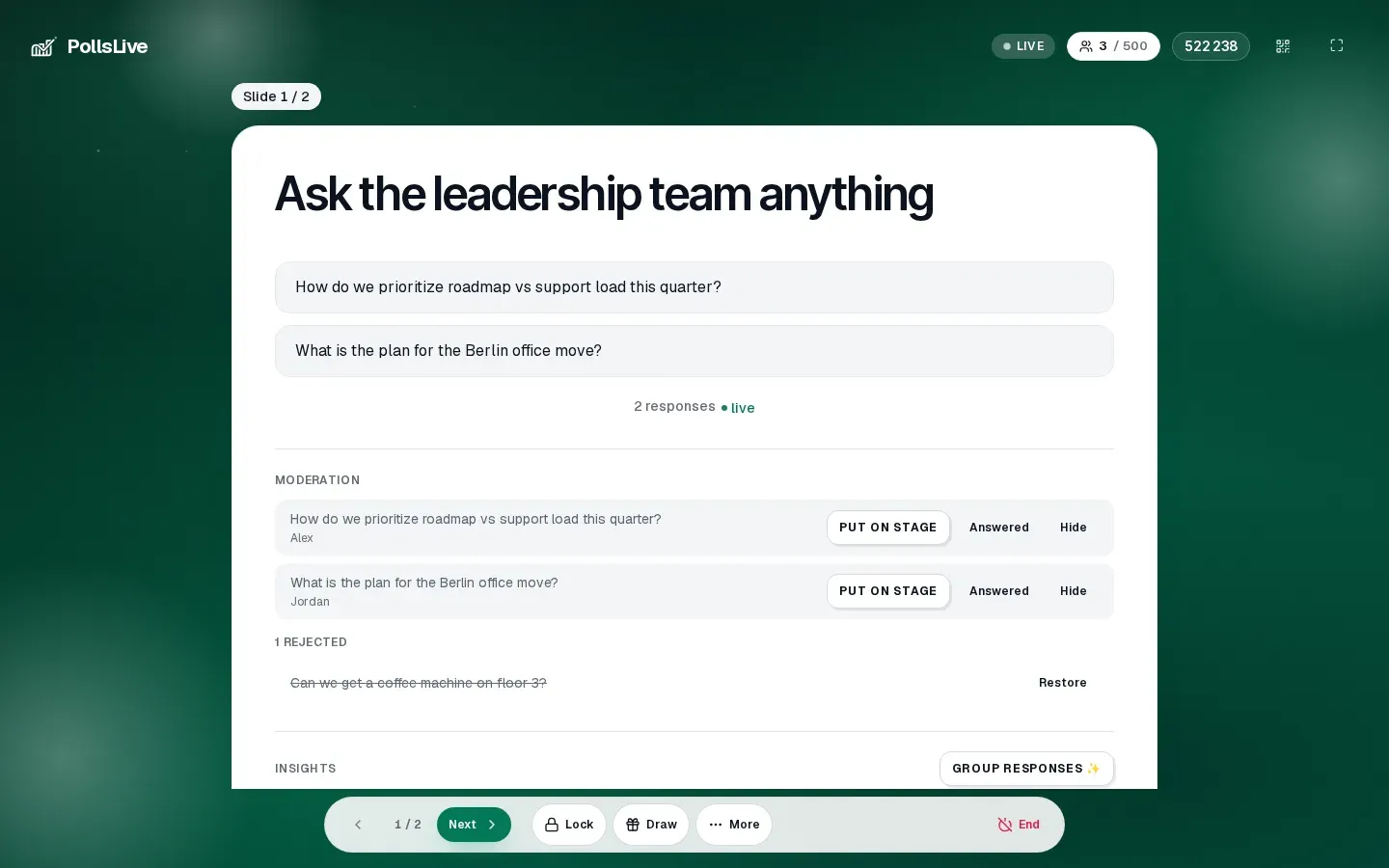
- PUT ON STAGE highlights a single question when you want the room focused on one thread.
- Answered marks it done so you can see what is still open.
- Hide pulls an approved question back off the public board without deleting the record.
- Restore under Rejected returns a dismissed question to the pending queue so you can approve it after all.
Hide and what the board looks like after
If a question looked useful and then went sideways, tap Hide. It leaves the projection. For example, hide the roadmap question and only the Berlin office question stays on the board, while your Moderation list still shows both approved questions.
Note
Hide on a moderated Q&A board is not the same as the deck Hide/Reveal control used for charts. Q&A has no running tally to conceal: the board only shows what you already approved.
Open text vs Q&A moderation
If you turn approve-before-show on for an Open text slide, the same pending / APPROVE / Reject pattern applies to short answers. If moderation is off, the host panel switches to awarding points on answers that are already visible, useful for scavenger-hunt style prompts, not for town-hall gatekeeping. Pick one job per slide so you are not approving and scoring the same row while the room waits.
A five-minute practice loop
- Create a Q&A slide with approve-before-show left on.
- Present live as a rehearsal and join from your phone.
- Send three questions from two or three browsers (one submission per person until you approve).
- On the host console, confirm MODERATION · N PENDING and that the board still says no responses.
- Approve two, reject one, then try Hide and Restore once so the buttons feel familiar before doors open.
When to turn moderation off
Skip the queue for a workshop of people you know, a classroom icebreaker, or any session where speed matters more than filtering. In those rooms the pending list just adds latency. Keep it on for press Q&A, all-hands, customer conferences, and anywhere a single off-topic or hostile line would hijack the screen.
Related reading
For upvotes and why ranking matters after questions are public, see Run an audience Q&A where the best questions rise to the top. For the rest of the presenter dock (lock, draw, jump to slide), see Presenter controls during a live poll.
Approve-before-show is the difference between hosting a conversation and hosting a firehose. Open the Moderation panel, clear the pending count on purpose, and only then let the board speak for the room.
Open Studio, add a Q&A slide with approve-before-show, and rehearse the queue before your next live session.
Create a free poll