
September 7, 2026 · 6 min read
Commandes du présentateur en direct
L'écran du présentateur pendant un sondage en direct : avancer dans la présentation, sauter à une slide, lire l'indicateur de connexion, bien terminer.
La plupart des guides sur le sondage en direct s'arretent a "cliquez sur Presenter en direct". C'est la partie facile. Ce qui decide de la reussite d'une session, ce sont les vingt minutes suivantes, sur un ecran que toute une salle regarde, en general pendant que vous parlez. Voici tout ce que l'ecran du presentateur vous offre, et quand chaque element compte.
Getting everyone in, and keeping the door open
Starting a session puts a 6-digit PIN and a QR code on screen. Both stay there for the whole session, and the QR button in the header blows the code up to fill the screen for a big room. That matters more than it sounds: people arrive late, and a code that vanished after the first slide is the most common reason a room only half participates. You do not have to go back to the lobby to show it again.
Driving the deck
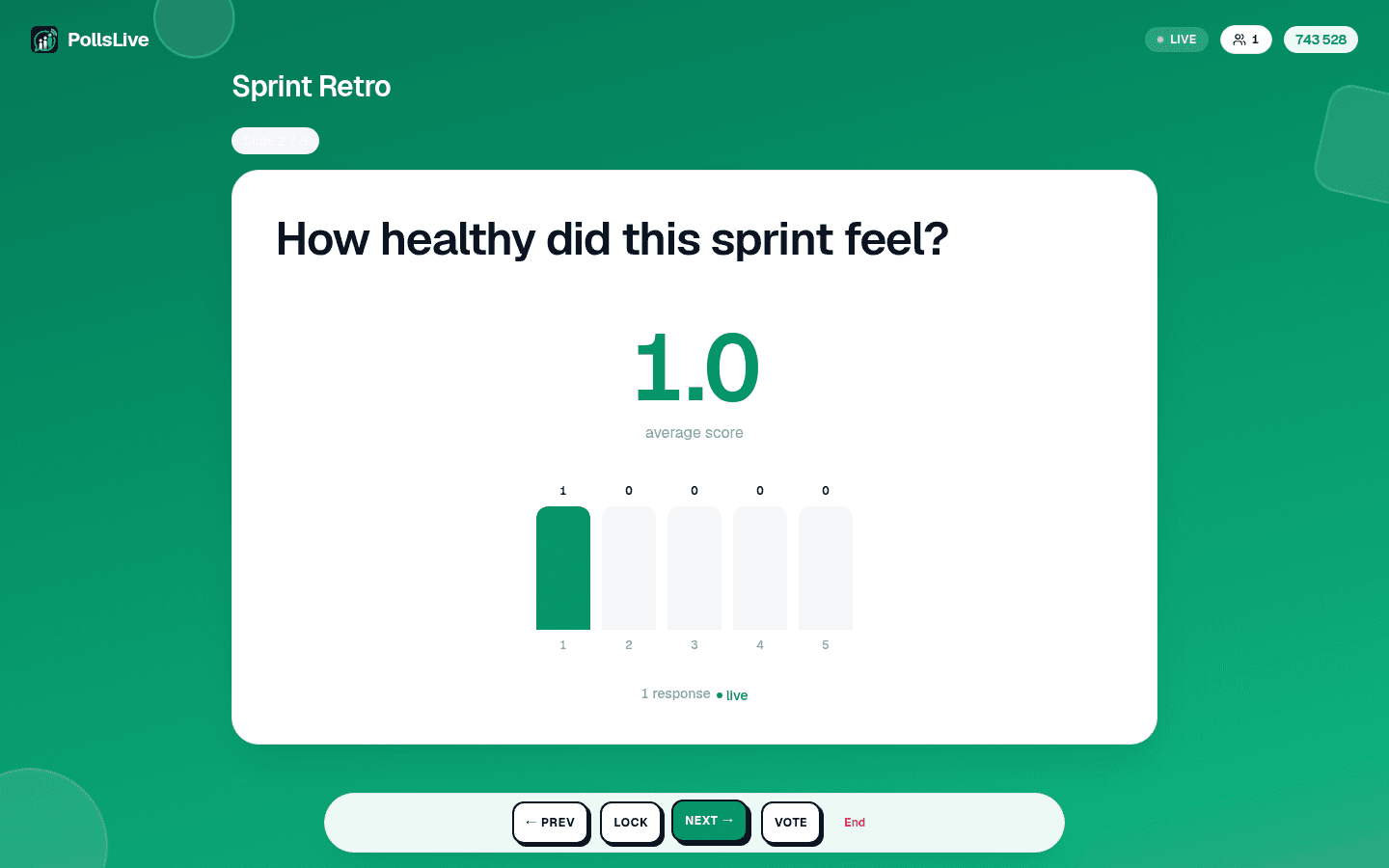
- Prev and Next move through your questions.
- Reveal shows the chart when you are ready, if the deck is set to hide results until you say so. Re-vote clears an estimation round and runs it again.
- Lock stops new answers on the current question without ending anything, useful when you want to talk about a result while it is still on screen.
The keyboard drives all of it too, which is far easier than finding a button mid-sentence: arrow keys or space to move, F for full screen, R to show or hide results.
Jumping to the slide someone just asked about
Somebody puts their hand up about the chart from three questions ago. Jump to slide opens a thumbnail overview of the whole deck; pick any slide and the room goes there. No clicking Next eleven times to get back, and no apologising while you do it.
Tip
Vous n'avez pas besoin d'être technique pour suivre ce guide. Chaque étape utilise de simples boutons dans PollsLive, sans code, sans application à installer pour votre public.
Faire entrer tout le monde, et laisser la porte ouverte
- Live: connected, and what you press reaches the room.
- Reconnecting: the connection dropped and is coming back. It only ever appears after you have been connected once, so it is never the normal state at the start.
- Connecting: the first handshake, before anyone has joined.
Au demarrage d'une session, un PIN a 6 chiffres et un QR code s'affichent. Les deux restent la pendant toute la session, et le bouton QR de l'en-tete agrandit le code en plein ecran pour une grande salle. Cela compte plus qu'il n'y parait : les gens arrivent en retard, et un code disparu apres la premiere slide est la raison la plus frequente d'une salle a moitie participante. Inutile de revenir au salon d'attente pour le remontrer.
Piloter le deck
On the last slide the screen offers to end the session, and every way of ending one confirms first: it closes the room for everybody at once, so it should never be a stray tap. The end screen shows the final results, you can share a results image straight from it, and a recap email follows whenever anyone answered. Nothing is lost either way: results, per-person answers and exports all stay in Studio.
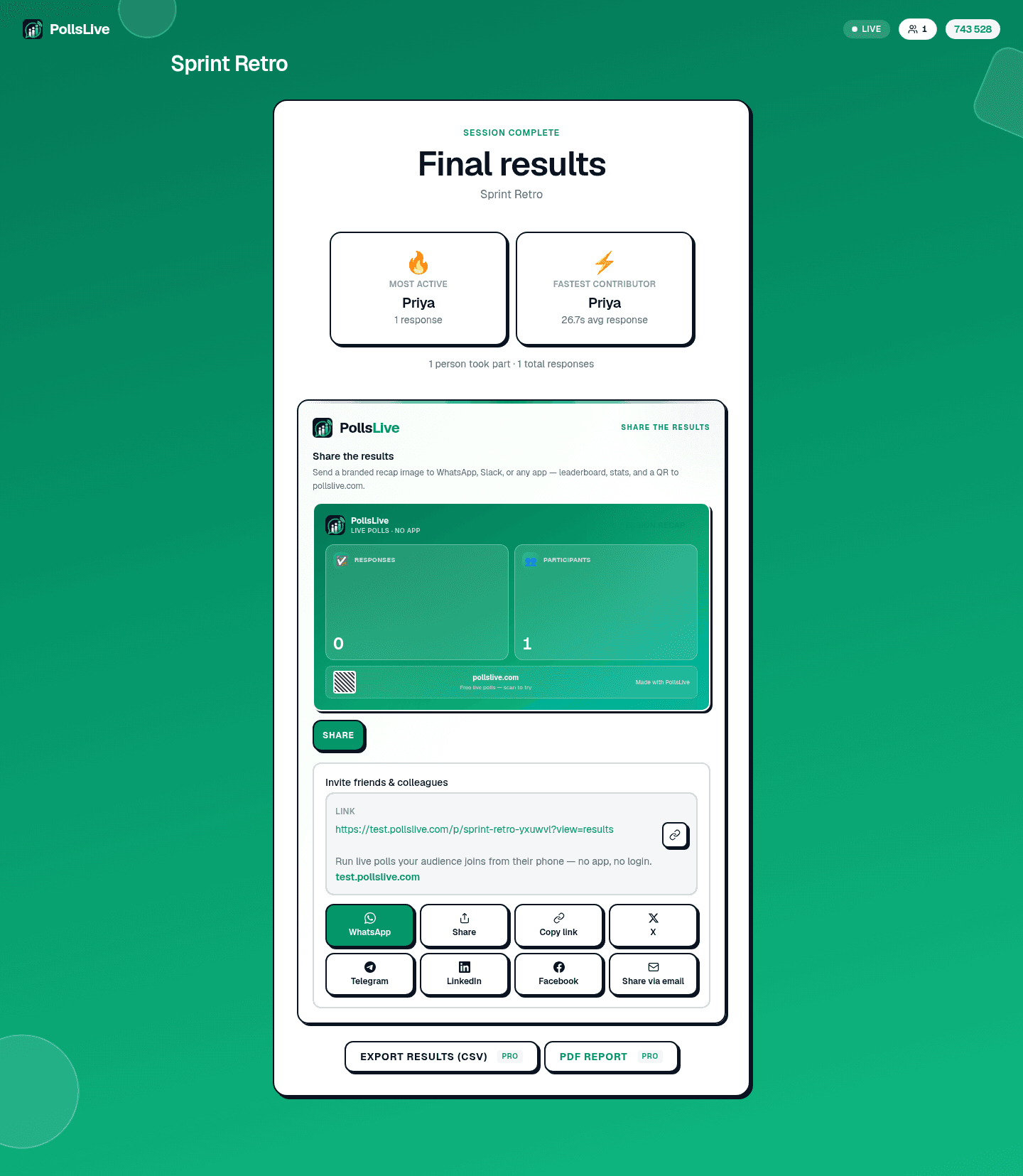
Every control on the presenter screen, in order, with what each one does.
Read the presenting guide