
September 22, 2026 · 6 min read
Pulse AI assistant in Studio: Ask AI without drafting a deck
Walkthrough of PollsLive Pulse AI, the green Ask AI assistant chat in Studio. How it differs from Generate with AI, what prompts work, and how the separate chat allowance works.
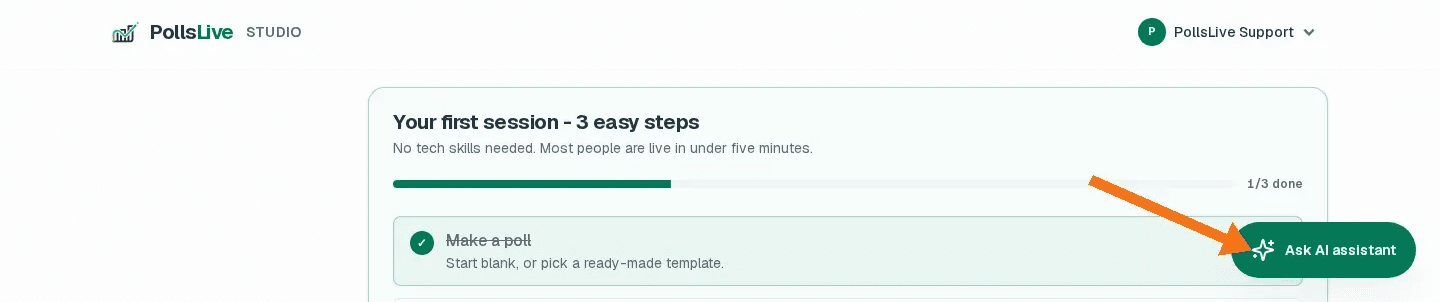
Pulse AI is the green Ask AI assistant button that floats in the corner of PollsLive Studio. Tap it and you get a chat that answers product questions, helps you find a poll or results view, and can summarize what you already ran, without opening a separate help site.
It is easy to mix Pulse AI up with Generate with AI, the deck-drafting tool in the editor. They sit next to each other in the product, but they do different jobs and they burn different allowances. This walkthrough is only about Pulse AI: how to open it, what it is good at, what it refuses to do, and how to ask questions that get useful answers.
Tip
If you want AI to draft a full poll deck from a topic, use Generate with AI in the editor. Pulse AI will even remind you: it does not build slides.
Where to find Pulse AI
Sign in to Studio. Look at the bottom-right corner. The launcher is a green pill labeled Ask AI assistant (aria label: Open Pulse AI, the AI assistant). It stays with you on Polls, Results, Billing, and most other Studio pages, so you do not have to leave the screen you are on.
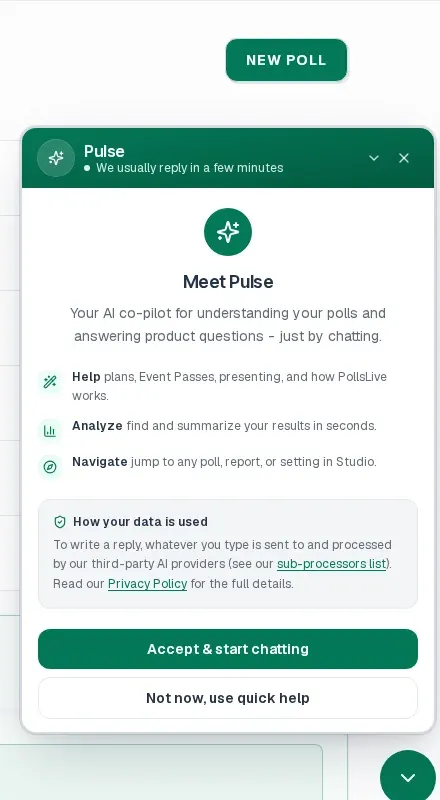
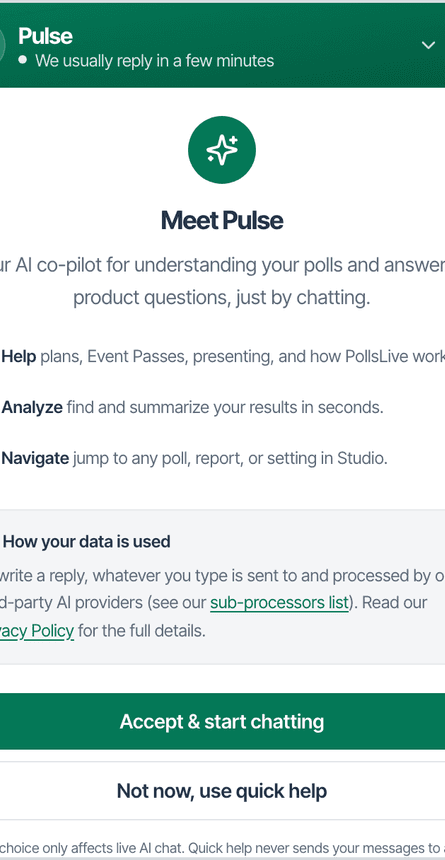
First open shows a short Meet Pulse AI consent screen. It explains that chat text can go to third-party AI providers, with links to the sub-processors list and Privacy Policy. Choose Accept & start chatting to turn on the smarter assistant, or Not now, use quick help if you only want the FAQ-style shortcuts without the LLM path.
What Pulse AI can do
Once you accept, the panel introduces three jobs:
- Help: plans, Event Passes, presenting live, and how PollsLive works.
- Analyze: find and summarize results from polls you already have.
- Navigate: jump toward a poll, report, or Studio setting instead of hunting the sidebar.
The empty state also ships with ready chips under Try asking: What is included in Pro?, How do Event Passes work?, How do I present live?, Summarize my results. Those are good warm-ups when you are not sure how to phrase a question.
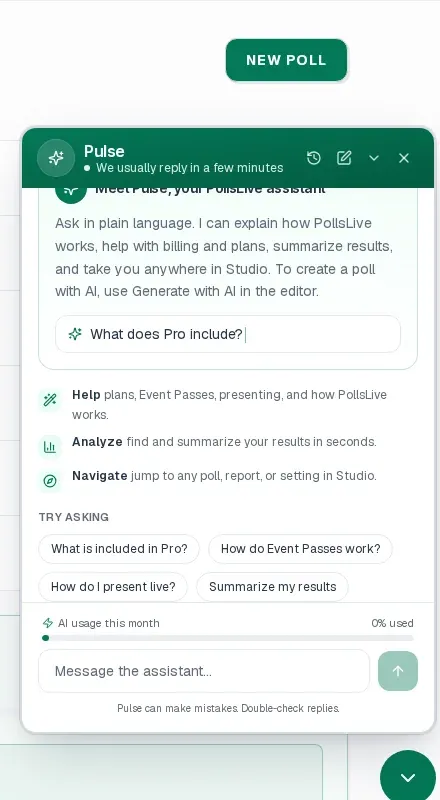
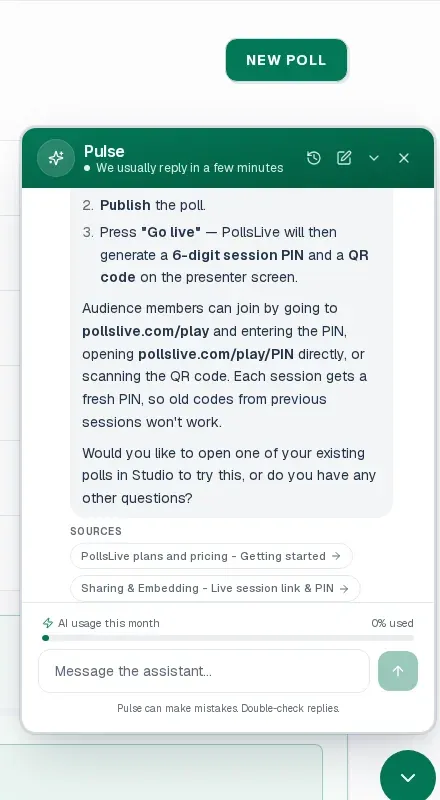
Under the chips you will see AI usage this month. That meter is Pulse AI's own allowance. It is separate from Generate with AI credits and from one-time credit packs. Chatting here does not spend deck-generation quota. The panel also says honestly: *Pulse AI can make mistakes. Double-check replies.*
Pulse AI vs Generate with AI
Keep this distinction sticky:
- Generate with AI drafts questions and a session structure inside the deck editor. It spends monthly generation quota / packs.
- Pulse AI answers plain-language questions about the product, billing, presenting, and your results. It uses a separate chat allowance.
- Pulse AI will not invent a full deck for you. The intro copy says so up front: create polls with Generate with AI in the editor.
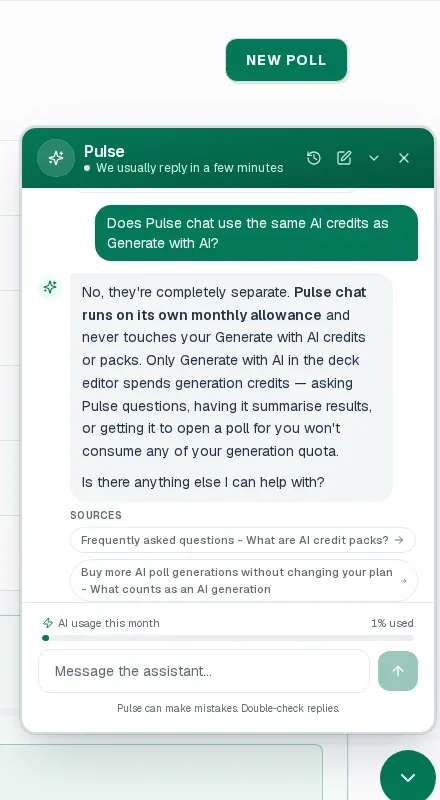
Ask Pulse AI whether chat uses the same AI credits as Generate with AI, and it answers the way the product docs do: chat has its own monthly allowance, so asking for help or a summary leaves your generation credits untouched.
Note
Need more deck generations mid-month? That is the AI credit packs path, not Pulse AI. Pulse AI stays on its own meter.
Useful prompts to try
Pulse AI works best when you ask for a concrete next step, not a vague "help me." Prompts like these get clear answers:
- How do I start a live poll session from Studio? Walks publish → Go live → PIN / QR → audience join at /play.
- How do I present live? Good chip if you are about to host and forgot the click path.
- Where do I find results / can you summarize my results? Points you at Studio Results and can summarize when you have data.
- What is included in Pro? / How do Event Passes work? Plan and pass questions without leaving Studio.
- Open poll X or take me to billing: navigation-style asks when you know the destination name.
Replies often include a Sources strip linking into docs or related help articles. Use those when you need the durable reference, not only the chat paraphrase.
How to get a good answer
- Open Pulse AI from the screen you care about. If you are staring at Results, ask about results there. Context helps.
- Name the object. "Summarize the Q2 all-hands poll" beats "summarize everything."
- Ask one job per message. Mixing "explain Pro and also draft my icebreakers" splits the brain: Pulse AI for the plan question, Generate with AI for the deck.
- Follow the Sources. If the chat points at presenting-live docs, open them before you go on stage.
- Double-check anything that moves money or deletes data. The disclaimer is not decoration.
Quick help vs full Pulse AI
If you decline the LLM path, you still get quick help: canned answers that never send your message to an AI provider. That is the right choice for a locked-down network or when you only needed the FAQ chips. You can turn the smarter assistant back on later from the panel.
A five-minute practice loop
Use this once so Pulse AI feels familiar before a real session:
- Open Studio and click Ask AI assistant.
- Accept chatting (or stay on quick help if that is your policy).
- Tap How do I present live? or type your own go-live question.
- Ask whether Pulse AI shares Generate with AI credits, and confirm the separate meter.
- Ask Pulse AI to point you at Results for a poll you already ran, then close the panel and keep editing.
What not to expect
- No deck drafting. That is Generate with AI.
- No guarantee of perfection. Treat answers as a fast co-pilot; verify before you change a live room.
- No replacement for presenter judgment. Pulse AI can explain approve-before-show Q&A or go-live steps, but you still run the room.
- Allowance still exists. Heavy chat weeks will move the AI usage bar. Watch it the same way you watch generation quota.
When Pulse AI is the wrong tool
Skip Pulse AI when you already know the click path and just need speed. Open Results or Present live yourself. Skip it when you want a brainstormed icebreaker deck; that is Generate with AI territory. Skip it for legal or security sign-off. The chat can point at policy pages, but your counsel still owns the decision.
Also skip it mid-keynote if you are the only presenter and the room is watching your laptop. Open Pulse AI before doors, or put it on a second device. The floating panel is great for prep and post-session cleanup; it is awkward as a live teleprompter.
Privacy, in plain words
The consent screen is short on purpose. Typed chat can be processed by third-party AI providers. Quick help does not send those messages to an AI provider. If your company policy forbids LLM tools, stay on quick help or keep Pulse AI closed. If you accept chatting, assume anything you paste could leave your tenant. Do not paste secrets, raw attendee PII dumps, or unreleased pricing spreadsheets into the box.
Related reading
For drafting a whole session with AI, see Generate with AI. For buying extra generations without changing plan, see AI credit packs. For the live host controls once you are on stage, see presenter controls during a live poll.
Pulse AI is the fastest way to ask "where is X?" and "how does Y work?" without leaving Studio. Open the green launcher, ask one clear question, check the sources, and get back to the deck.
Open Studio, create a free poll, and try Ask AI assistant from the corner launcher.
Create a free poll