
June 26, 2026 · 10 min read
किसी भी presentation में live poll जोड़ें
PowerPoint, Google Slides या Keynote में बिना add-in या deck दोबारा बनाए live poll जोड़िए: poll slide embed कीजिए या browser tab पर जाइए।
Presentation ke dauran live poll ke liye PowerPoint add-in ki zarurat nahi. PollsLive PowerPoint, Google Slides, aur Keynote ke saath kaam karta hai: browser tab mein poll banayein, deck mein transition slide jodein, aur audience input chahiye ho tab switch karein. Koi plugins nahi, rebuild nahi.
Presentation mein polls kyun jodein
Interaction ke bina presentation monologue hai. Ek achhe jagah ka poll passive listeners ko participants banata hai, room ke baare mein real data deta hai, aur dhyan bhatke usse pehle rhythm todta hai. Best presenters teen moments par polls use karte hain: opening diagnostic, mid-talk check, aur closing takeaway.
Solutions discuss karne se pehle, sabse bada barrier kya hai?
Method 1: Transition slide (recommended)
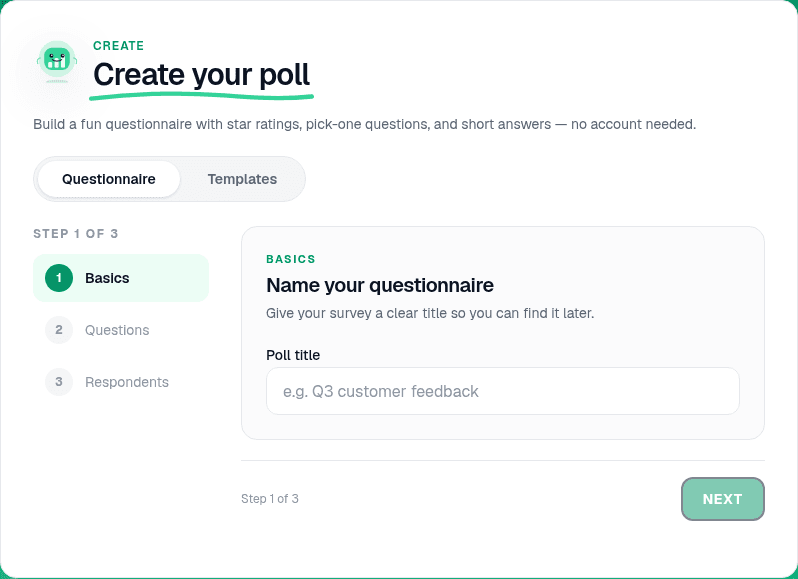
Talk se pehle poll banayein
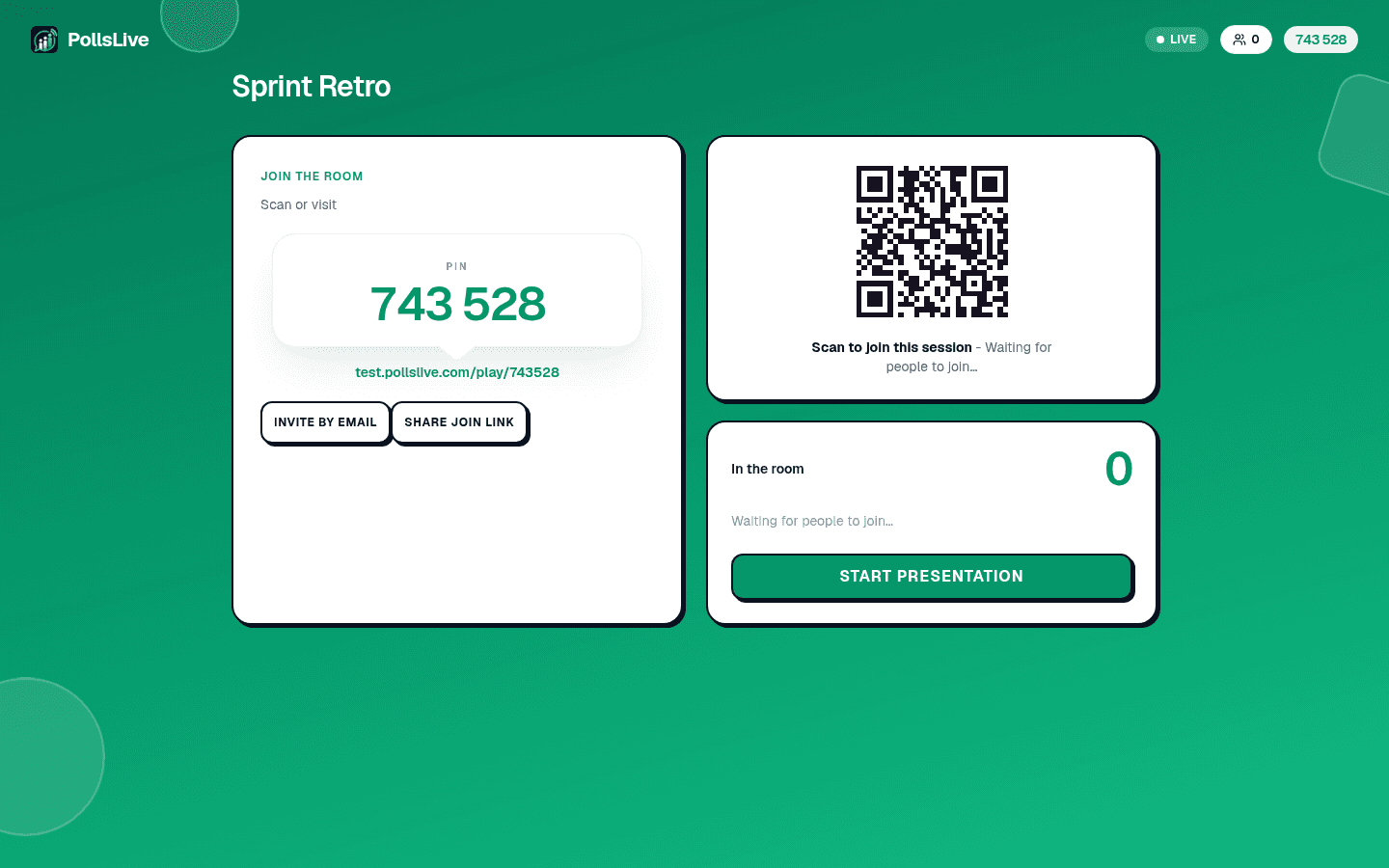
Open pollslive.com and build your question: Multiple choice for decisions, Scale for clarity checks, Word cloud for takeaways. Click Present live to get a 6-digit PIN and QR code. Do this before you start presenting, not live in front of the audience.
Deck mein transition slide jodein
PowerPoint, Google Slides, ya Keynote mein jahan poll chalana hai wahan blank slide insert karein. PIN aur QR code ka screenshot paste karein. Title kuch aisa rakhein "Live poll: join now" taaki room ko pata ho kya karna hai.
Browser tab mein host console kholen
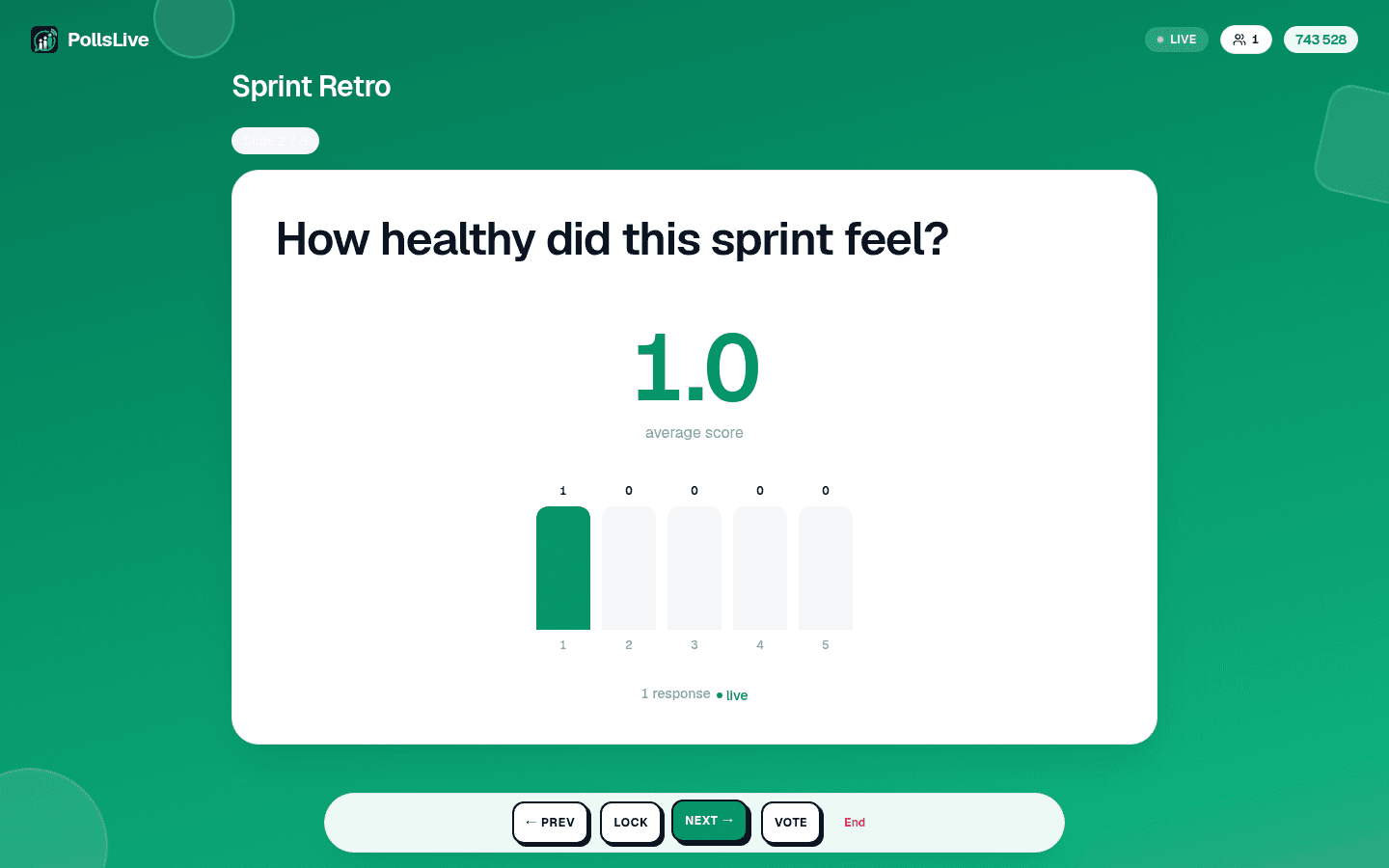
Present karne se pehle PollsLive host console alag browser tab mein khol kar ready rakhein. Transition slide par pahunchein to room se kahein: "pollslive.com par jayein aur ye PIN enter karein." Host tab par switch karke results view ki screen share karein.
Results discuss karein aur deck par lautein
Room ko vote karne ke liye 60-90 second dein. Jo dekhein woh batayein: "Interesting, 38% ne budget kaha. Chaliye seedhe is par baat karte hain." Discussion khatam ho to slide deck par wapas jayein aur continue karein.
Tip
Session se pehle meeting invite ya Slack channel mein QR code share karein: kuch log slide one par hi scan kar lete hain.
Method 2: Dual-screen presenter setup
Agar laptop se alag display output par present karte hain, slide deck projector par aur PollsLive laptop screen par kholen. Slides normal chalayein, poll moment par projector PollsLive full-screen results view par flip karein. Notes laptop par rehte hain.
Note
PollsLive also works with Google Slides, PowerPoint, and Zoom via the integrations hub, no add-in required for any of them.
Presentation ke dauran poll kab chalayein
- Opening diagnostic: "Before we start, where are you on this topic?" Calibrate depth to the room.
- Mid-presentation check: 1-5 scale par "Ab tak kitna clear hai?" End se pehle lost audience pakdein.
- Decision point: "Which approach resonates most?" Gets audience stake in the outcome.
- Knowledge check: A quick quiz slide mid-webinar maintains attention.
- Closing ask: "Top takeaway kya hai?" Word cloud summary ban jata hai jo land hua.
Mid-presentation mein best kaam karne wale poll types
- Multiple choice (3-4 options): fastest to run, works for any audience size.
- Scale (1-5): clarity checks, confidence ratings, statement se agreement.
- Word cloud: takeaways, opening associations, closing thoughts. Visual aur memorable.
- Q&A with upvotes: replaces raised-hand Q&A for audiences of 30+. See live audience Q&A.
Important
100% participation ka wait na karein: room ka 60-70% great result hai. 90 second ke baad aage badhein warna energy gir jati hai.
Smooth experience ke tips
- Talk se pehle apne phone par join flow test karein: PIN khud ek baar enter karein.
- Polls 60-90 second rakhein: sabke liye kaafi, pace ke liye chhota.
- Results zor se batayein: presenter ka chart interpret karna hi ise land karata hai.
- Har 10-15 minute mein ek poll kaafi: usse zyada ho to talk tool ban jati hai.
Sambandhit guides
PollsLive mein naye ho? 2 minute mein live poll chalana se shuru karein. Conference-scale Q&A ke liye audience response system guide dekhein. Tools evaluate kar rahe ho to Mentimeter se compare karein.
Events ke liye PollsLive aur slide/meeting tool companions ke liye features dekhein.
अभी एक live poll शुरू करें: आपके लिए मुफ़्त sign-in, आपकी audience के लिए कोई app या account नहीं.
एक मुफ़्त poll बनाएँ