
July 9, 2026 · 10 min read
Cómo crear una encuesta desde cero, paso a paso
Crea una encuesta desde cero: ponle nombre, añade preguntas, elige los tipos, decide cuándo se ven los resultados y publica o presenta. Capturas de cada paso.
Las plantillas son la forma más rápida de empezar, pero a veces quieres tus preguntas exactas en tu orden exacto. Crear un deck desde cero en PollsLive lleva unos minutos tras iniciar sesión gratis. Aquí tienes todo el proceso, paso a paso.
Dónde empieza la creación
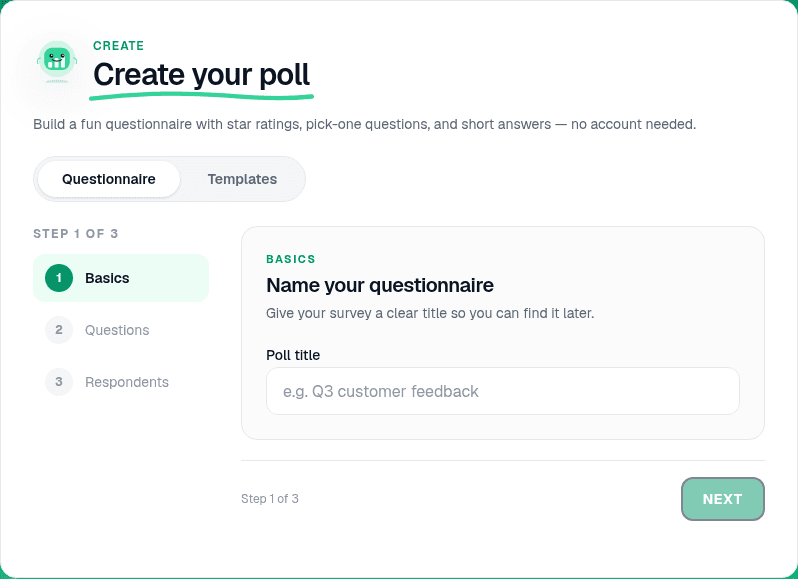
En la página de inicio, el panel Crea tu encuesta tiene dos pestañas: Cuestionario, donde construyes tu propio conjunto de preguntas, y Plantillas, donde partes de un deck listo. Esta guía sigue la ruta del Cuestionario.
Paso 1: Ponle nombre y añade tus preguntas
Primero, Datos básicos: dale a la encuesta un título claro (algo como "Feedback de clientes Q3") para encontrarla después, y haz clic en Siguiente.
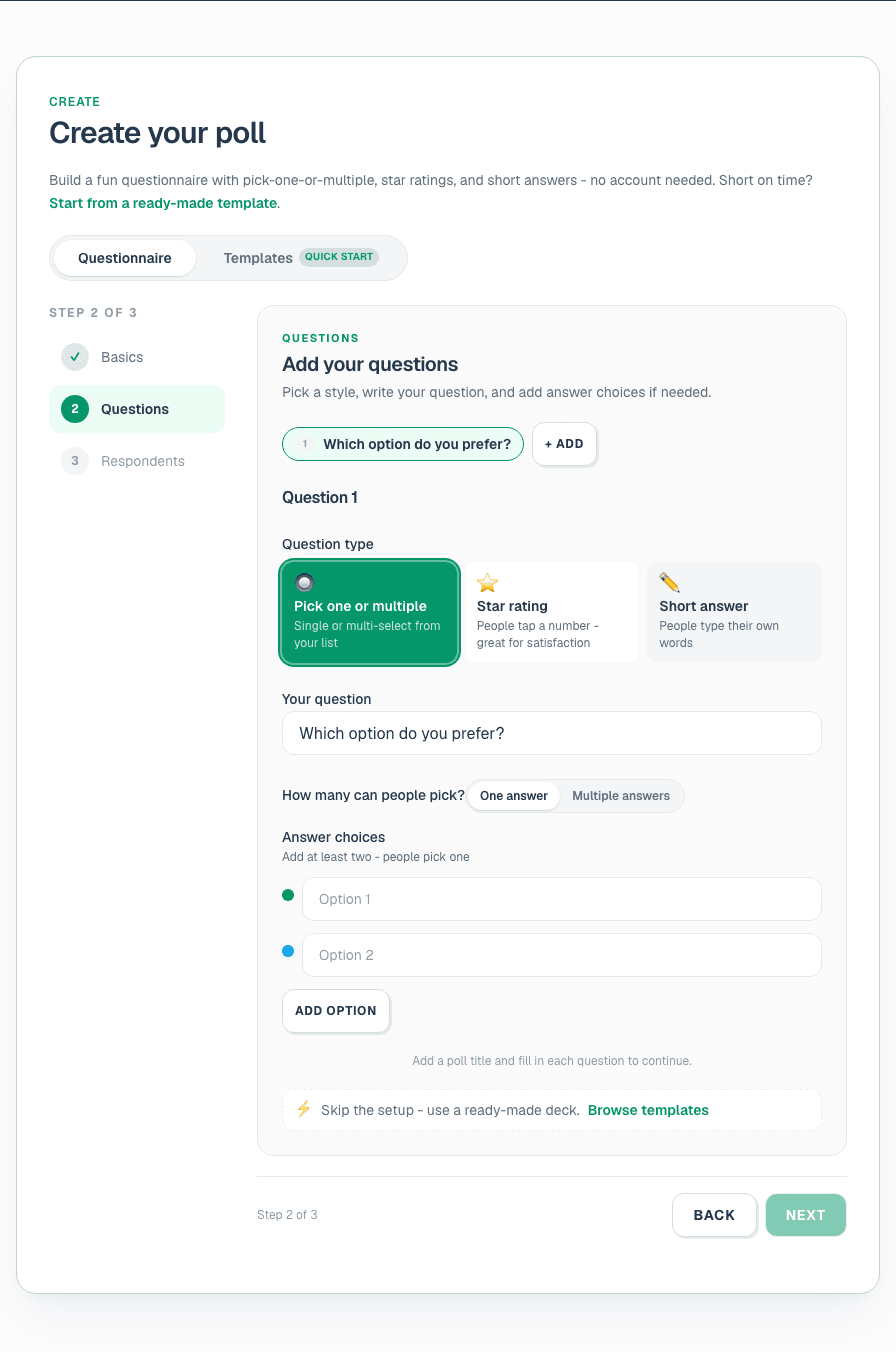
En Preguntas, añade cada pregunta y elige un tipo. En este constructor rápido las opciones son Elige una (opción múltiple), Valoración con estrellas (escala del 1 al 5) y Respuesta corta (texto abierto). Escribe el enunciado, añade las opciones de respuesta y usa Añadir para sumar todas las que necesites. Luego configura las opciones de Encuestados (si pedir nombre y si recoger datos de contacto) y haz clic en Crear cuestionario.
Un detalle a tener en cuenta: en cuanto tu encuesta tiene más de una pregunta, PollsLive la convierte automáticamente en una encuesta: todas las preguntas en una página compartible, con resultados combinados al final. Es justo lo que quieres para formularios de feedback y comprobaciones con varias preguntas.
Paso 2: Refínala en el editor
Ahora estás en el editor, donde está el control real. Cada pregunta es una página en la lista de la izquierda. Añade más con Añadir página, arrastra para reordenar o elimina las que no necesites. Selecciona cualquier página para editarla a la derecha.
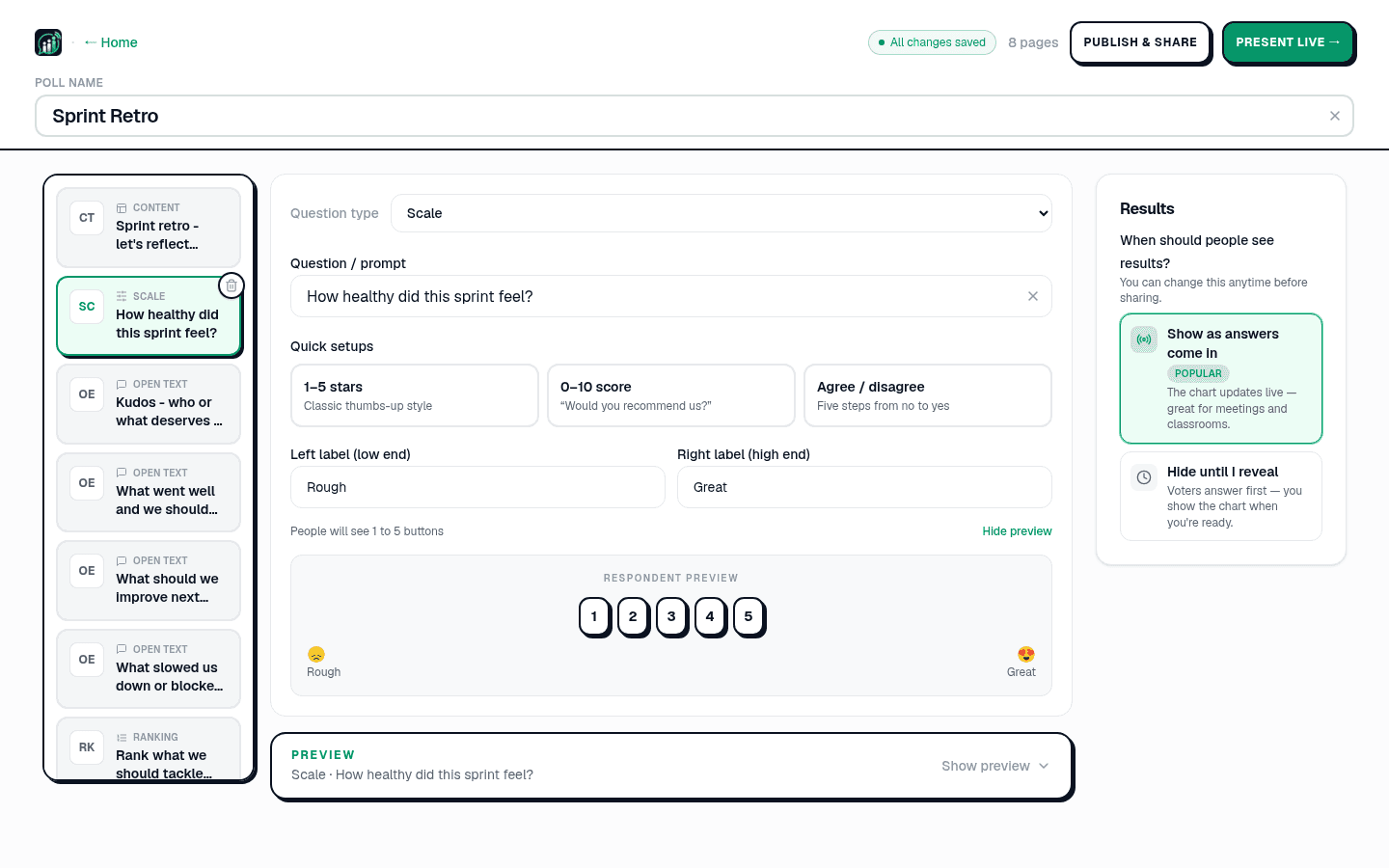
El menú completo de Tipo de pregunta es más amplio que el constructor rápido: Opción múltiple (una o varias respuestas), Quiz (con tiempo, puntuación y tabla de clasificación), Texto abierto (puede mostrarse como nube de palabras en vivo), Q&A (preguntas del público con votos positivos), Escala (1 a 5, puntuación NPS del 0 al 10 o de acuerdo/en desacuerdo), Ranking (arrastrar opciones en orden), Planning Poker (estimación de story points) y Contenido (diapositiva informativa sin respuestas). Las opciones se colorean solas, puedes añadir hasta 20 por pregunta, y las páginas de quiz permiten marcar la respuesta correcta y fijar un límite de tiempo. No hay botón Guardar: el encabezado muestra Todos los cambios guardados un segundo después de dejar de escribir.
Tip
El menú completo de Tipo de pregunta en el editor es más amplio que el constructor rápido: puedes añadir páginas de Quiz, Q&A, Ranking y Planning Poker después de entrar en el editor.
Paso 3: Decide cuándo ven los resultados
A la derecha, bajo ¿Cómo vas a realizar esta encuesta?, elige En vivo, yo la presento. Dos opciones debajo deciden qué hace cada diapositiva al abrirse. Con Ocultos hasta que los muestre, la predeterminada, los resultados permanecen ocultos hasta que pulsas Mostrar, mejor cuando no quieres que las primeras respuestas anclen a la sala. Con Visibles según llegan los votos el gráfico se actualiza en vivo desde la primera respuesta, ideal para reuniones y aulas donde ver moverse las barras forma parte del momento.
Paso 4: Publica o presenta
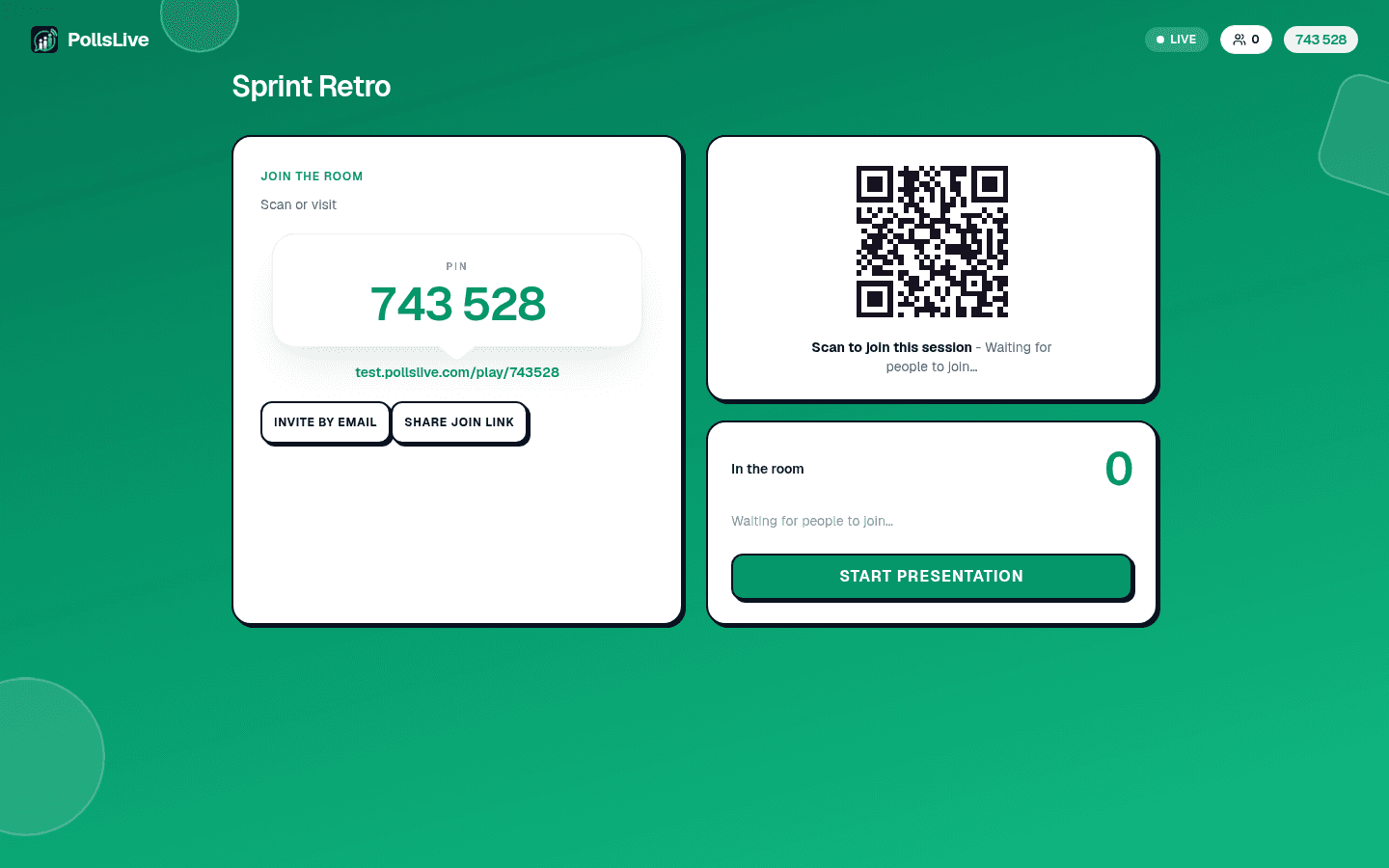
Dos formas de poner tu encuesta delante de la gente. Compartir un enlace crea una página permanente en pollslive.com/p/tu-encuesta con su propio enlace y código QR, ideal para una encuesta que envías por email o WhatsApp. Presentar en vivo inicia una sesión en tiempo real con un PIN de acceso y QR en pantalla, ideal para una sala delante de ti.
De cualquier modo, cuando empiezan a llegar respuestas las ves como las configuraste: aquí tienes una pregunta de opción múltiple recogiendo votos en tiempo real:
¿Qué tema deberíamos cubrir primero el próximo trimestre?
Eso es una encuesta completa creada desde cero. ¿Quieres ventaja la próxima vez? Explora la galería de plantillas: puedes partir de un deck listo y editarlo exactamente así. Para profundizar en cualquier tipo de pregunta, consulta la referencia de tipos de pregunta.
Lanza una encuesta en vivo ahora mismo: inicio de sesión gratis para ti, sin app ni cuenta para tu audiencia.
Crea una encuesta gratis