
September 29, 2026 · 5 min read
Live ranking polls: up/down reorder on phones, aggregate on stage
Studio walkthrough of PollsLive ranking questions: build the list, reorder with up/down on phone, submit, and read the live weighted chart on the host console.
A multiple-choice vote tells you which option wins. A ranking question tells you the order the room would ship in. Everyone has to put something second and something last, so the loudest voice cannot claim "everyone wants X" without also saying what they would cut.
This is a practical Studio walkthrough of that flow: add a Ranking slide, present live, let people reorder on their phones with up / down, hit Submit ranking, and read the weighted chart on the host console. It complements the high-level question types overview and the feature prioritization workshop. Here we stay on the real controls, with a screenshot for each step.
Tip
Keep ranking lists to five or six options. Ten items still work in the product, but phones get long and people start ranking by fatigue instead of priority.
Add a Ranking slide in Studio
Open a poll in Studio and set the question type to Ranking. Write a prompt that forces a trade-off: "Rank these product initiatives for next quarter" is clearer than "What do you like?" Add two to ten options. Each option is just a short label; you can attach media later if a picture helps, but most prioritization rooms work fine with plain text.
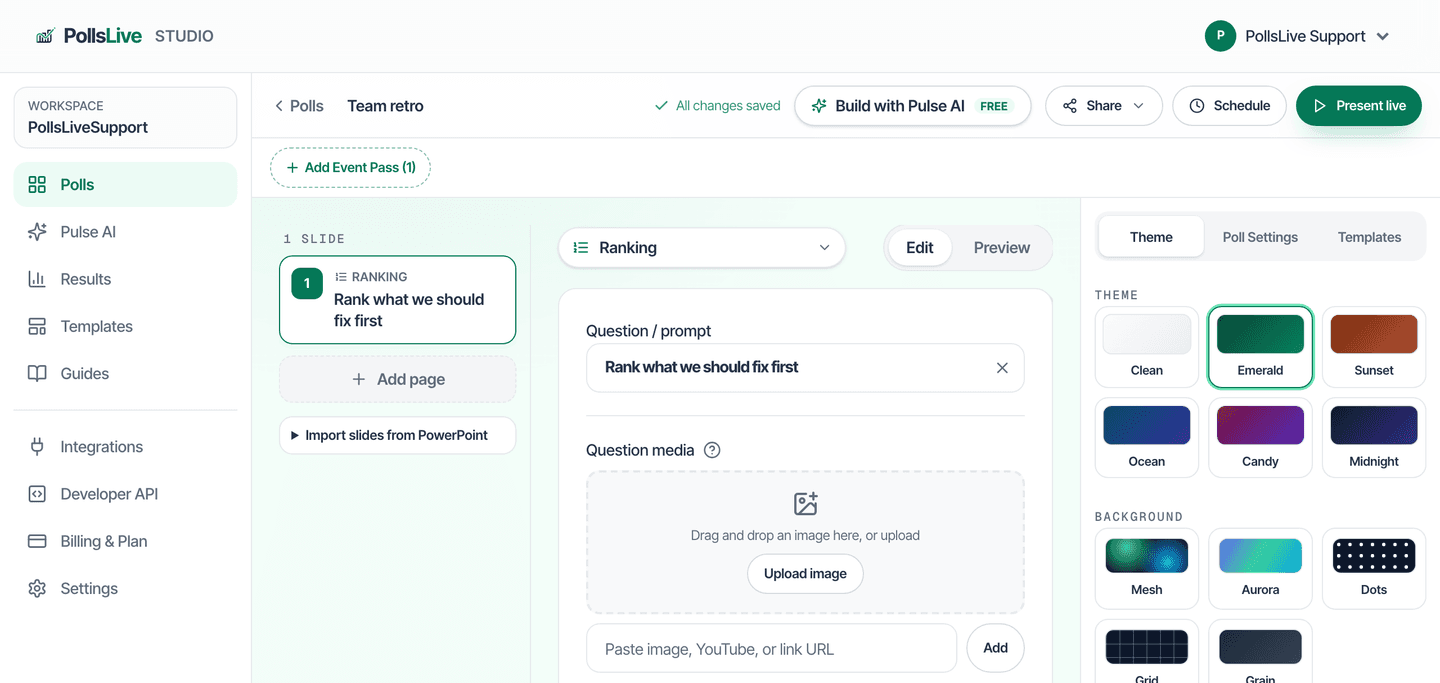
Leave answering on live results if you want the stage chart to update as people submit. You can still Hide the chart mid-session if you want discussion before the room sees the aggregate. Names are optional; for a product council you usually want them on so you can ask why someone put SSO first.
Present live and wait for ranks
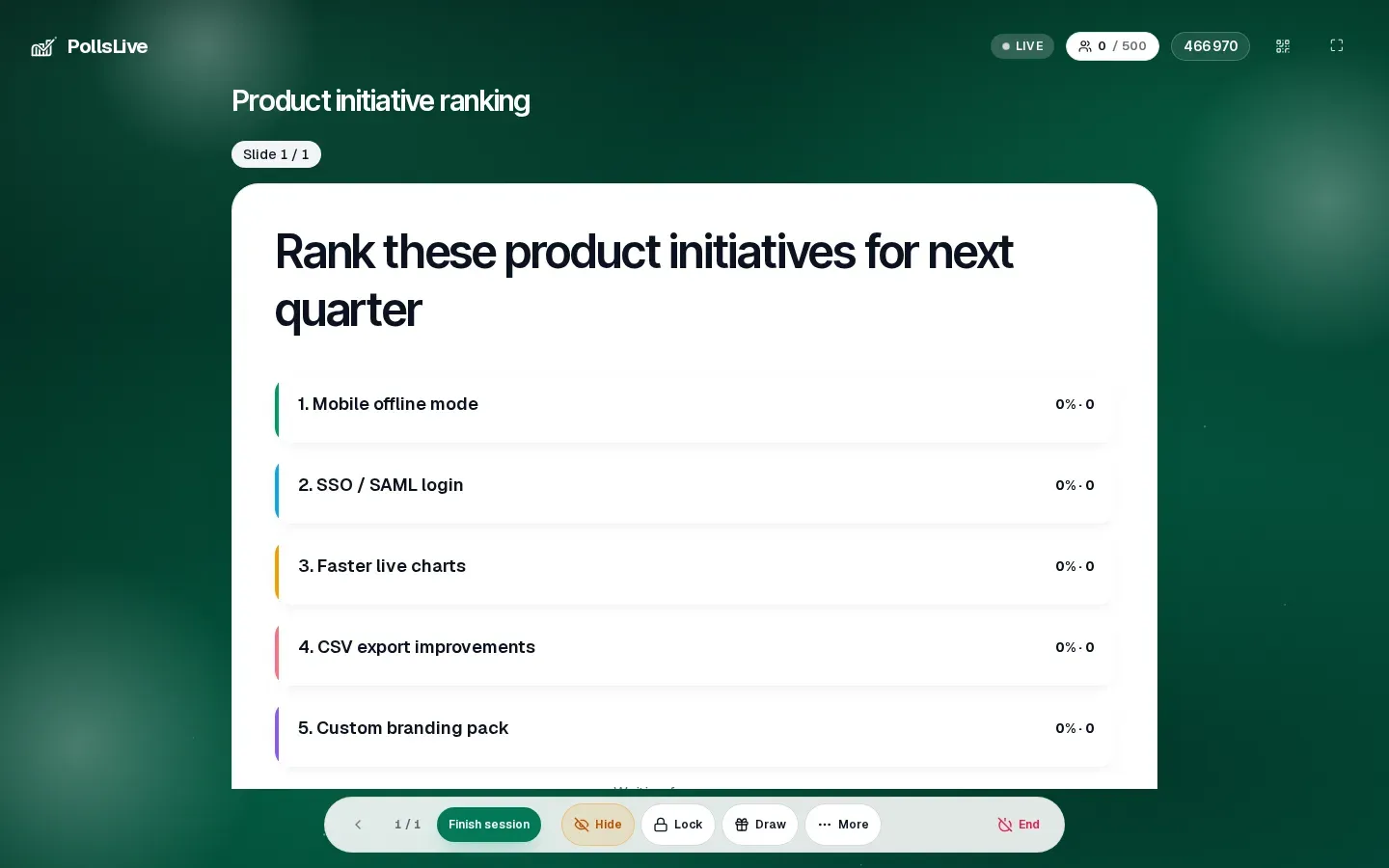
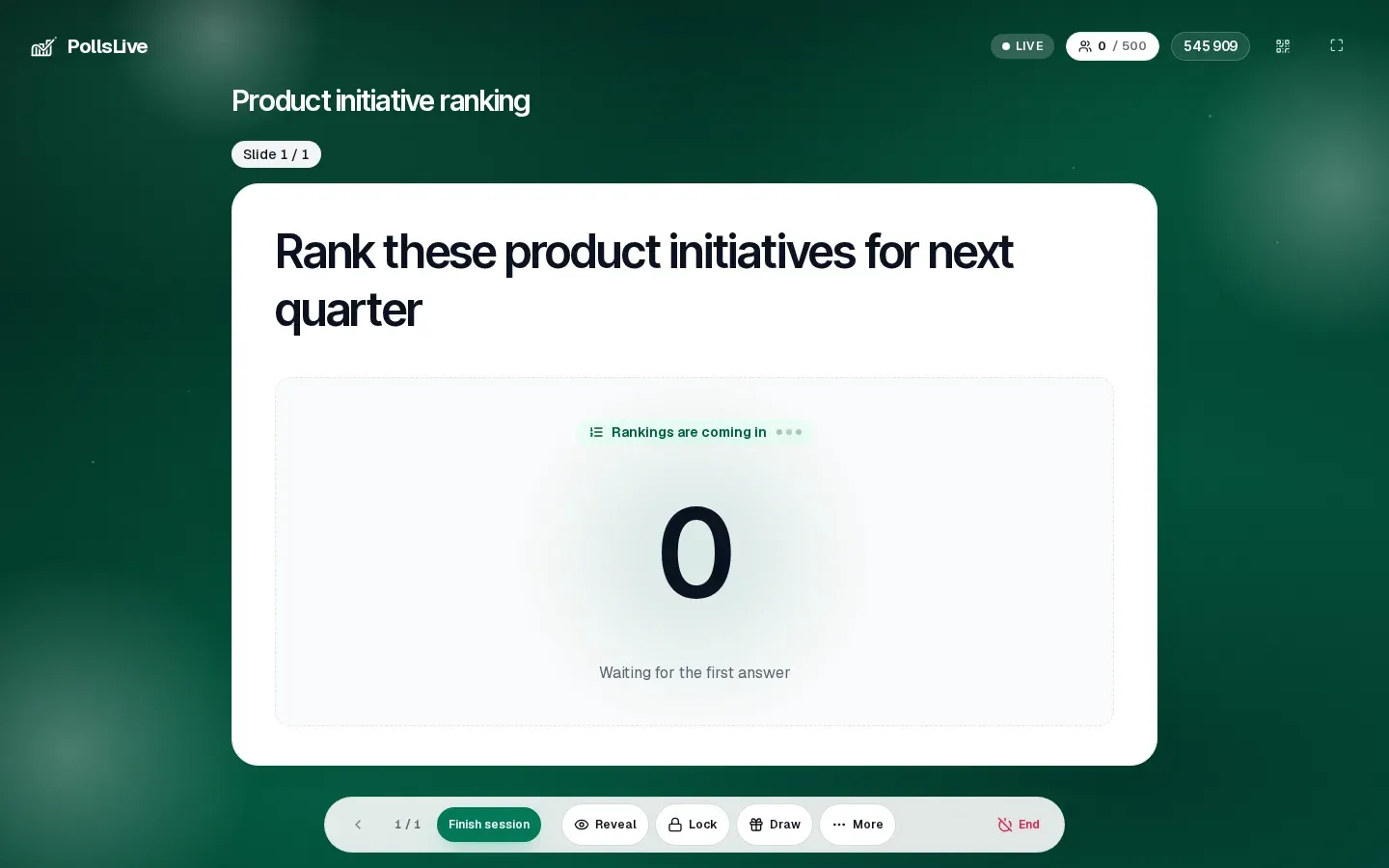
Click Present live. The host console shows the prompt, the option list at 0%, and the participant count. Share the PIN or QR. Until the first ranking lands, the board honestly says it is waiting. That empty state is useful. Do not fake scores while people are still joining.
What the audience does on their phone
On the phone, people see the same prompt and a numbered list. Each row has up and down controls so they can reorder an item with a tap. The default order matches what you typed in the editor; their job is to change it.
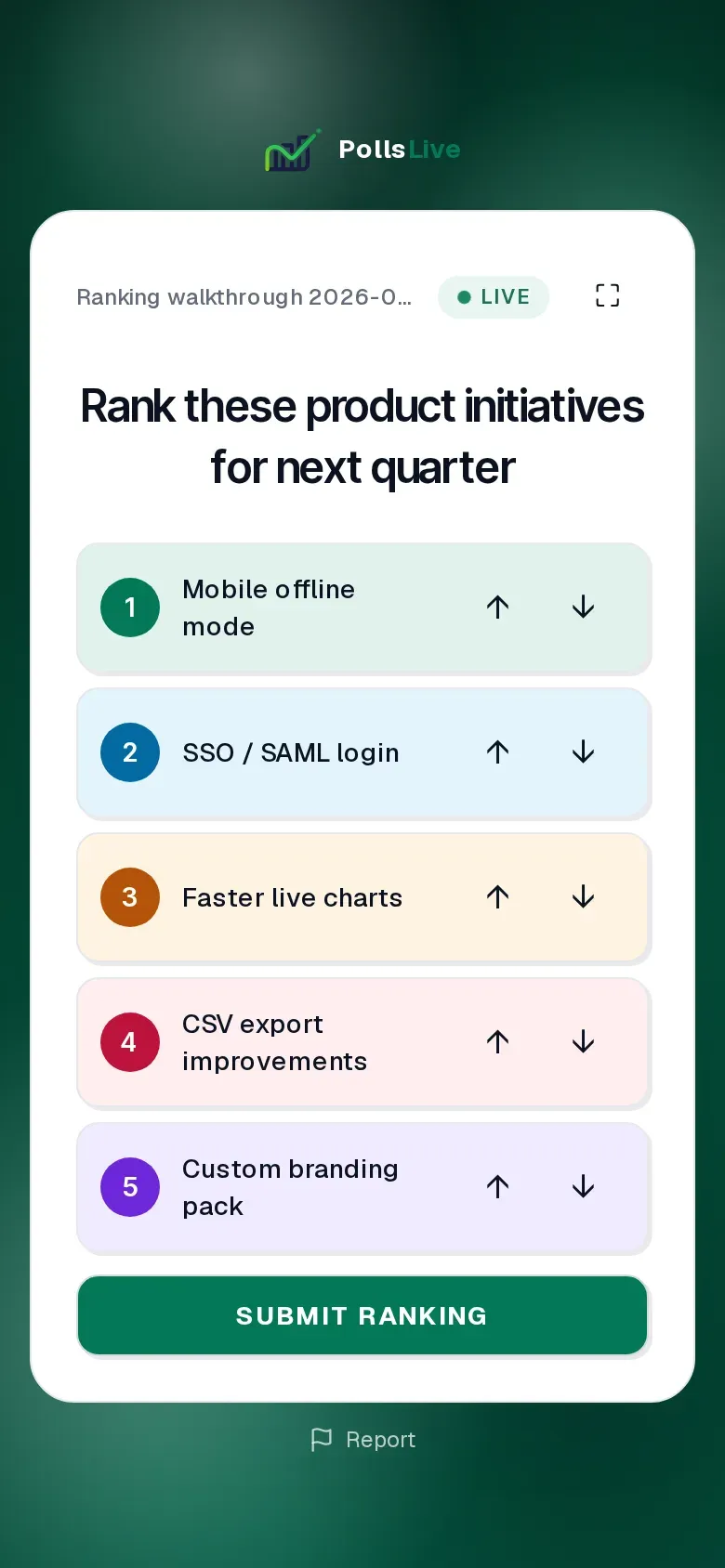
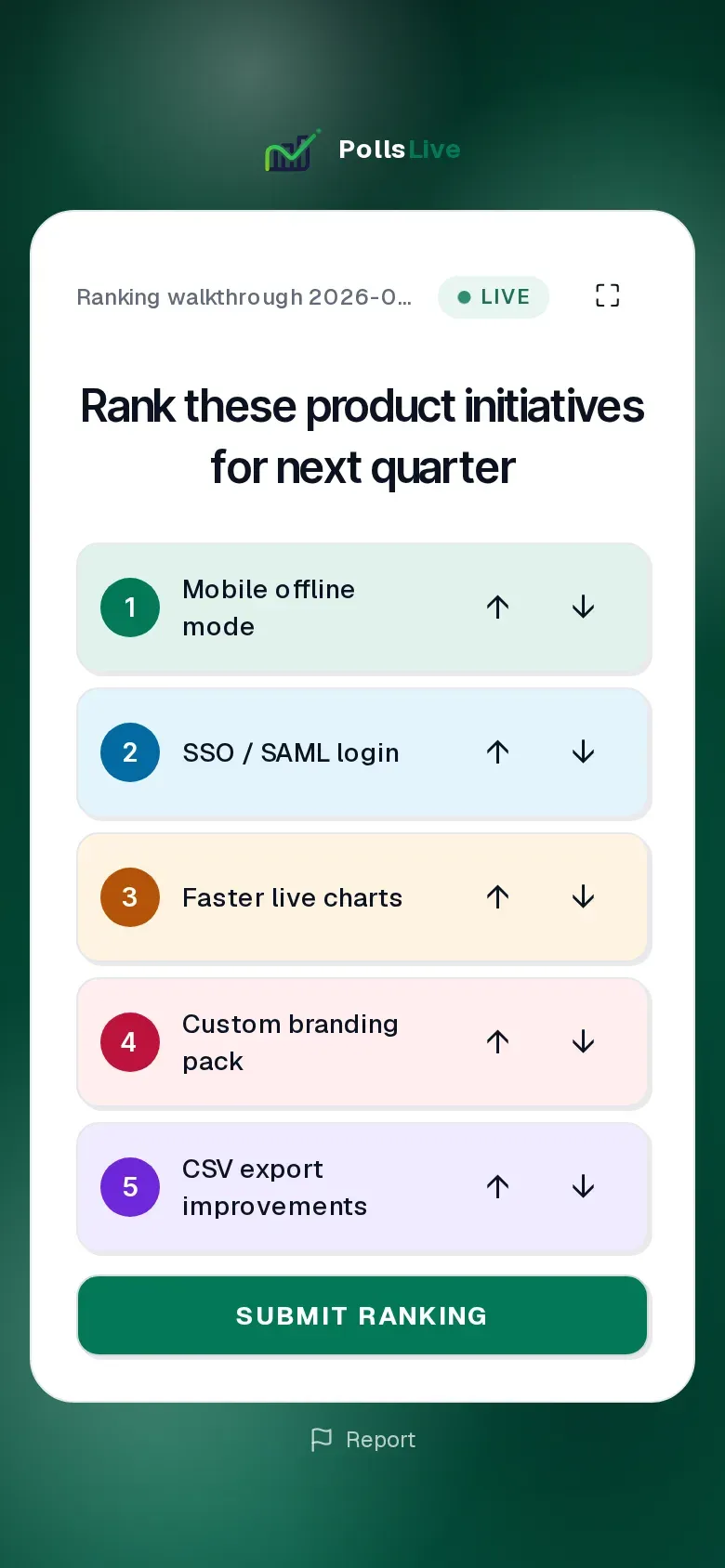
Tap up on something that should climb, down on something that should drop. In the example below, moving Custom branding pack above CSV export improvements is enough to change the bottom of the stack. When the order matches what they would defend out loud, they tap Submit ranking.
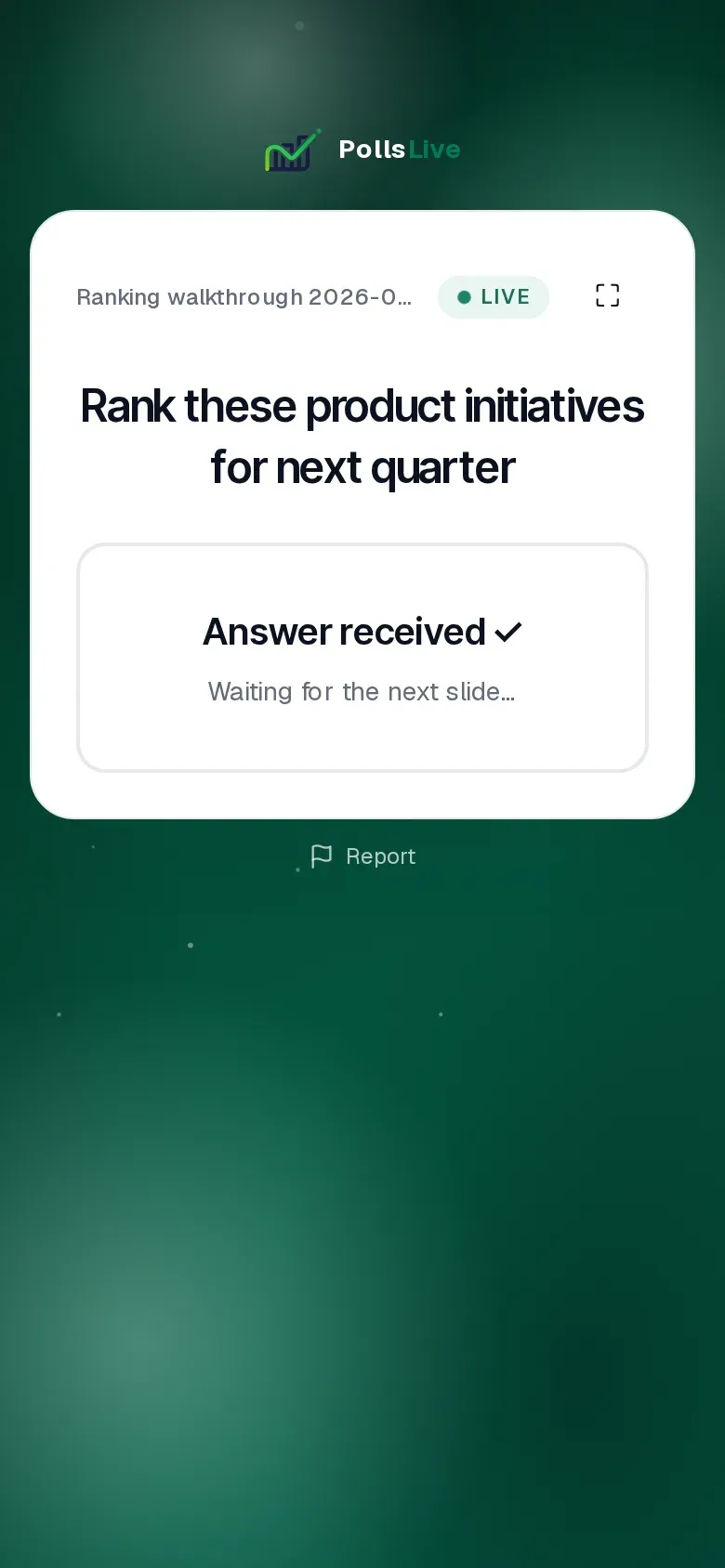
After submit, the card flips to Answer received OK and waits for the next slide. People cannot keep nudging the order after that unless you unlock and ask for a re-vote. That one-shot feel is intentional: ranking is a commitment, not a fidget toy.
Read the live aggregate on stage
As rankings arrive, the host chart reorders by weighted score. First place pays more than fifth. You will see a percentage bar and a point total next to each option. In a three-person room you might see something like Mobile offline mode at 100% (15 points), SSO at 80% (12 points), and the rest stepping down. The highlight on #1 is for the projector, not a claim of statistical significance.
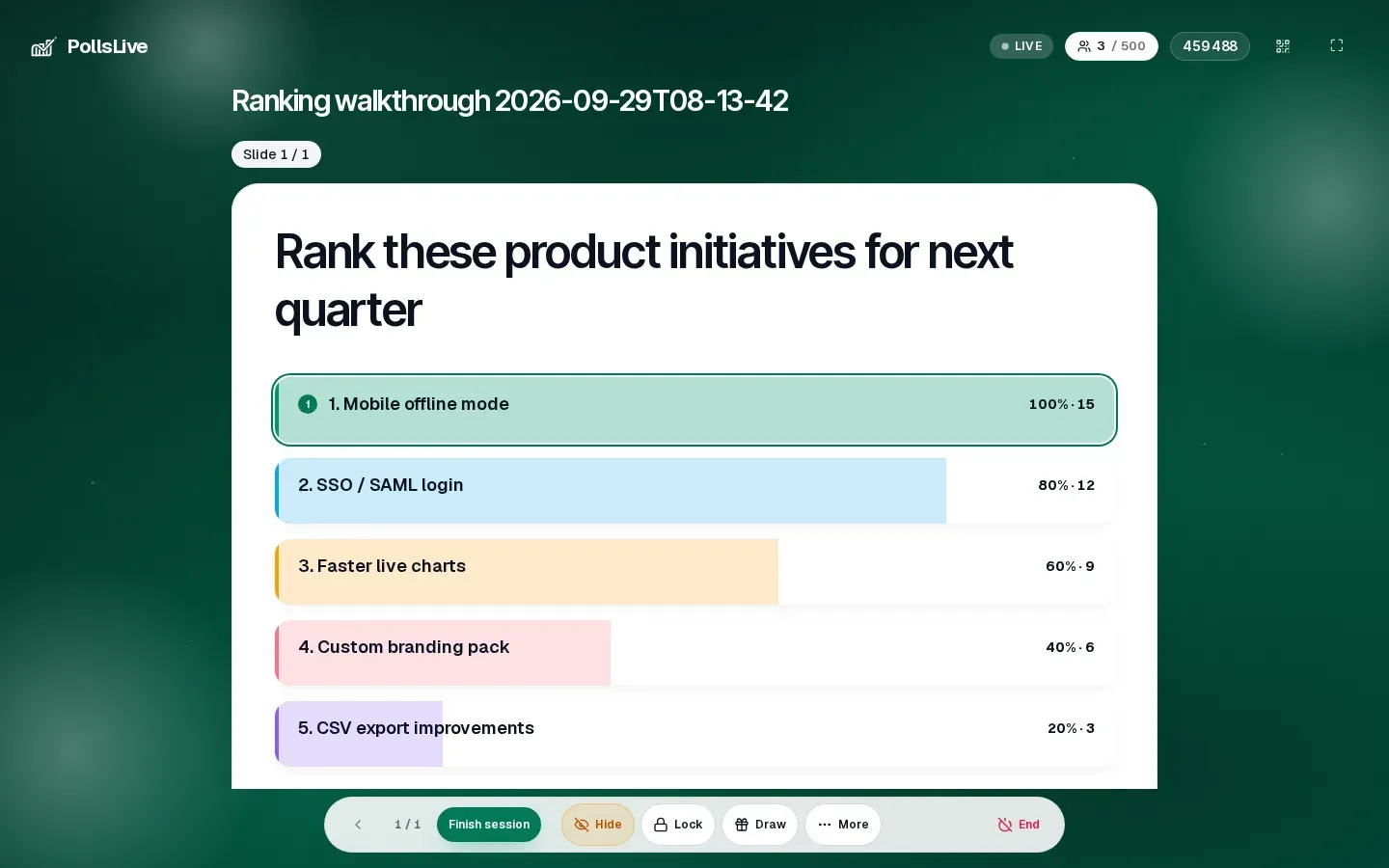
- Talk to the gaps, not only the winner. A 100 vs 80 fight between #1 and #2 is usually more useful than crowing about #1.
- Ask one person from the minority stack. If CSV export is last for most people but first for support, that is the conversation.
- Do not average away context. Export the results later if you need a spreadsheet; the live job is to decide what to discuss next.
Hide, Reveal, and Lock while ranks are in
The same presenter dock you use on other slides works here. Hide pulls the chart so you can debate before the room anchors on the bars; the control becomes Reveal when you are ready. Lock stops further submits when late joiners would only muddy a decision you already made. None of this is Event Pass-only: it is on a regular live session.
Note
Hide on a ranking chart is different from Q&A moderation. You are concealing an aggregate, not approving individual rows. For approve-before-show questions, see the Q&A moderation queue walkthrough.
A five-minute practice loop
- Create a Ranking slide with five realistic options from your next planning meeting.
- Present live as a rehearsal and join from your phone.
- Reorder with up / down, submit, and confirm Answer received.
- On the host console, watch the weighted order update, then try Hide -> Reveal once.
- Lock when you would stop the room in a real meeting, then Finish session.
When ranking is the wrong tool
Skip ranking when you only need a single winner (use multiple choice), when you need intensity without order (use a scale), or when the list is still fuzzy brainstorming (use open text or a word cloud first). Ranking shines when the options are already shortlisted and the fight is about sequence.
Related reading
For workshop facilitation around roadmap order, see Live feature prioritization with users. For how ranking sits next to the other eleven types, see The 12 PollsLive question types. For Hide / Reveal timing in general, see Live, reveal, or survey.
Put five options on a Ranking slide, make the room order them on their phones, and let the weighted chart settle the argument. That is the whole job.
Open Studio, add a Ranking slide, and rehearse a five-option up/down reorder before your next planning meeting.
Create a free poll