
September 7, 2026 · 6 min read
Controles del presentador en una encuesta
La pantalla del presentador en una encuesta en vivo: avanzar por la presentación, saltar a una diapositiva, leer el indicador de conexión y cerrar bien.
La mayoria de las guias sobre encuestas en vivo terminan en "pulsa Presentar en vivo". Esa es la parte facil. Lo que decide si una sesion sale bien son los veinte minutos siguientes, en una pantalla que mira toda la sala y normalmente mientras tu hablas. Esto es todo lo que te da la pantalla del presentador, y cuando importa cada cosa.
Getting everyone in, and keeping the door open
Starting a session puts a 6-digit PIN and a QR code on screen. Both stay there for the whole session, and the QR button in the header blows the code up to fill the screen for a big room. That matters more than it sounds: people arrive late, and a code that vanished after the first slide is the most common reason a room only half participates. You do not have to go back to the lobby to show it again.
Driving the deck
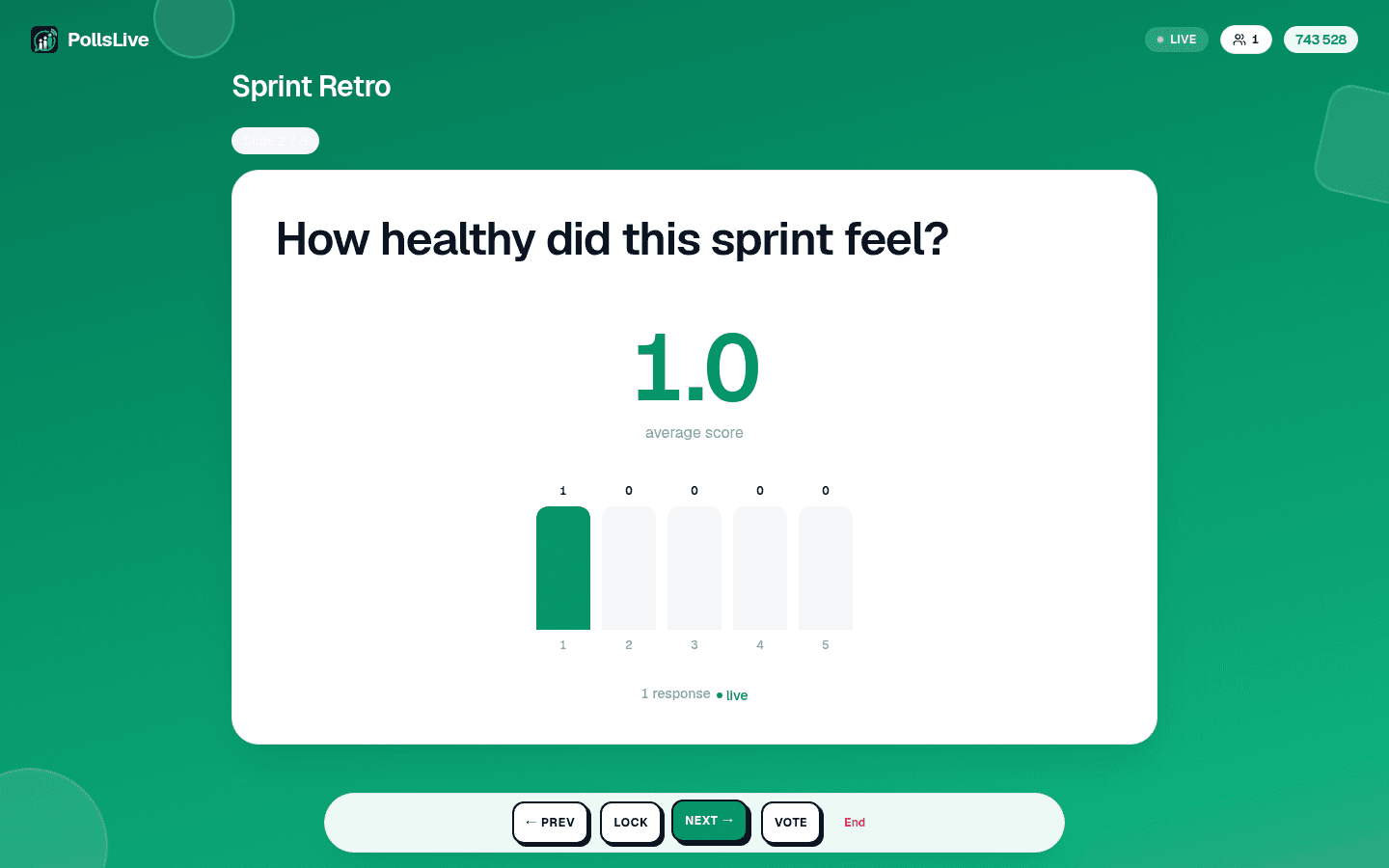
- Prev and Next move through your questions.
- Reveal shows the chart when you are ready, if the deck is set to hide results until you say so. Re-vote clears an estimation round and runs it again.
- Lock stops new answers on the current question without ending anything, useful when you want to talk about a result while it is still on screen.
The keyboard drives all of it too, which is far easier than finding a button mid-sentence: arrow keys or space to move, F for full screen, R to show or hide results.
Jumping to the slide someone just asked about
Somebody puts their hand up about the chart from three questions ago. Jump to slide opens a thumbnail overview of the whole deck; pick any slide and the room goes there. No clicking Next eleven times to get back, and no apologising while you do it.
Tip
No necesitas ser técnico para seguir esta guía. Cada paso usa botones sencillos en PollsLive, sin programar, sin instalar app para tu audiencia.
Que todos entren, y dejar la puerta abierta
- Live: connected, and what you press reaches the room.
- Reconnecting: the connection dropped and is coming back. It only ever appears after you have been connected once, so it is never the normal state at the start.
- Connecting: the first handshake, before anyone has joined.
Al empezar una sesion aparecen en pantalla un PIN de 6 digitos y un codigo QR. Los dos se quedan ahi toda la sesion, y el boton de QR de la cabecera amplia el codigo hasta llenar la pantalla para una sala grande. Importa mas de lo que parece: la gente llega tarde, y un codigo que desaparecio tras la primera diapositiva es el motivo mas comun de que una sala participe solo a medias. No hace falta volver al vestibulo para mostrarlo otra vez.
Manejar el deck
On the last slide the screen offers to end the session, and every way of ending one confirms first: it closes the room for everybody at once, so it should never be a stray tap. The end screen shows the final results, you can share a results image straight from it, and a recap email follows whenever anyone answered. Nothing is lost either way: results, per-person answers and exports all stay in Studio.
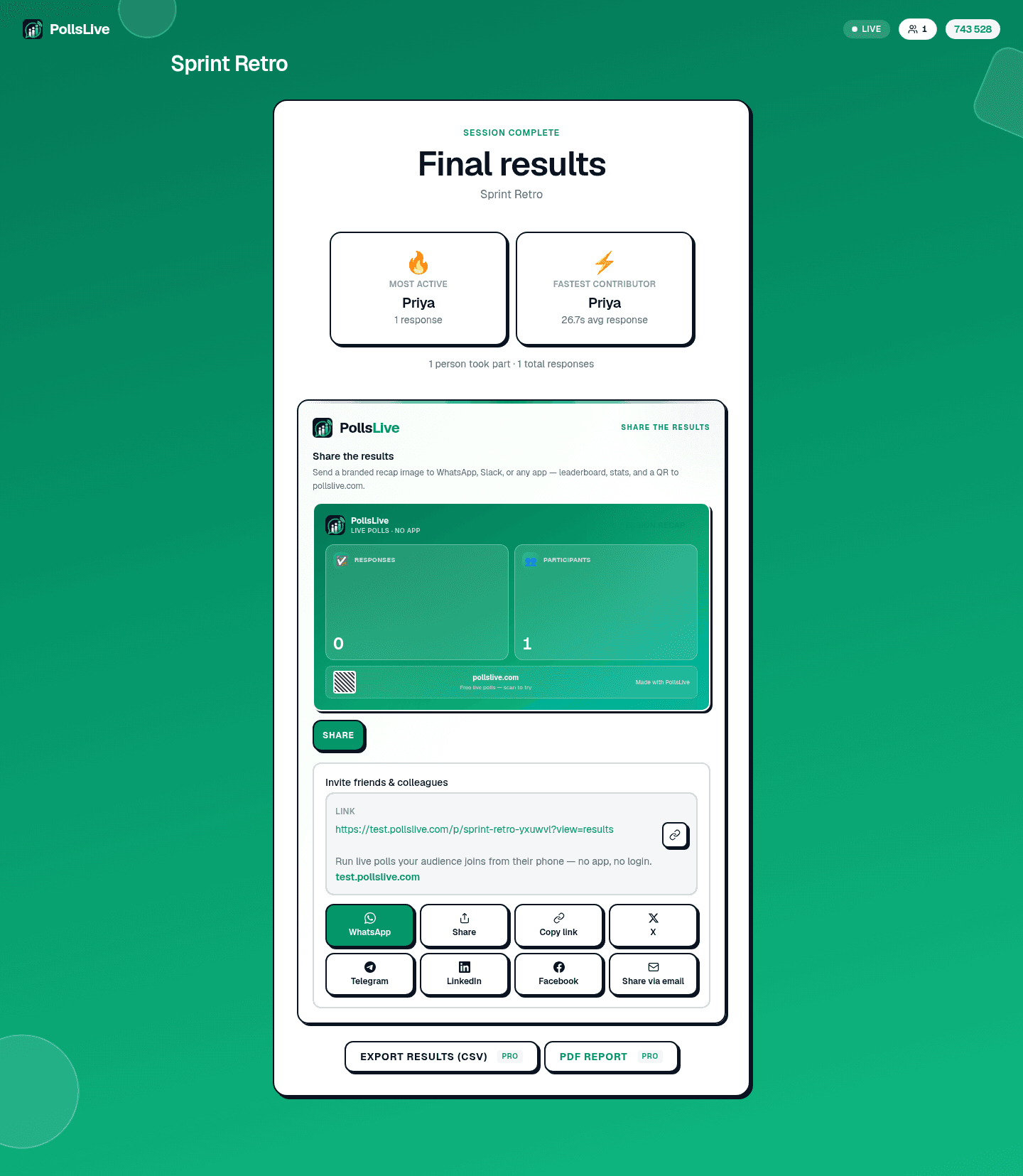
Every control on the presenter screen, in order, with what each one does.
Read the presenting guide