
September 7, 2026 · 6 min read
Präsentator-Steuerung bei Live-Umfragen
Die Präsentatoransicht während einer Live-Umfrage: durchs Deck navigieren, zu einer Folie springen, den Verbindungsstatus lesen und die Session gut beenden.
Die meisten Anleitungen zu Live-Umfragen hoeren bei "auf Live praesentieren klicken" auf. Das ist der einfache Teil. Ob eine Session gelingt, entscheiden die naechsten zwanzig Minuten, auf einem Bildschirm, den ein ganzer Raum ansieht, meist waehrend du sprichst. Hier ist alles, was der Praesentationsbildschirm dir gibt, und wann es jeweils zaehlt.
Getting everyone in, and keeping the door open
Starting a session puts a 6-digit PIN and a QR code on screen. Both stay there for the whole session, and the QR button in the header blows the code up to fill the screen for a big room. That matters more than it sounds: people arrive late, and a code that vanished after the first slide is the most common reason a room only half participates. You do not have to go back to the lobby to show it again.
Driving the deck
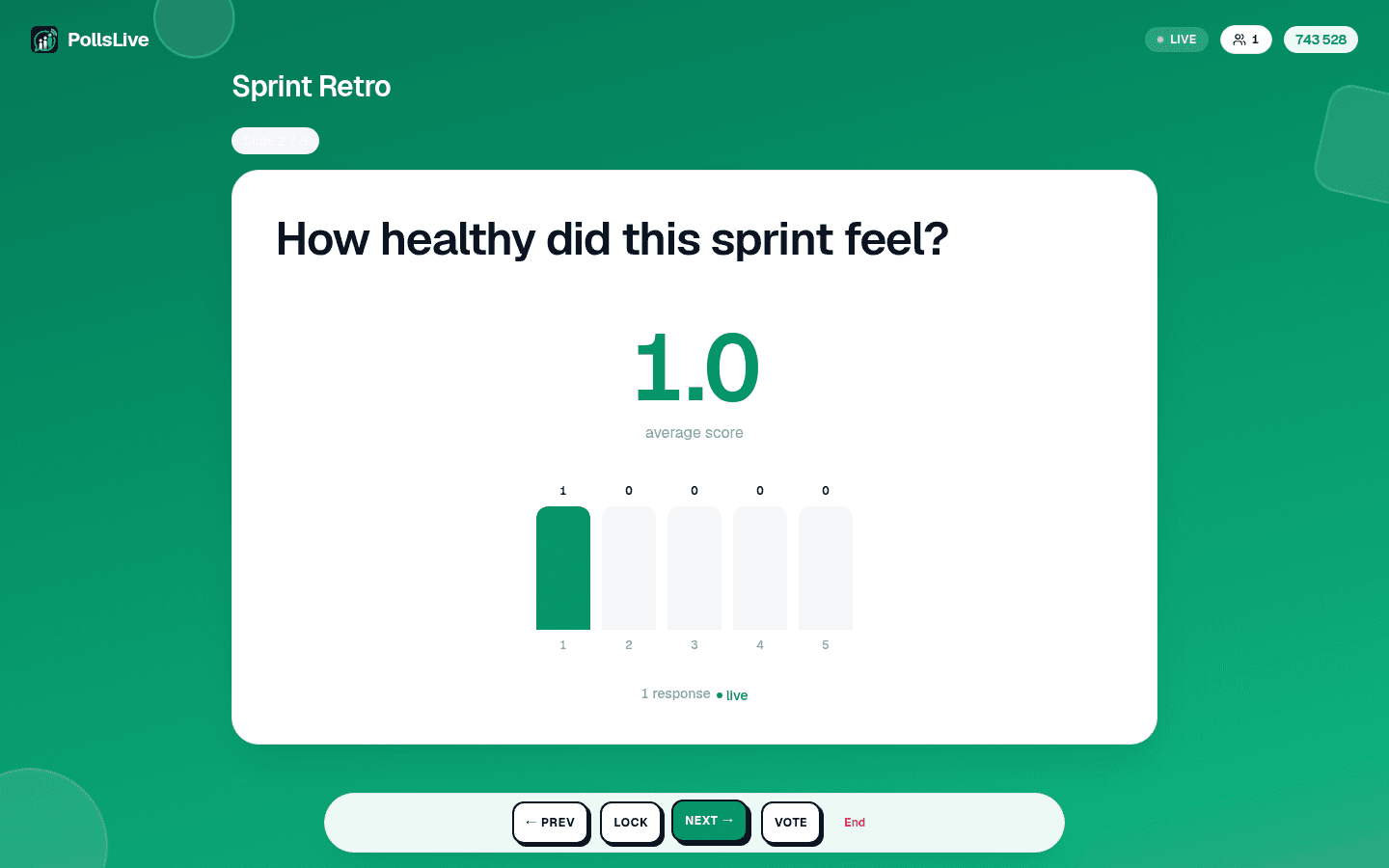
- Prev and Next move through your questions.
- Reveal shows the chart when you are ready, if the deck is set to hide results until you say so. Re-vote clears an estimation round and runs it again.
- Lock stops new answers on the current question without ending anything, useful when you want to talk about a result while it is still on screen.
The keyboard drives all of it too, which is far easier than finding a button mid-sentence: arrow keys or space to move, F for full screen, R to show or hide results.
Jumping to the slide someone just asked about
Somebody puts their hand up about the chart from three questions ago. Jump to slide opens a thumbnail overview of the whole deck; pick any slide and the room goes there. No clicking Next eleven times to get back, and no apologising while you do it.
Tip
Sie müssen nicht technisch sein, um dieser Anleitung zu folgen. Jeder Schritt nutzt einfache Schaltflächen in PollsLive, kein Code, keine App-Installation für Ihr Publikum.
Alle hereinholen und die Tuer offen lassen
- Live: connected, and what you press reaches the room.
- Reconnecting: the connection dropped and is coming back. It only ever appears after you have been connected once, so it is never the normal state at the start.
- Connecting: the first handshake, before anyone has joined.
Beim Start einer Session erscheinen eine 6-stellige PIN und ein QR-Code. Beide bleiben die ganze Session sichtbar, und der QR-Button in der Kopfzeile vergroessert den Code bildschirmfuellend fuer grosse Raeume. Das zaehlt mehr, als es klingt: Leute kommen zu spaet, und ein Code, der nach der ersten Folie verschwunden ist, ist der haeufigste Grund fuer einen nur halb mitmachenden Raum. Du musst nicht in die Lobby zurueck, um ihn noch einmal zu zeigen.
Das Deck steuern
On the last slide the screen offers to end the session, and every way of ending one confirms first: it closes the room for everybody at once, so it should never be a stray tap. The end screen shows the final results, you can share a results image straight from it, and a recap email follows whenever anyone answered. Nothing is lost either way: results, per-person answers and exports all stay in Studio.
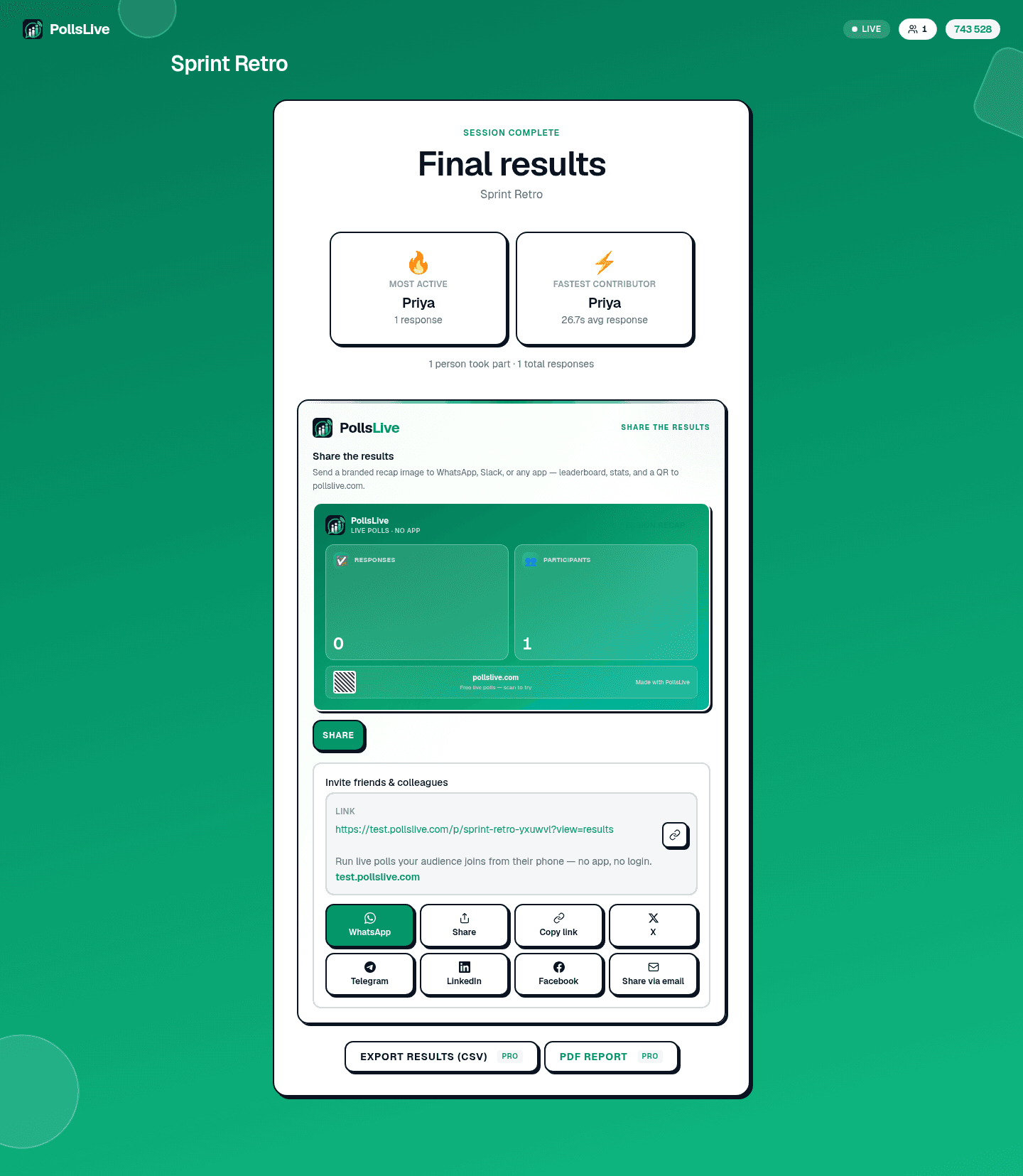
Every control on the presenter screen, in order, with what each one does.
Read the presenting guide