
November 22, 2026 · 8 min read
How to Rehearse a Live Poll Before Walking on Stage: AV, Timing, and Practice Crowd Checklist
Most live polling hiccups happen in the first ninety seconds on stage. Use this technical run-of-show checklist, projector readability test, and simulated practice crowd workflow before doors open.
Almost every live polling failure in a keynote or town hall happens in the first ninety seconds. Either the projector crops the bottom dock, the venue Wi-Fi forces a captive portal right when three hundred phones scan the QR code, or the speaker reveals the bar chart thirty seconds too early and anchors the remaining half of the room. None of those problems come from the questions themselves. They come from testing a live deck as static slides instead of rehearsing it with traffic.
Tip
You can rehearse in two places before attendees ever see a PIN: the zero-account interactive practice room for a quick visual check, and Practice crowd inside your own live presenter console to stress-test your exact slides.
1. Audit your run-of-show pacing before testing AV
Before checking cables or projectors, check your clock. Speakers routinely underestimate how long a live poll takes in a real room. Reading the prompt aloud, letting people pull their phones from pockets, waiting for the response counter to climb past 65 percent, and commenting on the winning bar takes two to three full minutes, never thirty seconds.
- Break continuous talk every 10 minutes. Attention in auditoriums and video calls drops sharply after 10 to 12 minutes of uninterrupted monologue. Drop a pulse check right where energy usually dips.
- Budget 90 seconds for choice polls and 3 minutes for open Q&A. Ranking and word-cloud slides take slightly longer on mobile keyboards than single-tap multiple choice.
- Hold a 10 percent time buffer. Use the free Session Agenda & Run-of-Show Planner to lay out each talk segment, catch long monologue stretches automatically, and export a minute-by-minute stage sheet for your producer.
2. Preview projector and phone views side by side
First-time hosts often wonder what participants actually see on their phones while the main screen holds results back. Opening the interactive practice room lets you toggle between the projector canvas and a participant handset with simulated votes arriving in real time, before you even sign in.
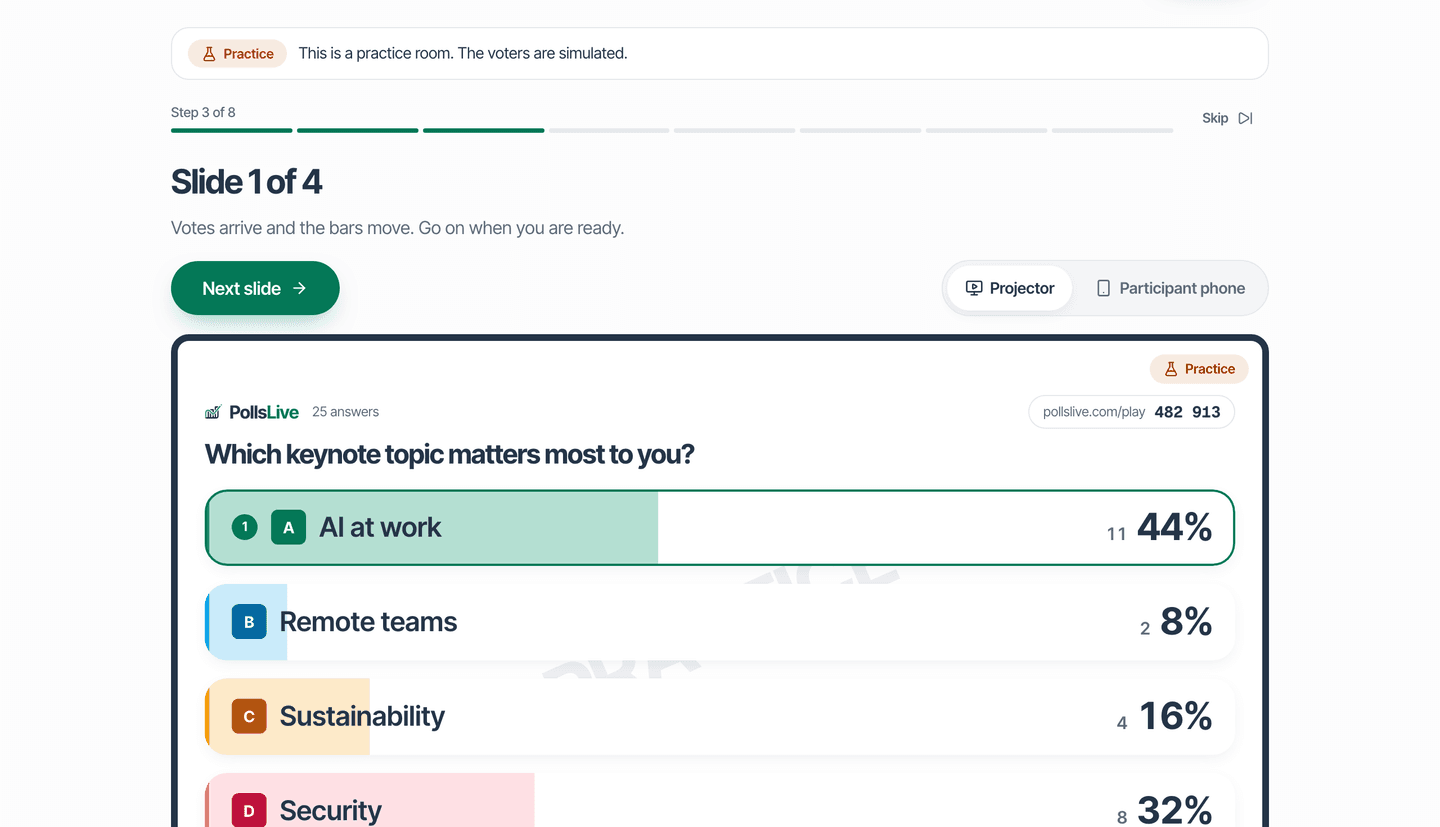
Pay attention to two layout details during this preview: prompt length and option wrapping. A question over sixteen words or five answer choices forces smaller type on a 16:9 ballroom screen. Trim option labels to four or five crisp words so back-row attendees can read the chart at a glance.
3. Run Practice crowd on your real deck
Once your own slides are ready in Studio, open Present live and start Practice crowd from the presenter dock. PollsLive spins up simulated voters against your exact questions: 30 simulated voters on Free, or 100 simulated voters on Pro, Premium, and Event Pass. You get five 10-minute rehearsal runs per UTC day, and rehearsal never consumes one of Free's 3 monthly live sessions.
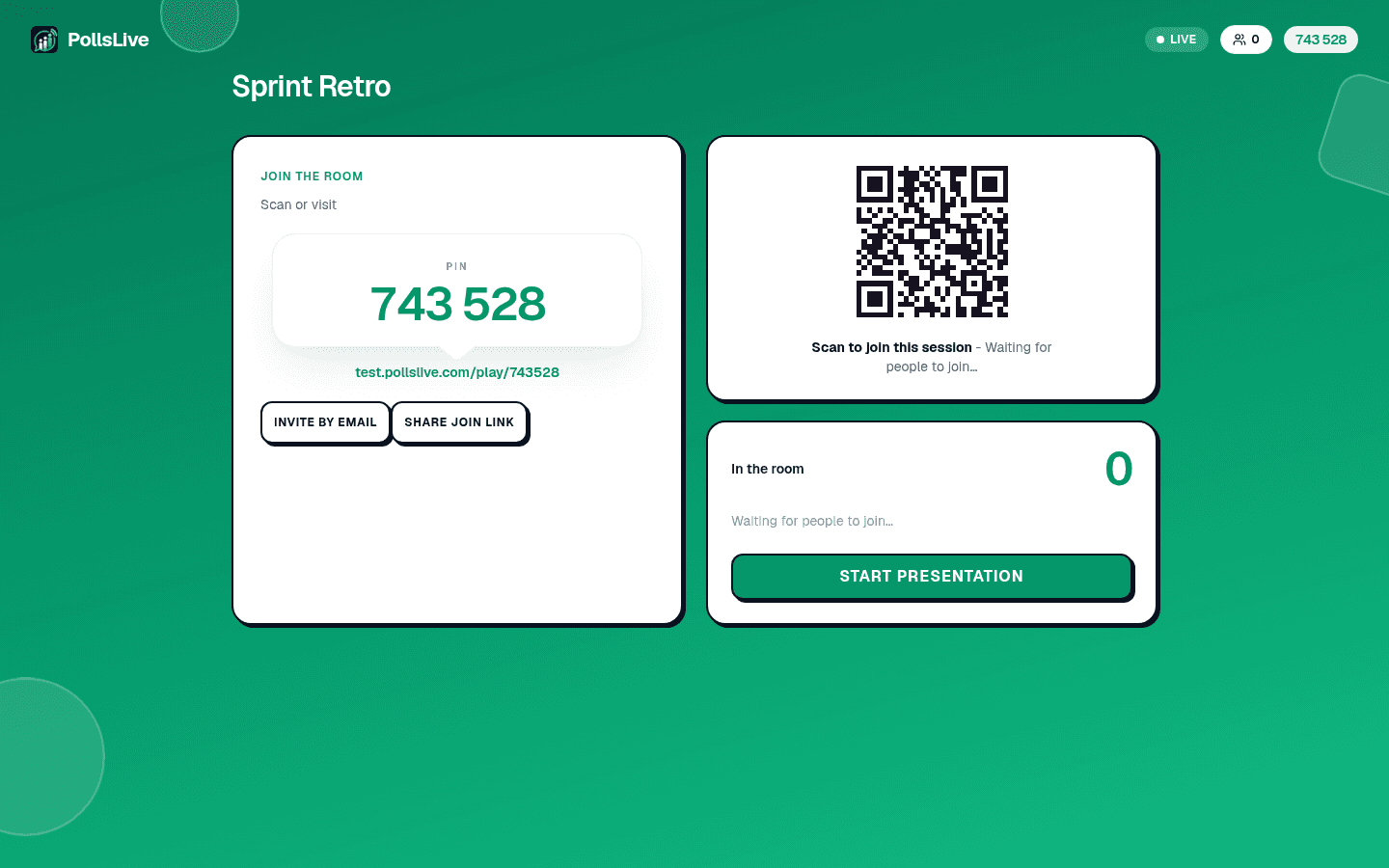
- Keep results hidden while votes climb. Practice watching the live response counter in the dock rather than revealing bars immediately. Reveal only after roughly two-thirds of the simulated crowd has answered.
- Step through quiz scoring and leaderboards. If your deck includes timed trivia or a Buzzer Race, verify whether you want the leaderboard after every question or held until the final round.
- Rehearse your spoken transition. Practice reading the top two bars out loud and tying the split back to your next slide. A poll that nobody acknowledges feels like busywork to the audience.
When you present a live poll on stage, what usually trips up the flow?
4. Run the 10-minute venue AV check
When you step into the physical room or join the green-room call before a live event, walk through four checks with the AV lead:
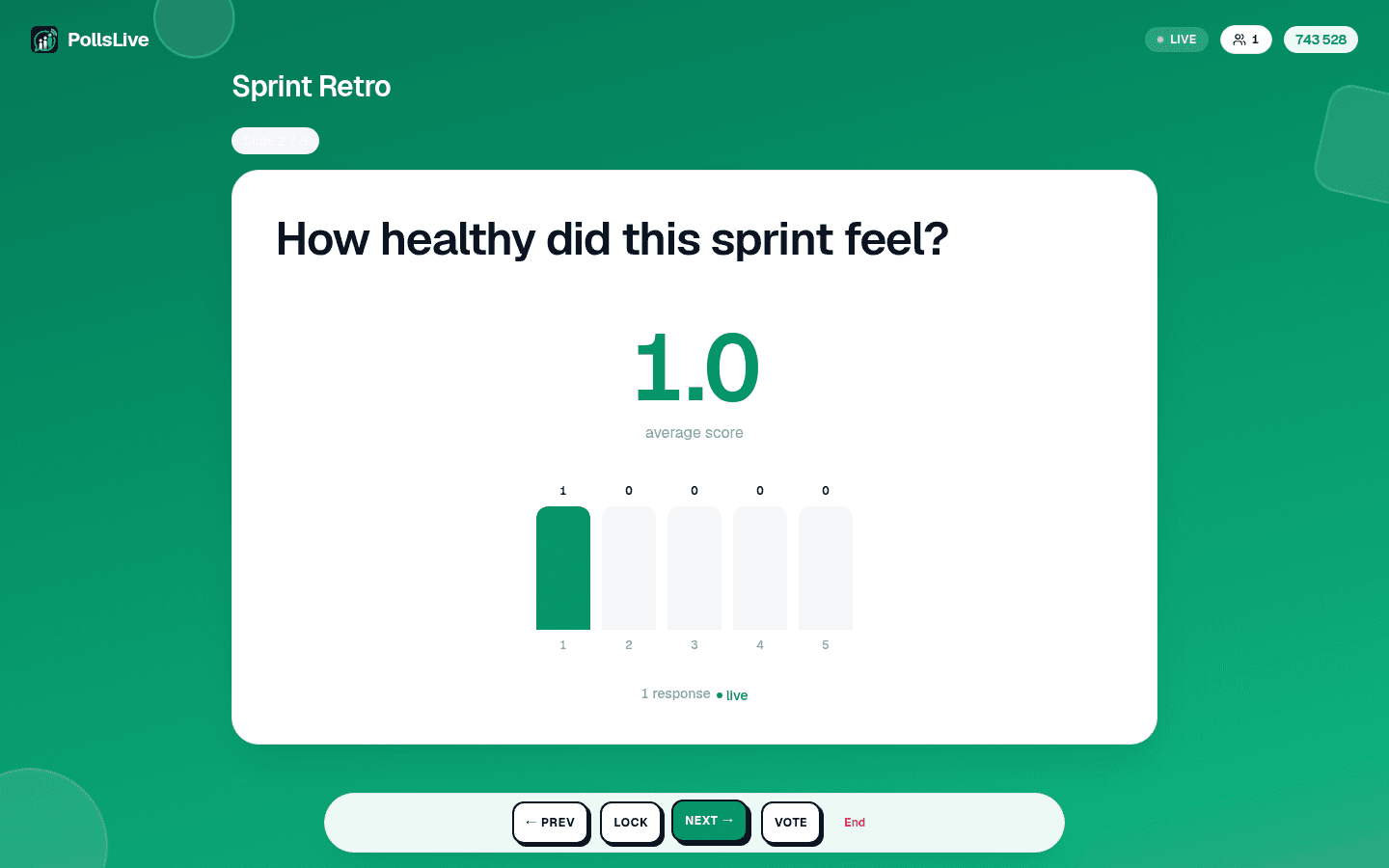
- Scan the QR code from the back row. Walk to the farthest seat, open your phone camera without zooming, and confirm it locks onto the lobby QR within two seconds.
- Check overscan and 16:9 scaling. Confirm the join PIN strip at the top and the presenter dock at the bottom sit cleanly inside the projector frame without cropped edges.
- Pair your phone remote and moderator link. Scan the private remote link onto your own phone so you can advance slides and reveal results away from the lectern, and hand the separate moderator link to your producer.
- Verify the room clears cleanly. End the Practice crowd run so simulated tallies disappear and your real session starts at zero.
Important
Never paste your private phone remote link into public chat. The phone remote controls slide progression and result reveals; attendees only ever need the public join link or QR code.
Map your talk blocks and rehearse with a simulated crowd before your next session goes live.
Build your stage runsheet