
November 6, 2026 · 6 min read
Start a New Session in Studio: A Few Choices, Then Pulse AI Builds It
Studio now asks a few quick questions before Pulse AI drafts your deck: how you run it, the length and tone, the look, the opening slide and how it ends.
Starting a session in PollsLive used to mean one prompt and a deck. Now Pulse AI asks first. You write one line about the session, answer a few questions one screen at a time, and Pulse AI builds the deck once, with the look, your logo and the room settings already on it. This guide walks through every screen.
Where to start
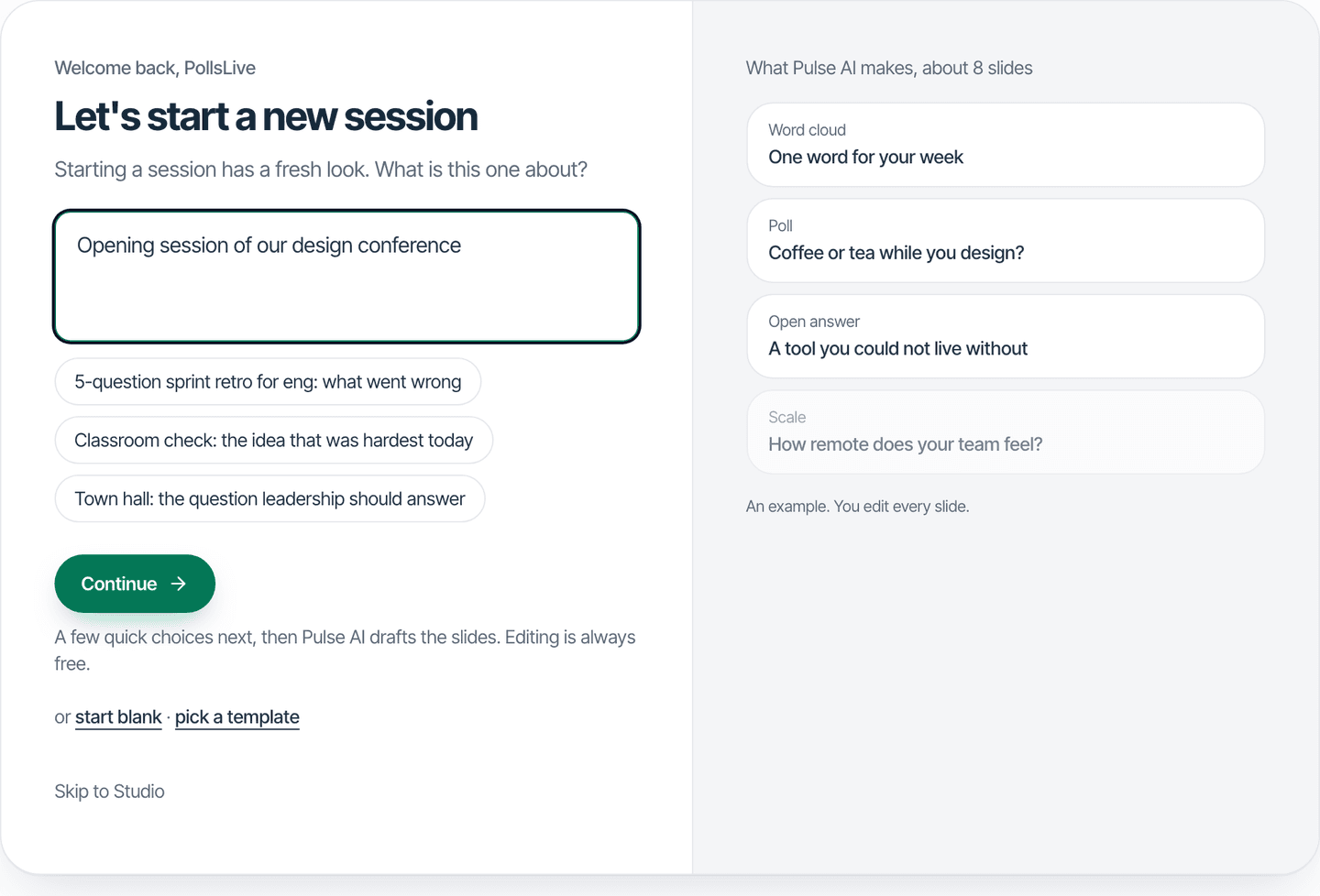
The first time you open Studio, it asks What is your first session about? If you already use PollsLive, open the New poll menu and choose Start a new session at the top. Either way you land on the same screen.
Say what the session is about
Type one line, for example "Opening session of our design conference", or tap one of the ideas under the box. The sample on the right shows the kind of slides Pulse AI makes. Prefer to build it yourself? Start blank and pick a template are on the same screen. Then choose Continue. Pulse AI reads who the session is for from that line, so name the group if it matters, for example "for new hires".
Choose live or a link
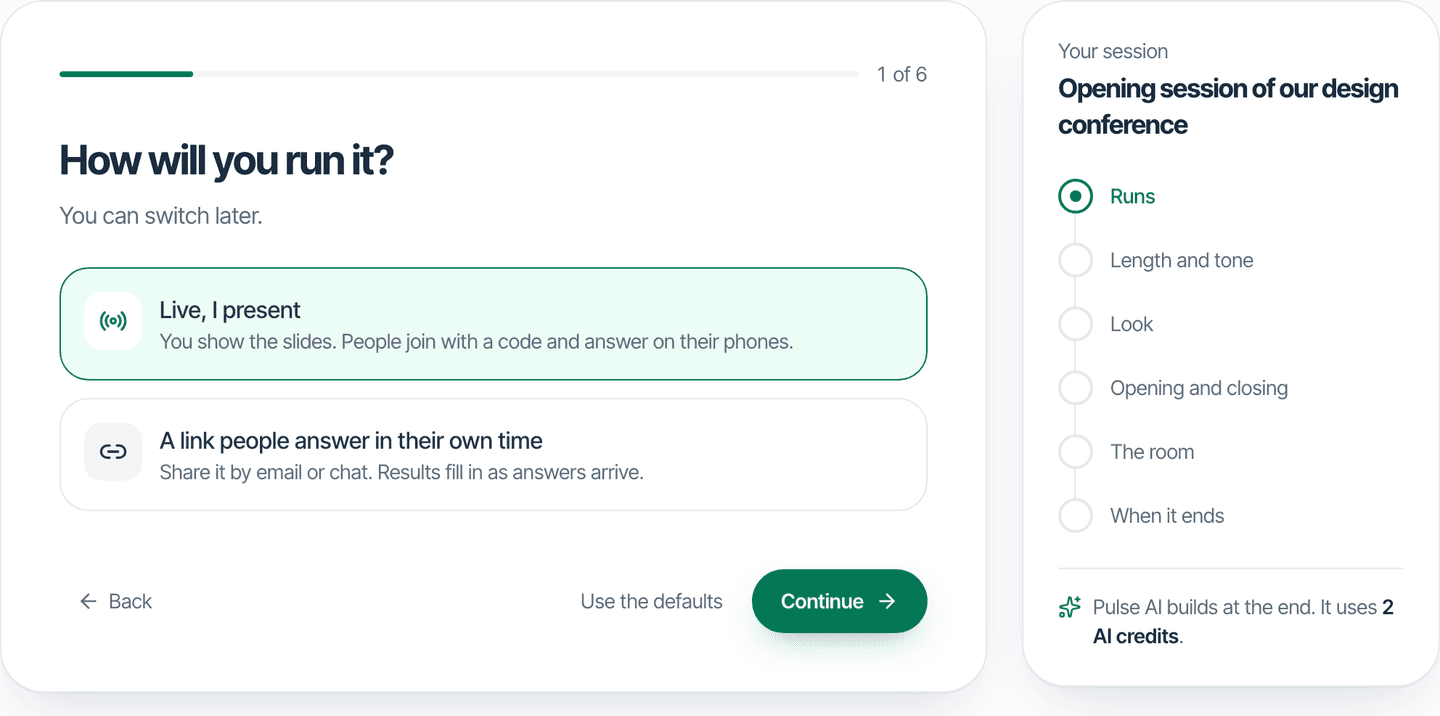
Live, I present means you show the slides and people join with a code on their phones. A link people answer in their own time is for email or chat, and results fill in as answers arrive. You can switch later. A bar at the top shows how far along you are, and Back is always there. A live session gets one extra screen, for the opening and closing slides.
Pick the length and the tone
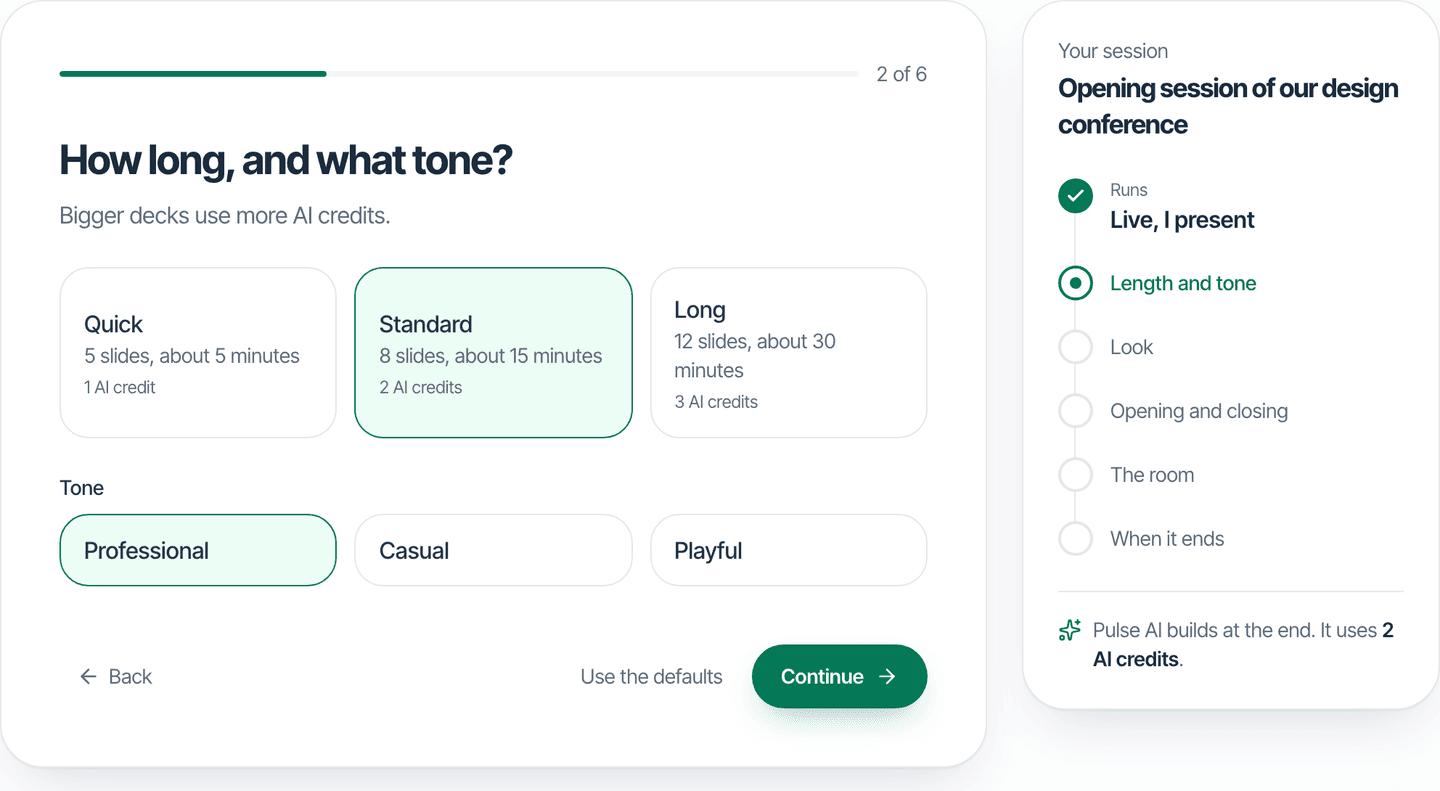
Quick, Standard or Long. Each length shows how many slides you get, roughly how many minutes it runs, and how many AI credits the build uses. Then pick a tone. Editing the deck afterwards never uses credits.
Pick a look, and add your logo
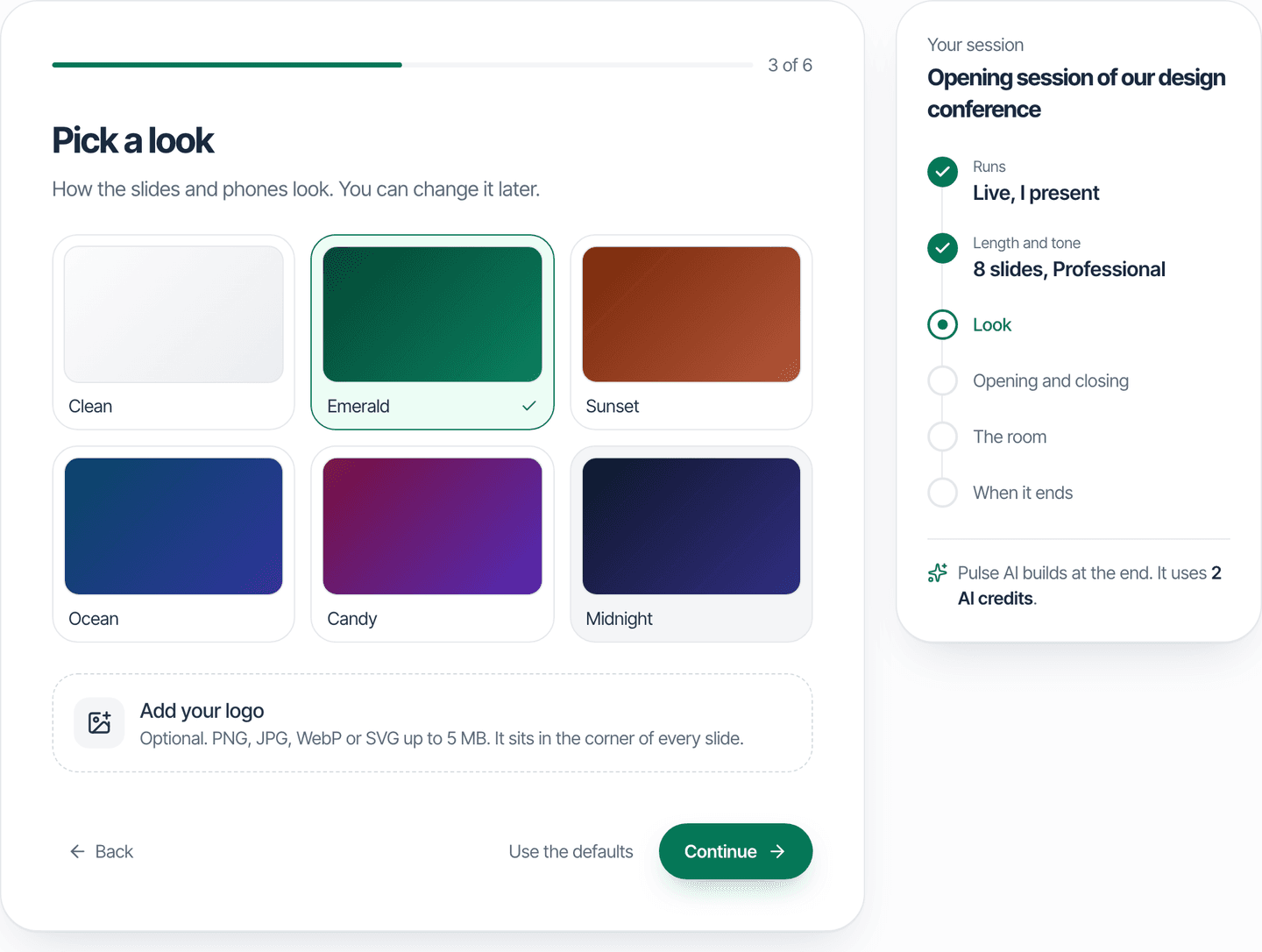
The looks are drawn as real slides. Clean and Emerald are free; the others come with Premium. Your logo is optional, sits in the corner of every slide, and comes with Pro and Premium. PNG, JPG or WebP up to 5 MB, or SVG up to 1 MB.
Set the opening and closing slides
For a live session, the opening slide fills the lobby while people join: a small line above the title, who is hosting, and the join code, which is always there. With Premium or an Event Pass you can also show the agenda and use the Poster layout. The closing slide shows when you finish, with your own closing line on Pro and up. Sponsors and a call to action are in the full editor.
Decide how the room works
The switches are grouped by where they show. On their phones: ask for a name or keep it anonymous, show results as answers come in, show people the results after they answer, reactions, and approving each person before they join. On the big screen: show the countdown for timed questions, and keep the next slide type a surprise.
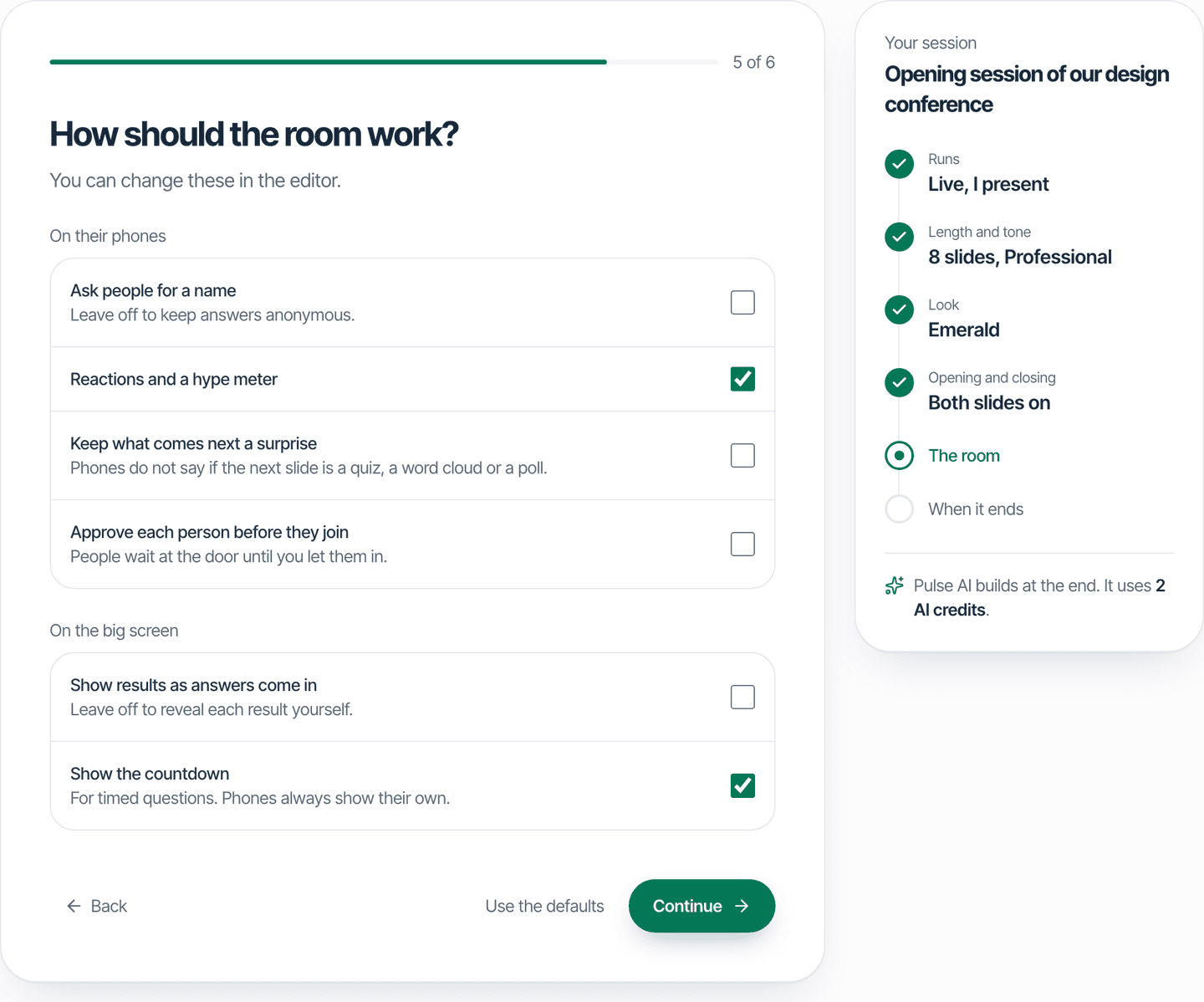
Choose how it ends
When a live session finishes, the end screen can send people to a short feedback survey (the default, made for you and editable), to another poll or survey of yours (you pick it in the deck after the build), or to nothing, just the results. You can also close answers at a set time. For a link, choose how long it stays open: 1, 3 or 7 days.
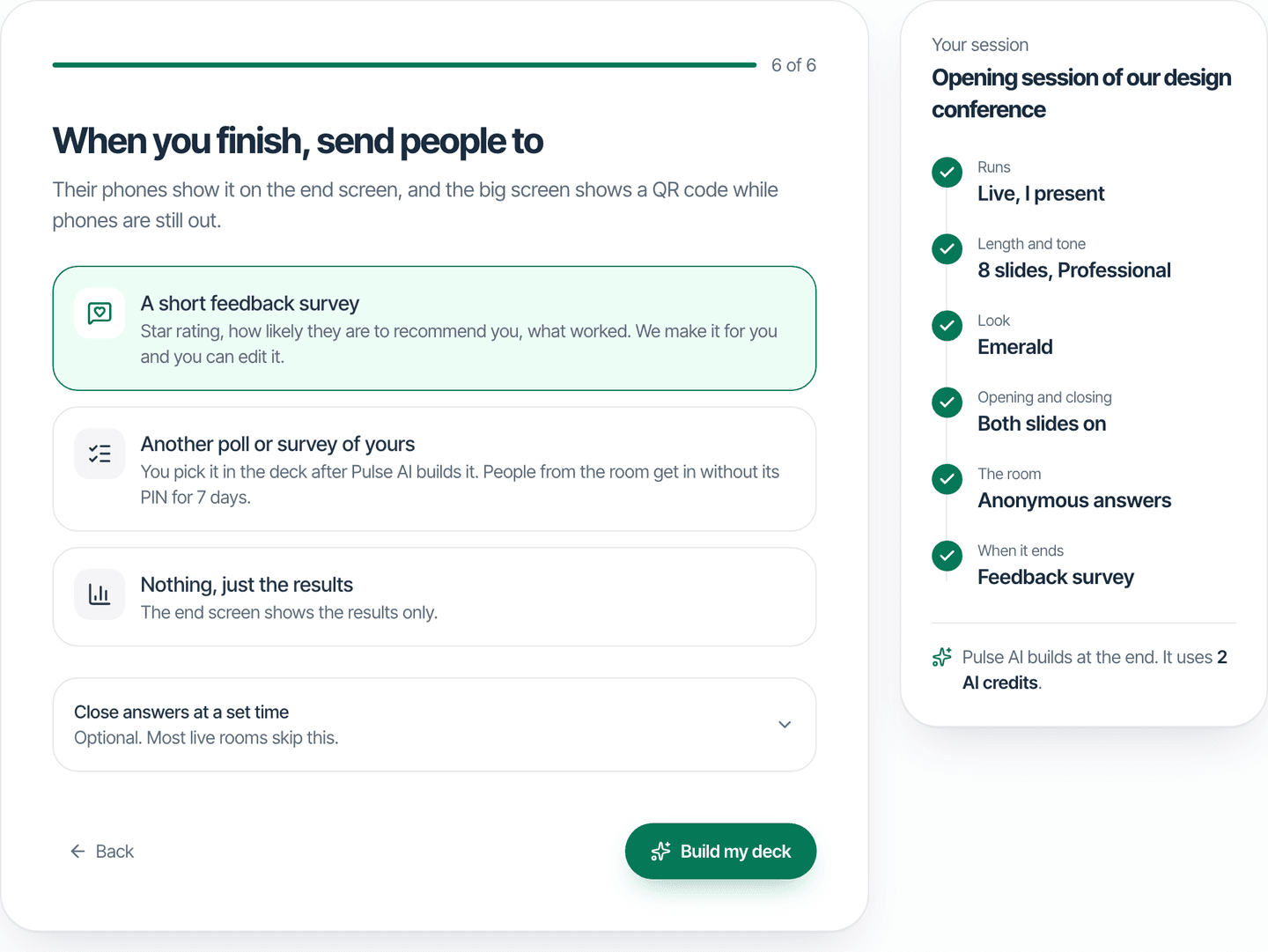
Build the deck
The panel beside the questions, Your session, lists every answer so far and what the build will cost. Choose Build my deck. Pulse AI builds once and saves the look, logo and room settings on the deck. Reloading the page does not build it again. The first time, a short note points to Open in the full editor and what else you can change there.
Tip
In a hurry? Use the defaults on any screen skips the rest with sensible answers. Every choice can be changed in the editor later.
What to do next
- Read every slide in the editor and change what does not sound like you. Pulse AI drafts; you decide.
- Open the Theme tab to fine-tune the look, or the opening and closing slides, each in a full-screen view with a live preview.
- Choose Present live when you are ready. People join with the code or QR on the opening slide.
Pulse AI is on every plan, including Free. Start a session and see what it builds.
Learn about Pulse AI