
June 26, 2026 · 10 min read
Cómo añadir encuestas en vivo a cualquier presentación (PowerPoint, Google Slides, Keynote)
Añade encuestas de audiencia en vivo a tu presentación sin comprar un add-in ni reconstruir tu deck. Dos métodos: incrusta una diapositiva de encuesta, o mantén PollsLive abierto en una pestaña del navegador y cambia.
No necesitas un add-in de PowerPoint para ejecutar una encuesta en vivo durante tu presentación. PollsLive funciona junto a PowerPoint, Google Slides y Keynote - crea la encuesta en una pestaña del navegador, añade una diapositiva de transición a tu deck y cambia cuando quieras input de la audiencia. Sin plugins, sin reconstruir.
Tip
No necesitas ser técnico para seguir esta guía. Cada paso usa botones sencillos en PollsLive - sin programar, sin instalar app para tu audiencia.
Por qué añadir encuestas a una presentación
Una presentación sin interacción es un monólogo. Una encuesta bien colocada convierte oyentes pasivos en participantes, te da datos reales sobre la sala y rompe el ritmo antes de que la atención se desvíe. Los mejores presentadores usan encuestas en tres momentos: diagnóstico de apertura, comprobación a mitad de charla y takeaway de cierre.
Antes de hablar de soluciones - ¿cuál es la mayor barrera que enfrentas?
Método 1: La diapositiva de transición (recomendado)
Crea tu encuesta antes de la charla
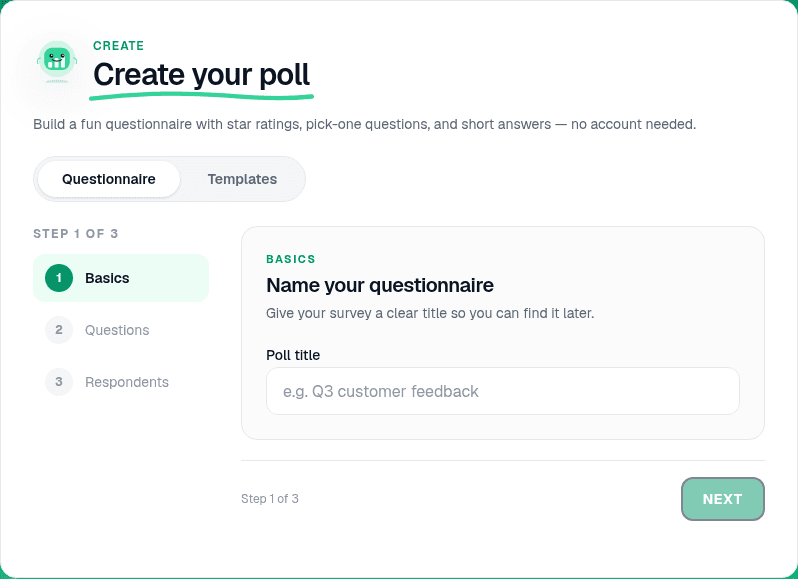
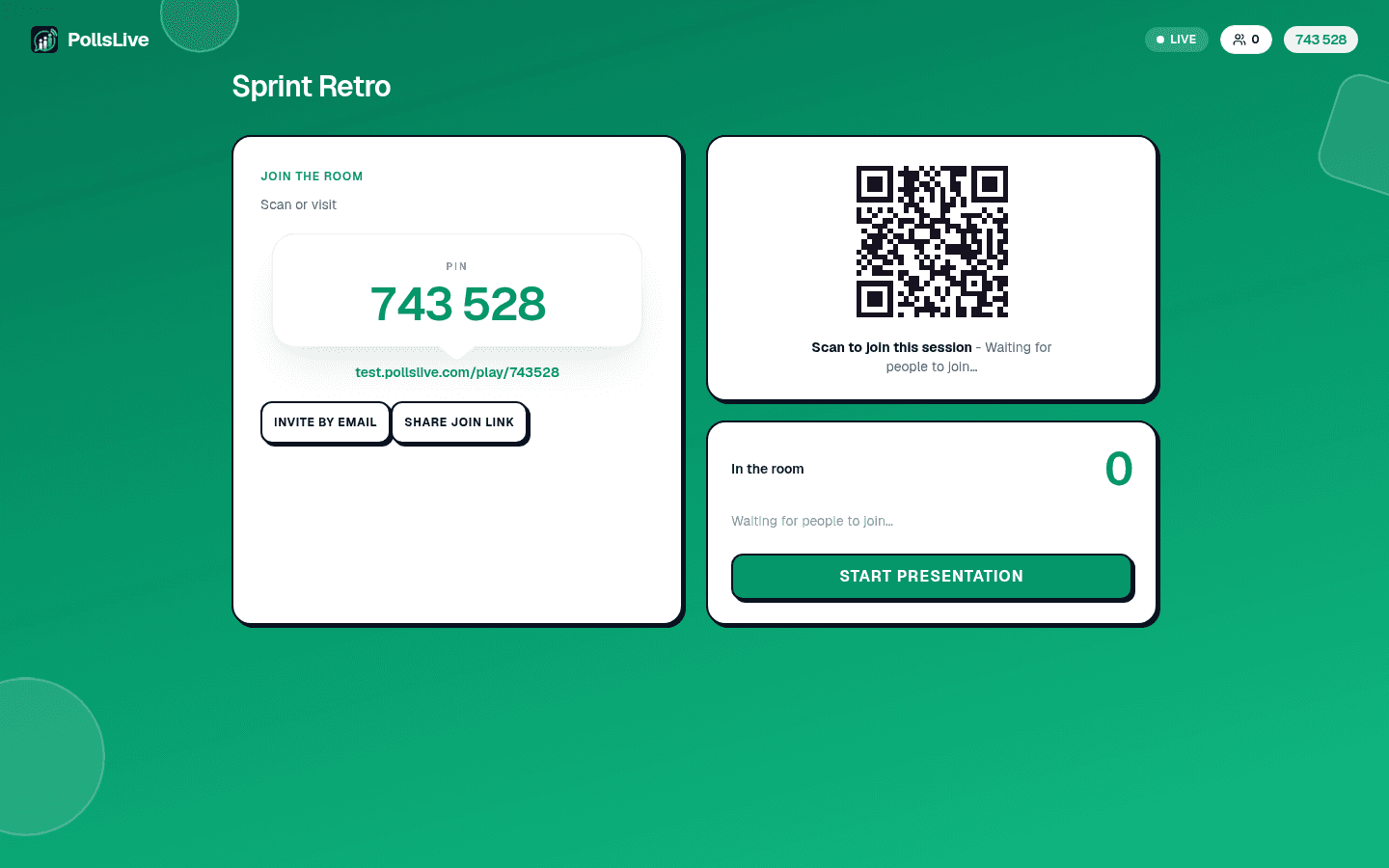
Abre pollslive.com y construye tu pregunta - Opción múltiple para decisiones, Escala para comprobaciones de claridad, Nube de palabras para takeaways. Haz clic en Presentar en vivo para obtener un PIN de 6 dígitos y código QR. Hazlo antes de presentar, no en vivo delante de la audiencia.
Añade una diapositiva de transición a tu deck
En PowerPoint, Google Slides o Keynote, inserta una diapositiva en blanco donde quieras la encuesta. Pega el PIN y una captura del QR. Titúlala algo como "Encuesta en vivo - únete ahora" para que la sala sepa qué hacer.
Abre la consola del anfitrión en una pestaña
Antes de presentar, abre la consola del anfitrión PollsLive en una pestaña separada del navegador y déjala lista. Cuando llegues a la diapositiva de transición, dile a la sala: "Id a pollslive.com e introducid este PIN." Cambia a la pestaña del anfitrión y comparte tu pantalla de la vista de resultados.
Discute resultados y vuelve a tu deck
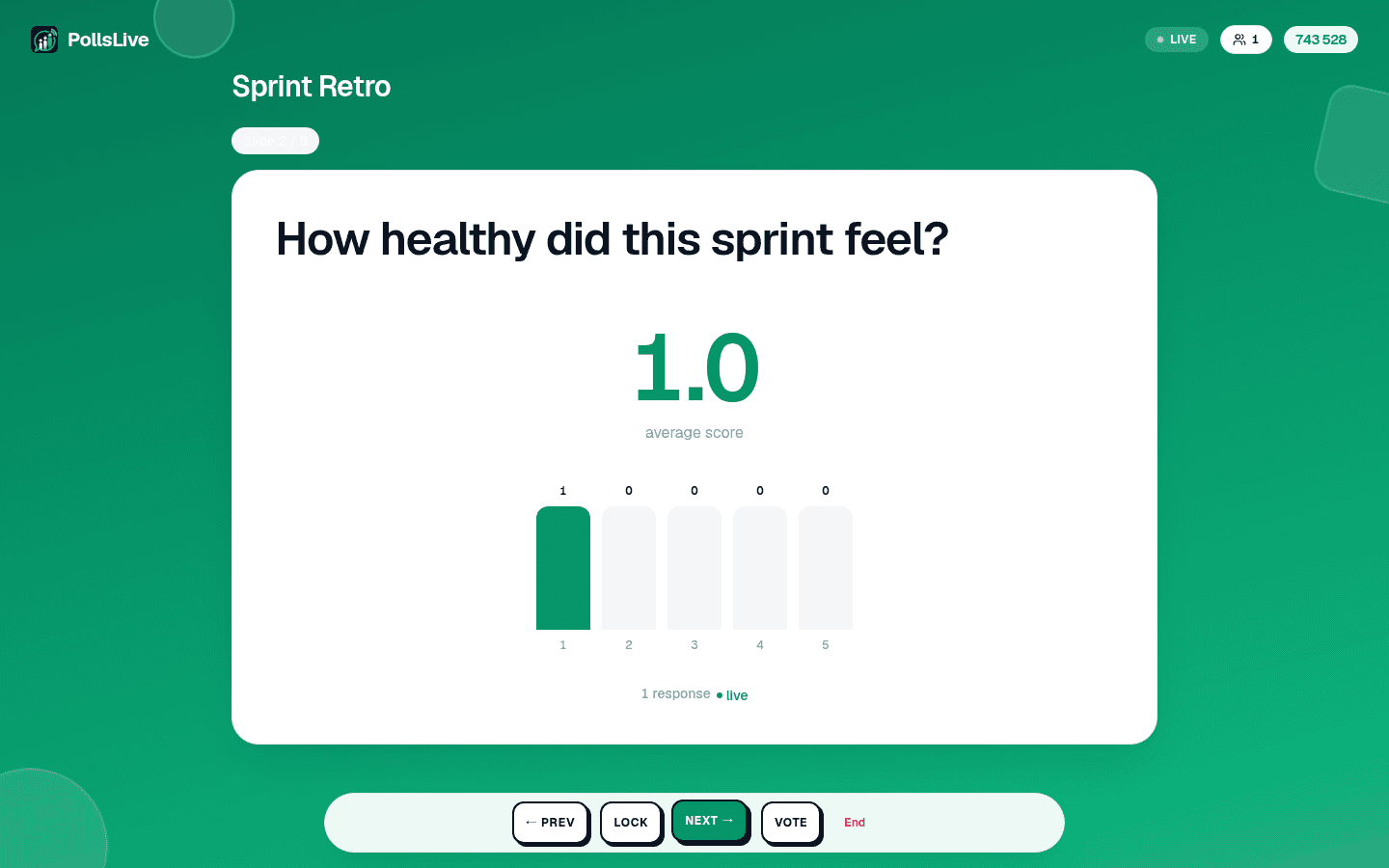
Da a la sala 60-90 segundos para votar. Narra lo que ves: "Interesante - el 38% dijo presupuesto. Abordemos eso directamente." Cuando termine la discusión, vuelve a tu deck de diapositivas y continúa.
Tip
Comparte el código QR en la invitación a la reunión o canal de Slack antes de la sesión - algunos lo escanean mientras aún estás en la diapositiva uno.
Método 2: Setup de doble pantalla
Si presentas desde un portátil con salida de pantalla separada, abre tu deck en el proyector y PollsLive en la pantalla del portátil. Ejecuta diapositivas con normalidad, luego cambia el proyector a la vista de resultados a pantalla completa de PollsLive cuando llegues al momento de encuesta. Tus notas se quedan en el portátil.
Note
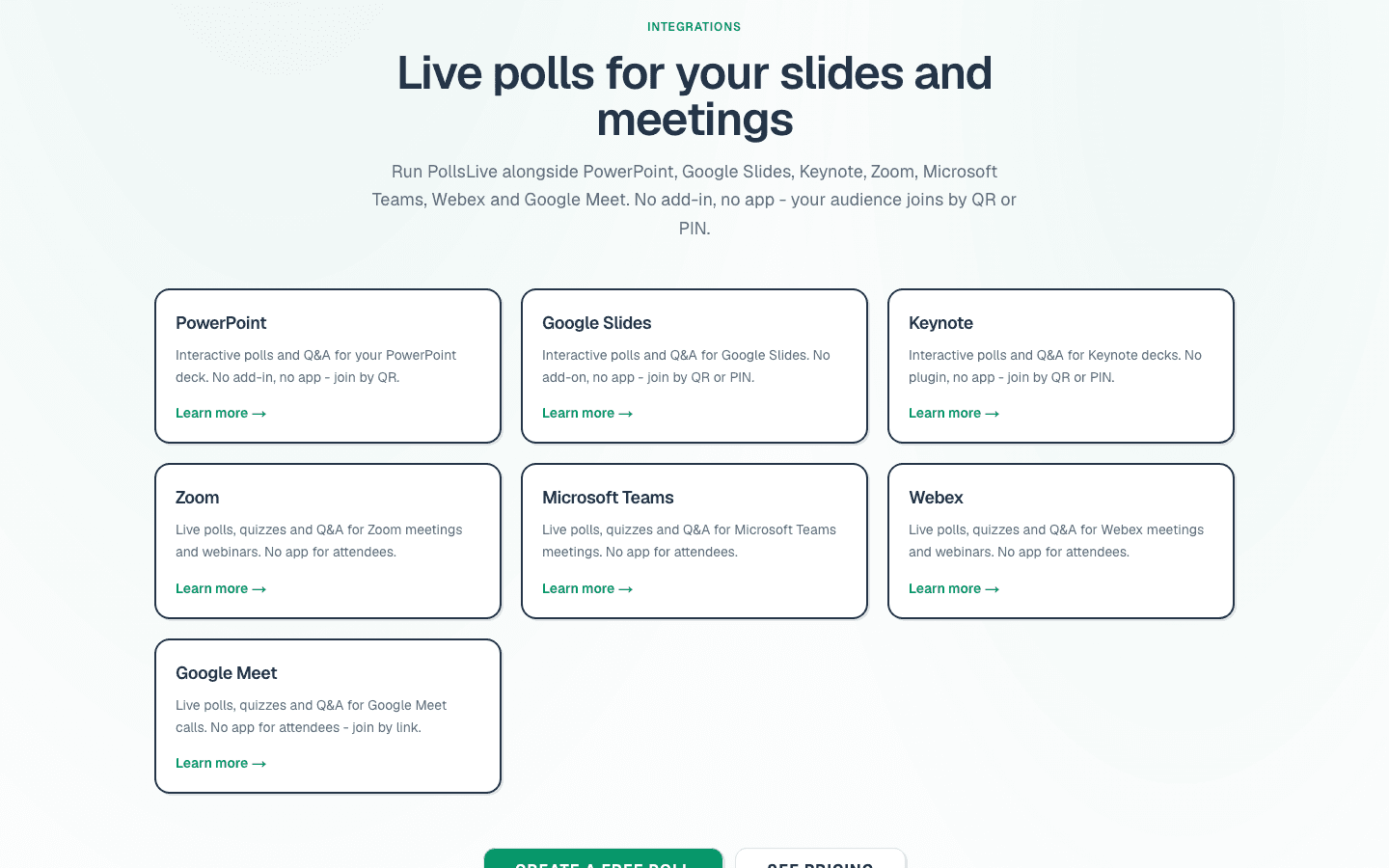
PollsLive también funciona con Google Slides, PowerPoint y Zoom vía el hub de integraciones - no se requiere add-in para ninguno.
Cuándo ejecutar una encuesta durante una presentación
- Diagnóstico de apertura - "Antes de empezar, ¿dónde estáis en este tema?" Calibra profundidad a la sala.
- Comprobación a mitad - "¿Qué tan claro es esto hasta ahora?" en escala 1-5. Detecta audiencias perdidas antes del final.
- Punto de decisión - "¿Qué enfoque resuena más?" Da a la audiencia stake en el resultado.
- Comprobación de conocimiento - Una diapositiva de quiz rápida a mitad de webinar mantiene la atención.
- Pregunta de cierre - "¿Cuál es tu takeaway principal?" La nube de palabras resume lo que funcionó.
Tipos de encuesta que funcionan mejor a mitad de presentación
- Opción múltiple (3-4 opciones) - la más rápida de ejecutar, funciona para cualquier tamaño de audiencia.
- Escala (1-5) - comprobaciones de claridad, valoraciones de confianza, acuerdo con una afirmación.
- Nube de palabras - takeaways, asociaciones de apertura, pensamientos de cierre - visual y memorable.
- Q&A con votos positivos - sustituye Q&A de mano levantada para audiencias de 30+. Consulta Q&A de audiencia en vivo.
Important
No esperes 100% de participación - el 60-70% de la sala es un gran resultado. Sigue adelante tras 90 segundos o la energía cae.
Consejos para una experiencia fluida
- Prueba el flujo de acceso en tu propio móvil antes de la charla - introduce el PIN tú mismo una vez.
- Mantén las encuestas en 60-90 segundos - suficiente para todos, corto para mantener el ritmo.
- Narra los resultados en voz alta - el presentador interpretando el gráfico es lo que hace que funcione.
- Una encuesta cada 10-15 minutos basta - más y la charla se convierte en la herramienta.
Guías relacionadas
¿Nuevo en PollsLive? Empieza con lanzar una encuesta en vivo en 2 minutos. Para Q&A a escala de conferencia, consulta guía de sistemas de respuesta de audiencia. Compara con Mentimeter si evalúas herramientas.
Consulta PollsLive para eventos y la página de integraciones para compañeros de diapositivas y herramientas de reunión.
Lanza una encuesta en vivo ahora mismo - sin registro, sin app para tu audiencia.
Crea una encuesta gratis