
July 10, 2026 · 9 min read
قراءة نتائج الاستطلاع وتصديرها في PollsLive
أين تجد نتائج استطلاعك، وكيف تقرأ التفصيل حسب السؤال، وكيف تصدّر كل شيء إلى Excel أو تقرير PDF. خطوة بخطوة مع لقطات شاشة.
جمع الإجابات هو الجزء السهل. هنا تفهمها فعلًا: أين تعيش النتائج، وكيف تقرأها، وكيف تخرج البيانات الخام عندما تحتاجها لتقرير أو جدول بيانات.
أين تعيش النتائج
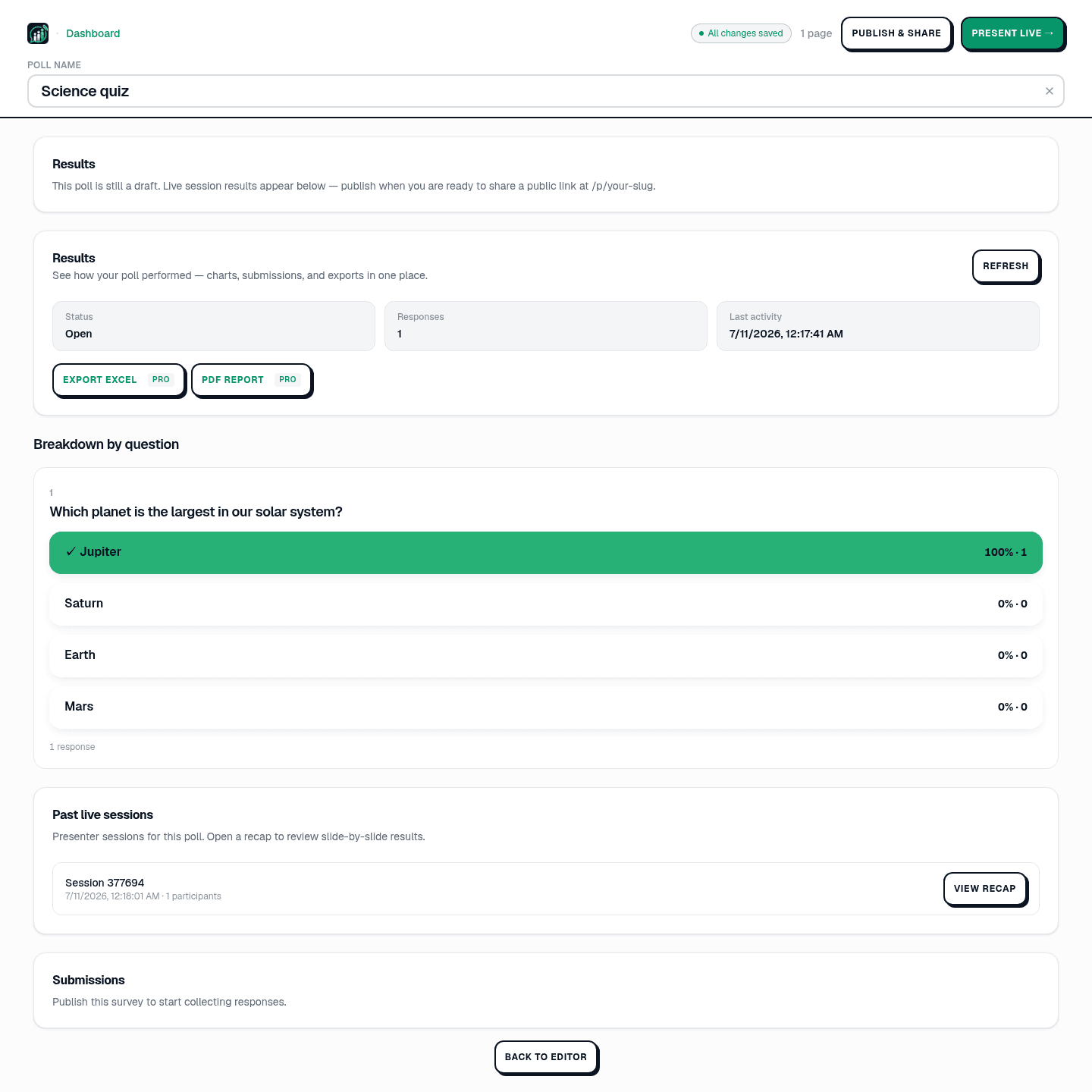
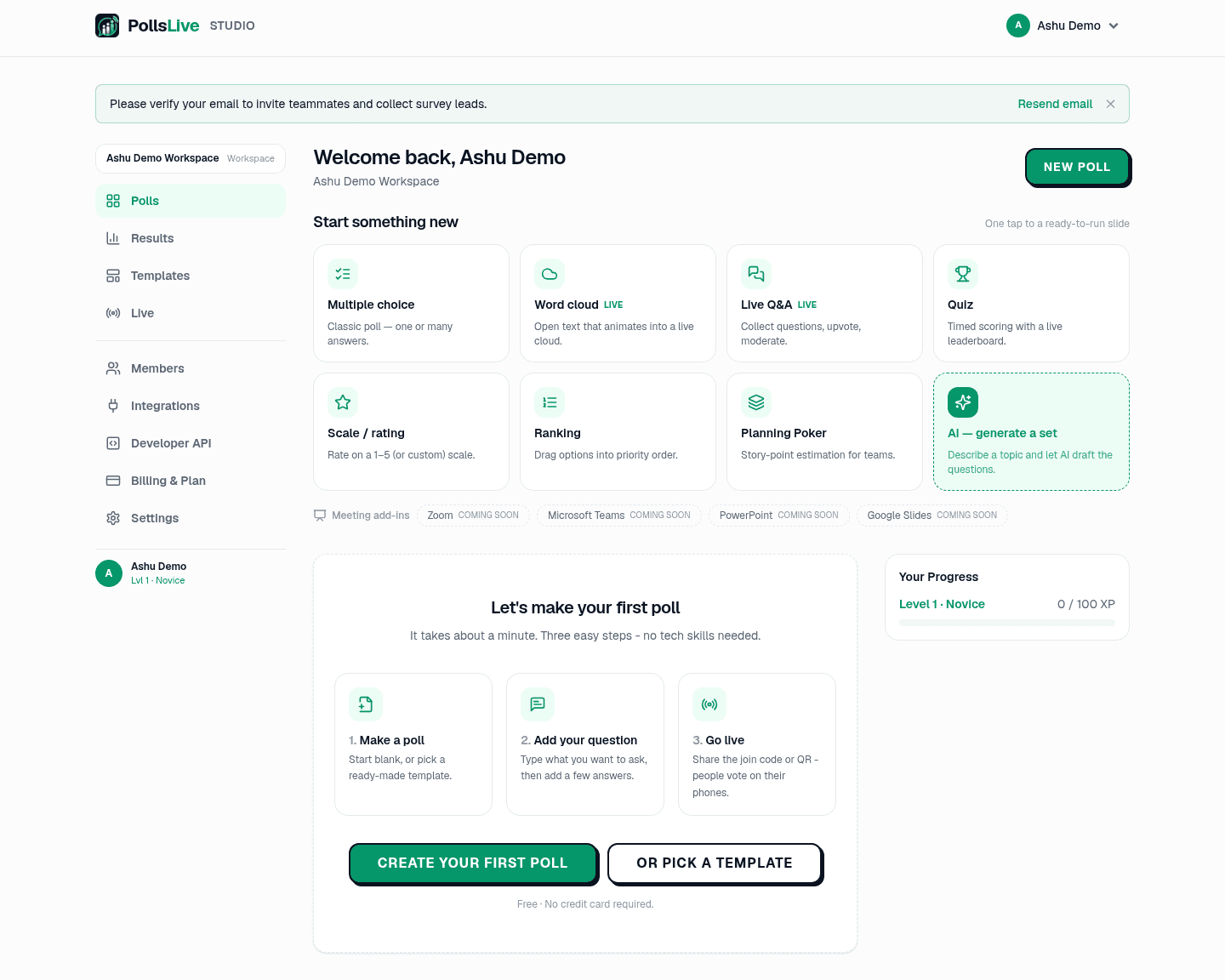
لكل استطلاع عرض نتائج خاص به في Studio. افتح استطلاعًا من لوحتك وانقر النتائج (أو مرّر إلى قسم النتائج في المحرر). يمكنك أيضًا رؤية المشاركة عبر كل الاستطلاعات من عنصر النتائج في تنقل Studio الأيسر.
اقرأ الأرقام الرئيسية
ثلاث بطاقات تعطيك صورة الأمور بنظرة سريعة: الحالة (مفتوح، مغلق، أو مجدول)، الإجابات (كم إجابة جمعت)، وآخر نشاط (متى وصلت أحدث إجابة). اضغط تحديث لجلب الأحدث. هذه اللوحة لا تُحدّث تلقائيًا، لذا حدّث بعد الجلسة لرؤية العدد النهائي.
اقرأ التفصيل حسب السؤال
تحت التفصيل حسب السؤال، تحصل كل شريحة على رسمها الخاص: أعمدة بنسب مئوية وأعداد لاختيار من متعدد والاختبار (الإجابة الصحيحة مُعلّمة بعلامة صح)، توزيعات لأسئلة المقياس، وقائمة أو سحابة للنص المفتوح. إنها نفس الصورة التي رآها جمهورك مباشرة، الآن ثابتة لتدرسها.
أي مجال يجب أن نحسّنه أولًا؟
راجع جلسة مباشرة سابقة
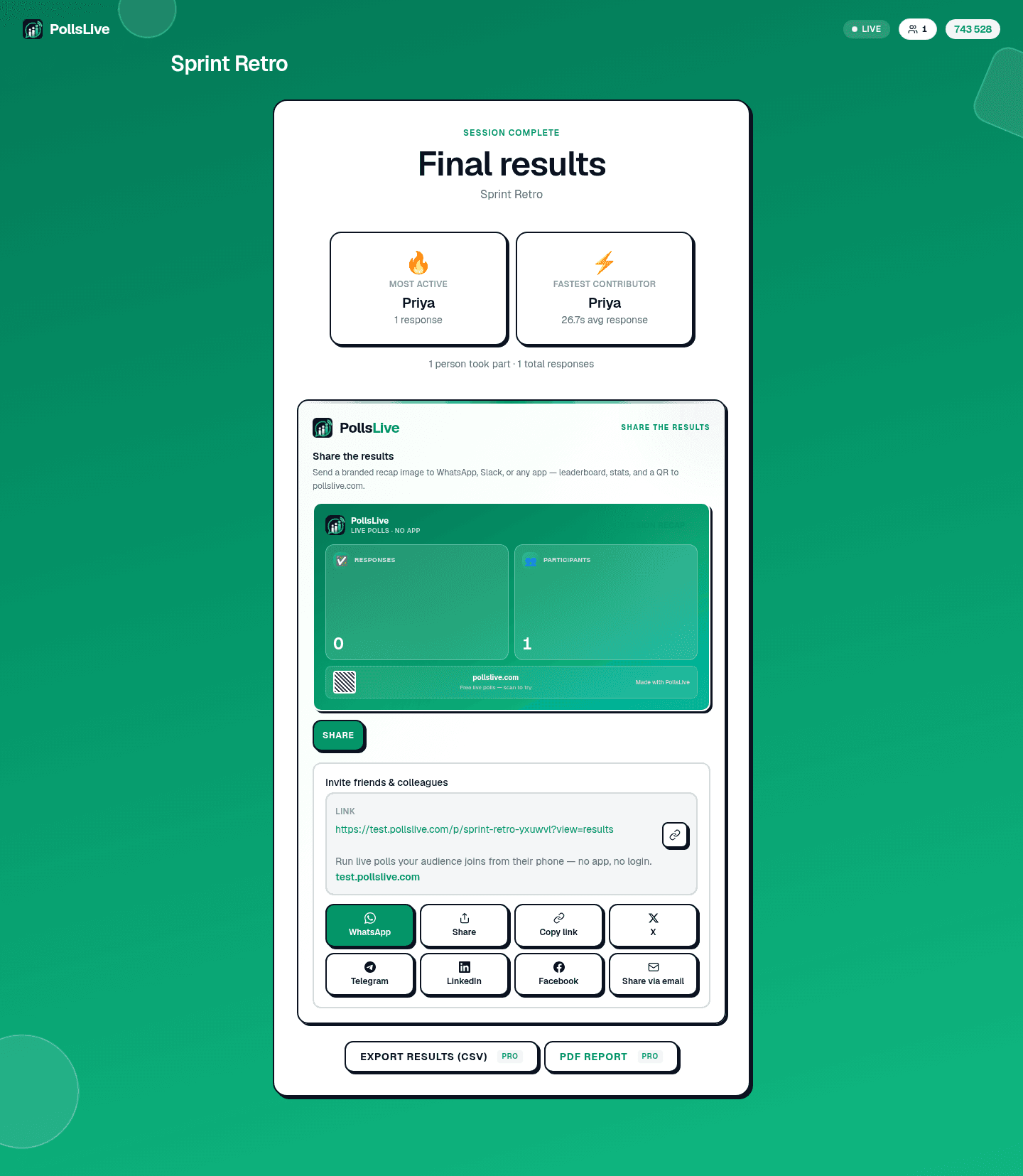
إذا قدّمت الاستطلاع مباشرة، تُدرج كل جلسة تحت جلسات مباشرة سابقة برمز PIN وعدد المشاركين. انقر عرض الملخص لإعادة فتح النتائج شريحة بشريحة وملخص نهاية الجلسة، بمن في ذلك من كان الأكثر نشاطًا ومن أجاب الأسرع.
شارك أو صدّر البيانات
بمجرد نشر الاستطلاع تحصل على رابط فتح النتائج العامة (نسخة للقراءة فقط على pollslive.com/p/your-poll) وزر نسخ رابط النتائج للمشاركة. للبيانات الخام، استخدم تصدير Excel لتنزيل جدول بيانات (صف لكل مستجيب بكل إجابة) أو تقرير PDF لملخص منسّق. كلا التصديرين في خطة Pro؛ في الخطة المجانية تدعوك الأزرار للترقية.
Tip
اضغط تحديث بعد جلسة مباشرة: لوحة النتائج لا تُحدّث تلقائيًا، لذا قد لا يظهر العدد النهائي حتى تجلب الأحدث.
القاعدة العامة: اقرأها في Studio، شارك الرابط العام مع فريقك، وصدّر إلى Excel فقط عندما تحتاج لتحليل الأرقام الخام بنفسك.
هذا كل ما يمكن لعرض النتائج فعله. إذا لم تشغّل استطلاعًا بعد، ابدأ بـ بناء واحد من الصفر أو تشغيل جلسة مباشرة.
شغّل استطلاعًا مباشرًا الآن، تسجيل دخول مجاني لك، ودون تطبيق أو حساب لجمهورك.
أنشئ استطلاعًا مجانيًا