
June 26, 2026 · 10 min read
How to Add Live Polls to Any Presentation (PowerPoint, Google Slides, Keynote)
Add live audience polls to your presentation without buying an add-in or rebuilding your deck. Two methods: embed a poll slide, or keep PollsLive open in a browser tab and switch over.
You do not need a PowerPoint add-in to run a live poll during your presentation. PollsLive works alongside PowerPoint, Google Slides, and Keynote - create the poll in a browser tab, add a transition slide to your deck, and switch over when you want audience input. No plugins, no rebuild.
Tip
You do not need to be technical to follow this guide. Every step uses plain buttons in PollsLive - no coding, no app install for your audience.
Why add polls to a presentation
A presentation without interaction is a monologue. One well-placed poll turns passive listeners into participants, gives you real data about the room, and breaks the rhythm before attention drifts. The best presenters use polls at three moments: opening diagnostic, mid-talk check, and closing takeaway.
Before we discuss solutions - what's the biggest barrier you're facing?
Method 1: The transition slide (recommended)
Create your poll before the talk
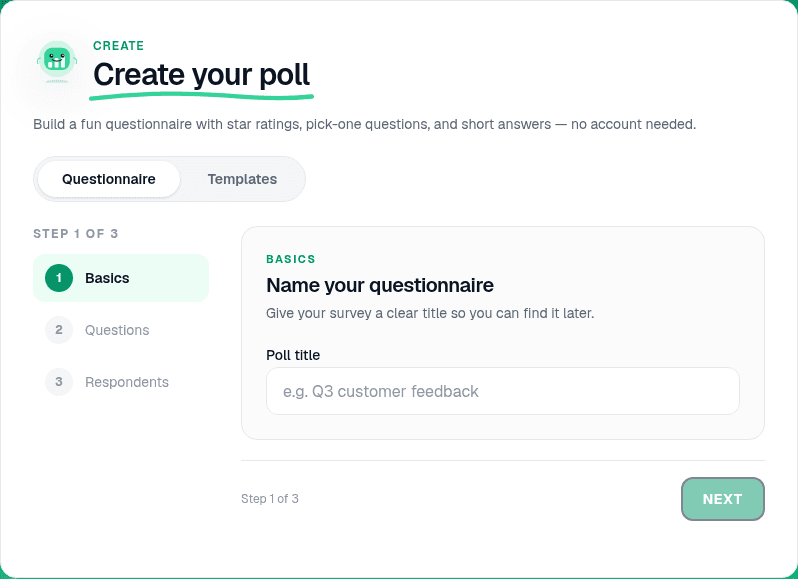
Open pollslive.com and build your question - Multiple choice for decisions, Scale for clarity checks, Word cloud for takeaways. Click Present live to get a 6-digit PIN and QR code. Do this before you start presenting, not live in front of the audience.
Add a transition slide to your deck
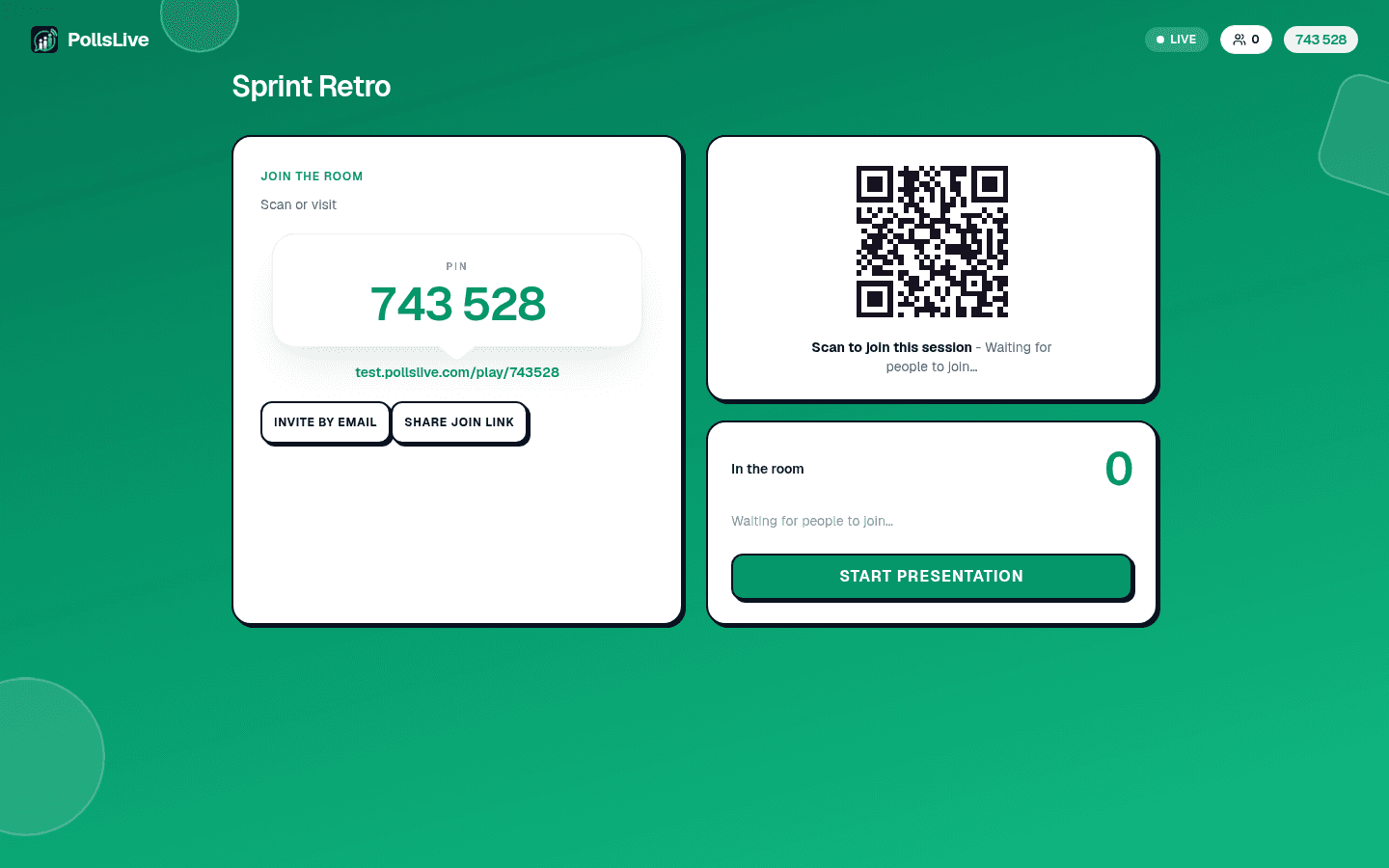
In PowerPoint, Google Slides, or Keynote, insert a blank slide where you want the poll to run. Paste the PIN and a screenshot of the QR code. Title it something like "Live poll - join now" so the room knows what to do.
Open the host console in a browser tab
Before you present, open the PollsLive host console in a separate browser tab and leave it ready. When you reach the transition slide, tell the room: "Go to pollslive.com and enter this PIN." Switch to the host tab and share your screen of the results view.
Discuss results and return to your deck
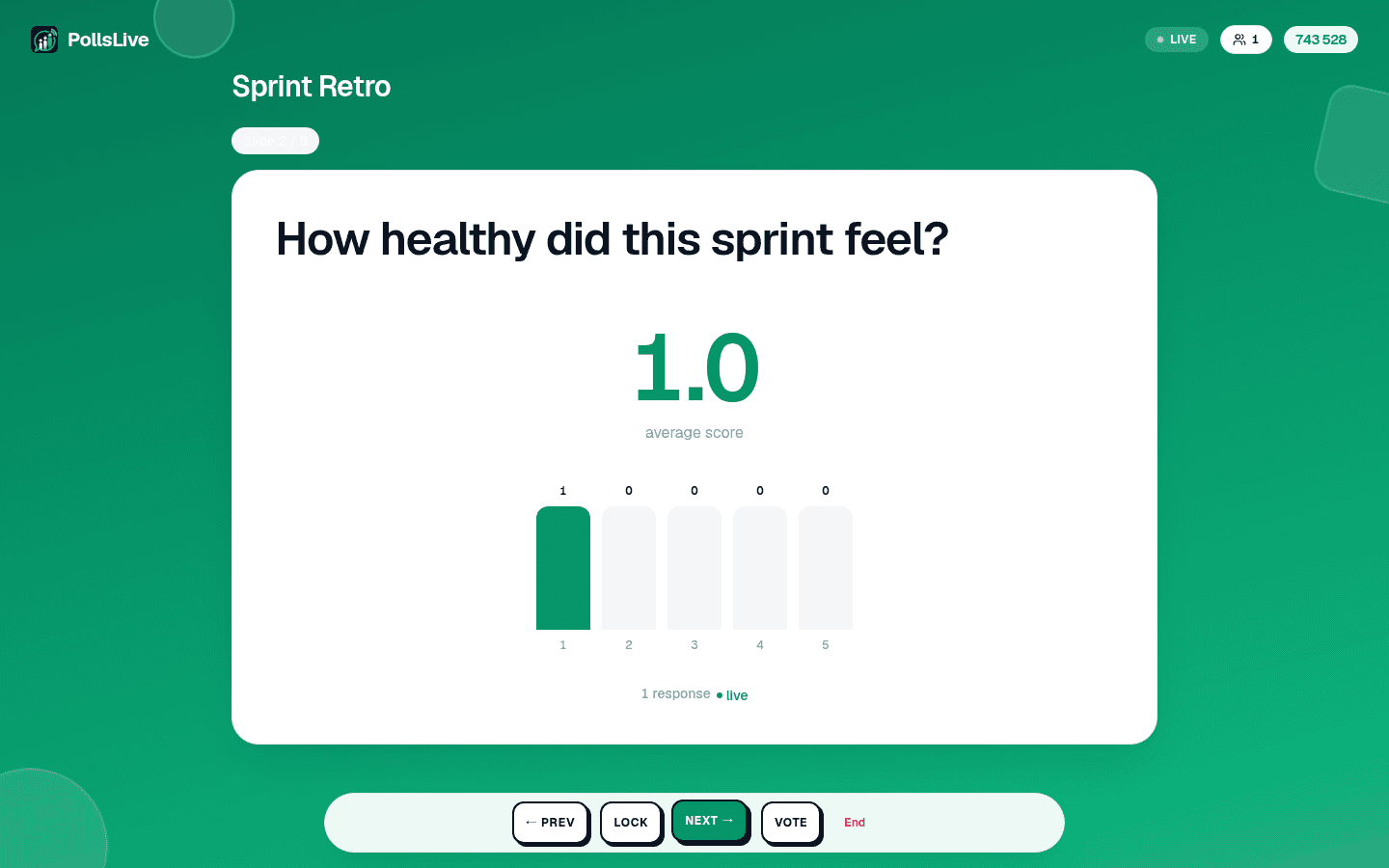
Give the room 60-90 seconds to vote. Narrate what you see: "Interesting - 38% said budget. Let's address that directly." When the discussion is done, switch back to your slide deck and continue.
Tip
Share the QR code in the meeting invite or Slack channel before the session - some people scan it while you are still on slide one.
Method 2: Dual-screen setup
If you present from a laptop with a separate display output, open your slide deck on the projector and PollsLive on your laptop screen. Run slides as normal, then flip the projector to the PollsLive full-screen results view when you reach the poll moment. Your notes stay on the laptop.
Note
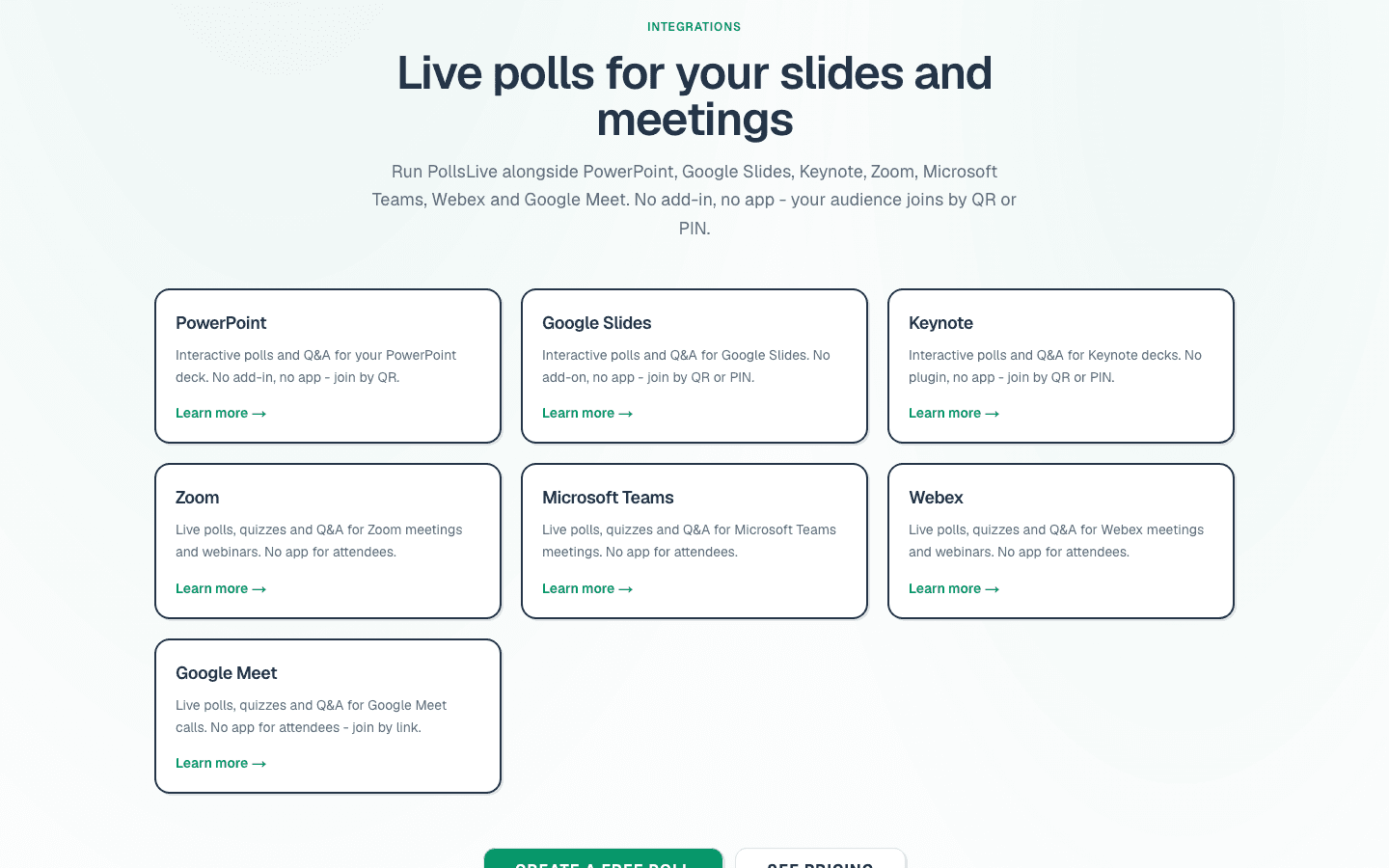
PollsLive also works with Google Slides, PowerPoint, and Zoom via the integrations hub - no add-in required for any of them.
When to run a poll during a presentation
- Opening diagnostic - "Before we start, where are you on this topic?" Calibrate depth to the room.
- Mid-presentation check - "How clear is this so far?" on a 1-5 scale. Catch lost audiences before the end.
- Decision point - "Which approach resonates most?" Gets audience stake in the outcome.
- Knowledge check - A quick quiz slide mid-webinar maintains attention.
- Closing ask - "What's your top takeaway?" Word cloud becomes a summary of what landed.
Poll types that work best mid-presentation
- Multiple choice (3-4 options) - fastest to run, works for any audience size.
- Scale (1-5) - clarity checks, confidence ratings, agreement with a statement.
- Word cloud - takeaways, opening associations, closing thoughts - visual and memorable.
- Q&A with upvotes - replaces raised-hand Q&A for audiences of 30+. See live audience Q&A.
Important
Do not wait for 100% participation - 60-70% of the room is a great result. Move on after 90 seconds or the energy drops.
Tips for a smooth experience
- Test the join flow on your own phone before the talk - enter the PIN yourself once.
- Keep polls to 60-90 seconds - long enough for everyone, short enough to keep pace.
- Narrate results out loud - the presenter interpreting the chart is what makes it land.
- One poll every 10-15 minutes is enough - more than that and the talk becomes the tool.
Related guides
New to PollsLive? Start with run a live poll in 2 minutes. For conference-scale Q&A, see audience response system guide. Compare with Mentimeter if you are evaluating tools.
See PollsLive for events and the integrations page for slide and meeting tool companions.
Spin up a live poll right now - no signup, no app for your audience.
Create a free poll