
June 5, 2026 · 9 min read
How to run a live poll in 2 minutes (no app for your audience)
A step-by-step guide to running your first live audience poll - build a deck, hit Present live, and your audience joins with a 6-digit PIN or QR code. No app, no login to vote.
The trick to a live poll that doesn't feel awkward is simple: all the setup lives with you, and your audience just answers. No app to install, no account to make, nothing to remember except a 6-digit code. Here is the whole thing, start to finish, with screenshots of every step.
Tip
You do not need to be technical to follow this guide. Every step uses plain buttons in PollsLive - no coding, no app install for your audience.
What you need
A screen you can present from (your laptop plus a projector, a shared screen on a call, or just a monitor everyone can see) and phones in the room. That is it. You do not need an account to build a poll or to run it, and your audience never needs one to answer.
Step 1 - Build the deck (about a minute)
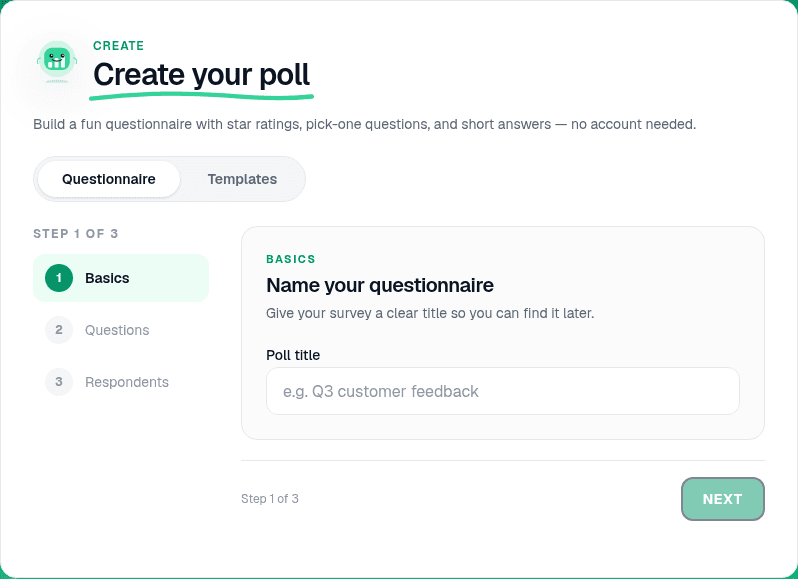
The fastest start is a ready-made template. Open the Templates gallery, pick one that fits - Sprint Retro, Icebreaker, Quiz night, Town hall, and a dozen more - and click Use this template. That drops you straight into the editor with a full deck already written. Prefer a blank start? Use Create your poll on the home page and add questions yourself.
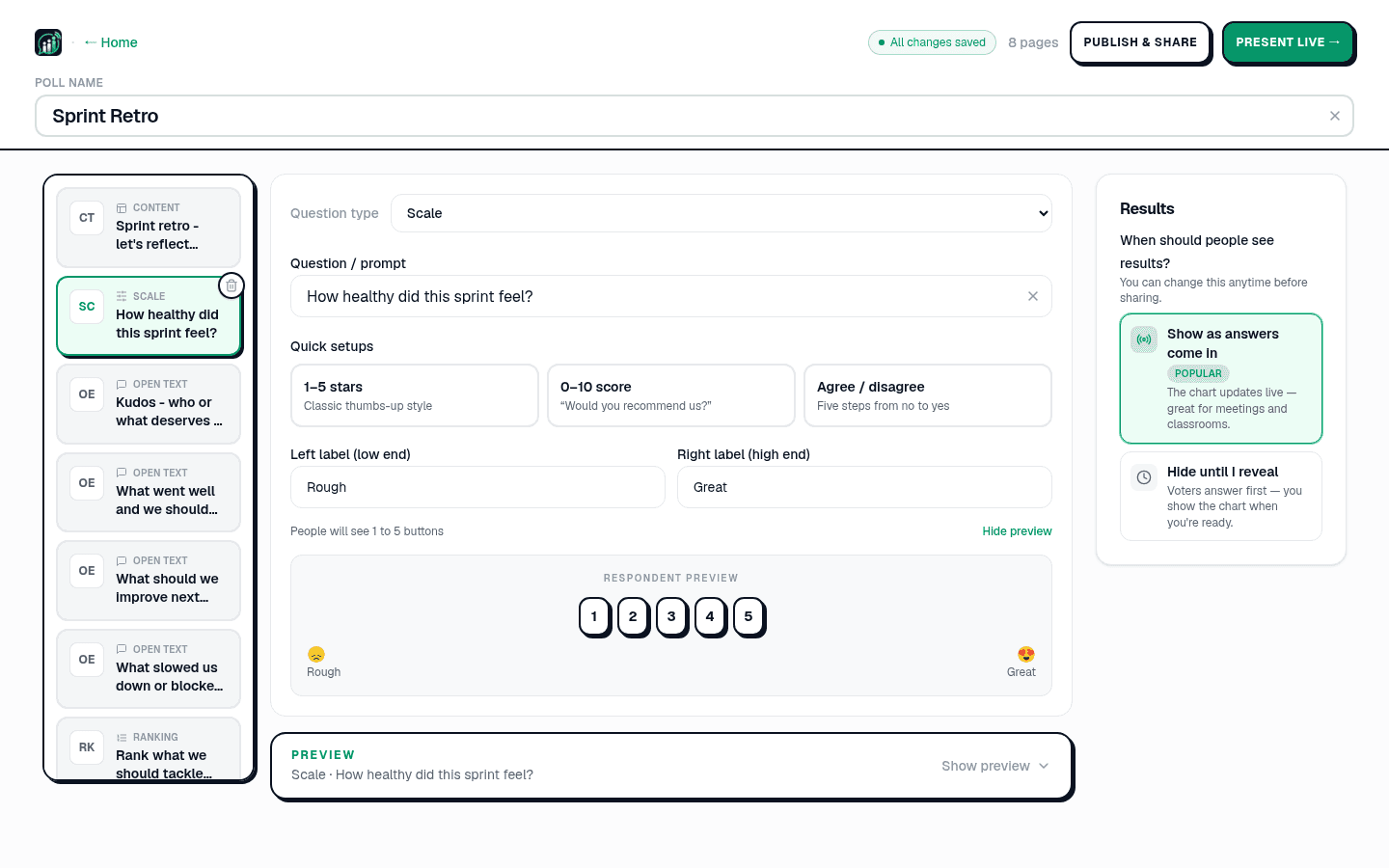
Every slide is a page in the left-hand list. For each one you choose a question type - Multiple choice, Quiz, Scale, Open text (which can render as a word cloud), Ranking, Q&A, or Planning Poker - and type the prompt. On the right, under When should people see results?, leave Show as answers come in selected so the chart moves live in front of the room. There is no Save button; the header shows All changes saved a moment after you stop typing.
Step 2 - Present live (10 seconds)
When the deck looks right, click Present live in the top bar. PollsLive opens the host console and puts a big join PIN and a QR code on screen. That is the only thing your audience needs to see.
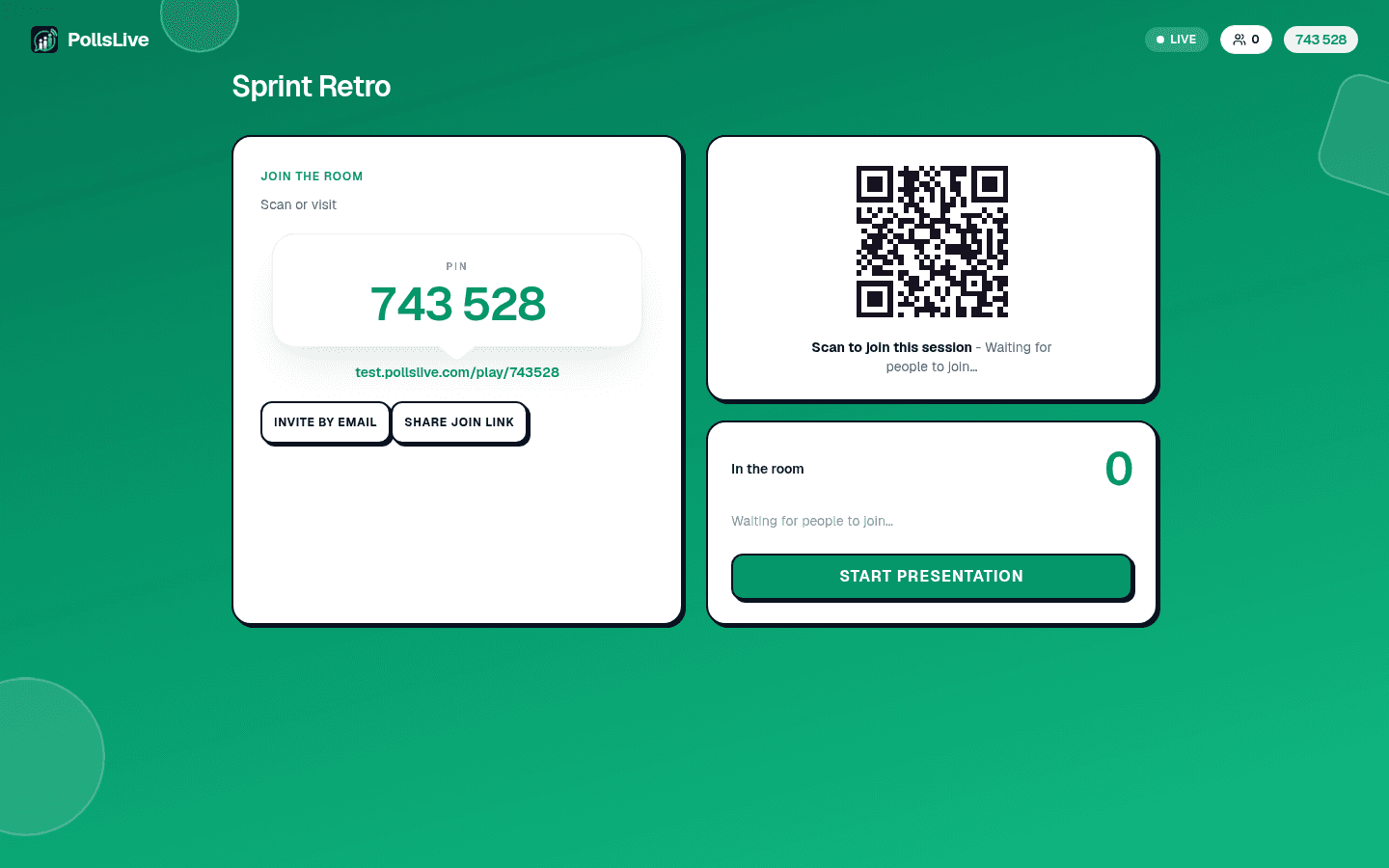
Worth knowing: Present live starts a temporary real-time session with a fresh PIN each time. If you instead want a link people can open on their own schedule, use Publish & share - that gives you a permanent page at pollslive.com/p/your-poll with its own link and QR. For a room in front of you, Present live is the one you want.
Step 3 - Your audience joins (no app, no login)
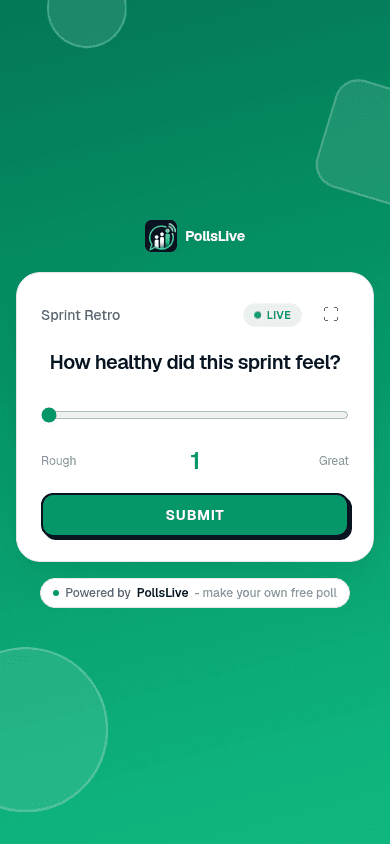
Tell the room to go to pollslive.com/join (or scan the QR, which skips this step). They type the 6-digit PIN, pick a name, and they are in. No account, no download, nothing to verify.
Step 4 - Run the session
Back on the host console, click Start presentation. Move through the deck with Next and Prev. Answers land in real time - bars fill, scores average, open text streams into a live word cloud. A few controls you will actually use: Lock stops new votes on the current slide, Reveal shows a hidden chart when you chose "Hide until I reveal", and Leaderboard ranks players on a quiz slide.
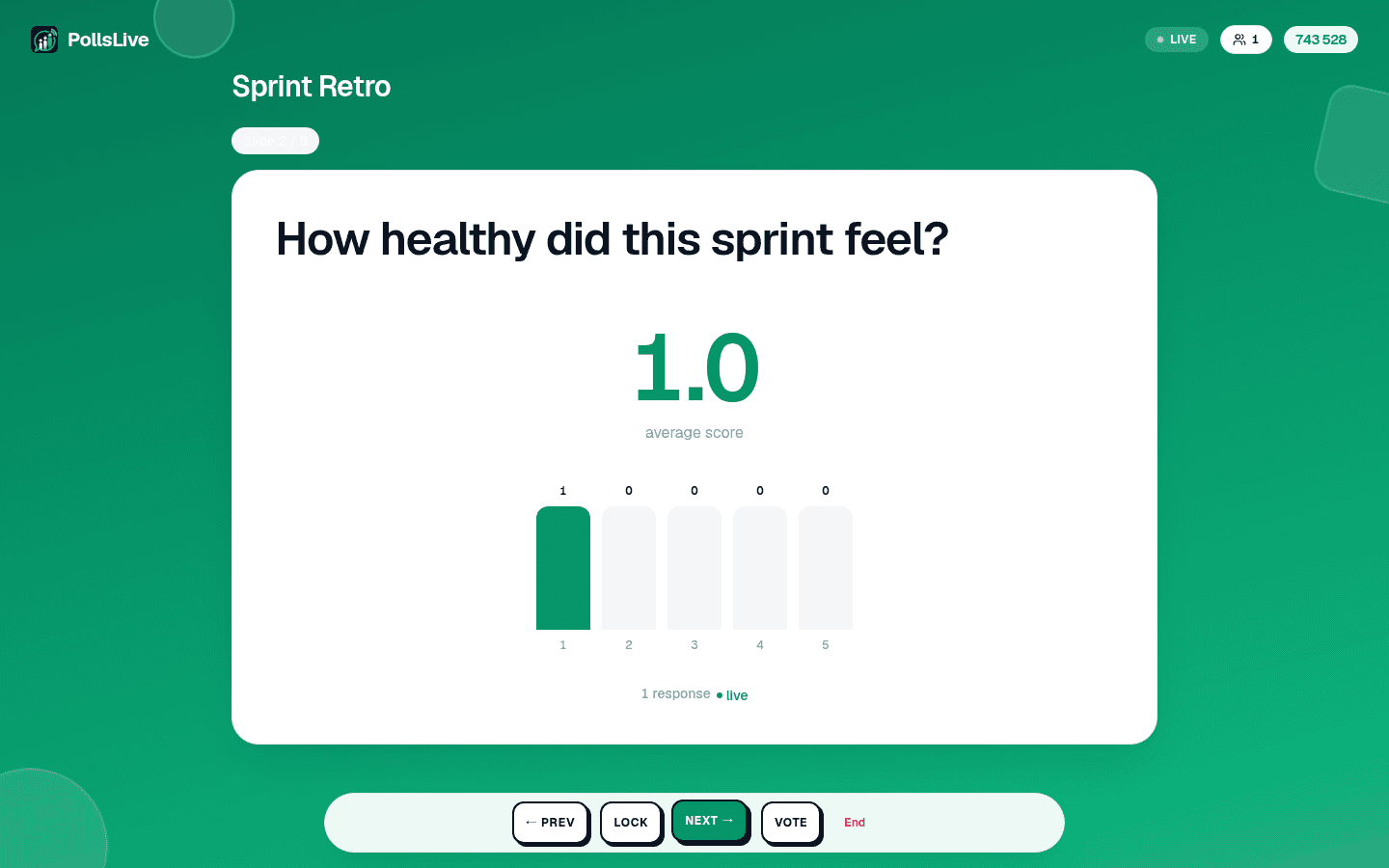
Here is what a fuller room looks like once a couple dozen people have answered. Say you open a Monday kickoff with a quick mood check - the bars start moving before you have finished reading the question out:
How's everyone feeling heading into this week? (1 = rough, 5 = great)
That one slide does two jobs: it gets every phone connected before you need them for anything important, and it tells you the room is mostly fine but a couple of people are starting rough - worth a quiet word later. Then an open question builds a word cloud as people type:
One word for what would make this week easier?
Step 5 - End and share the results
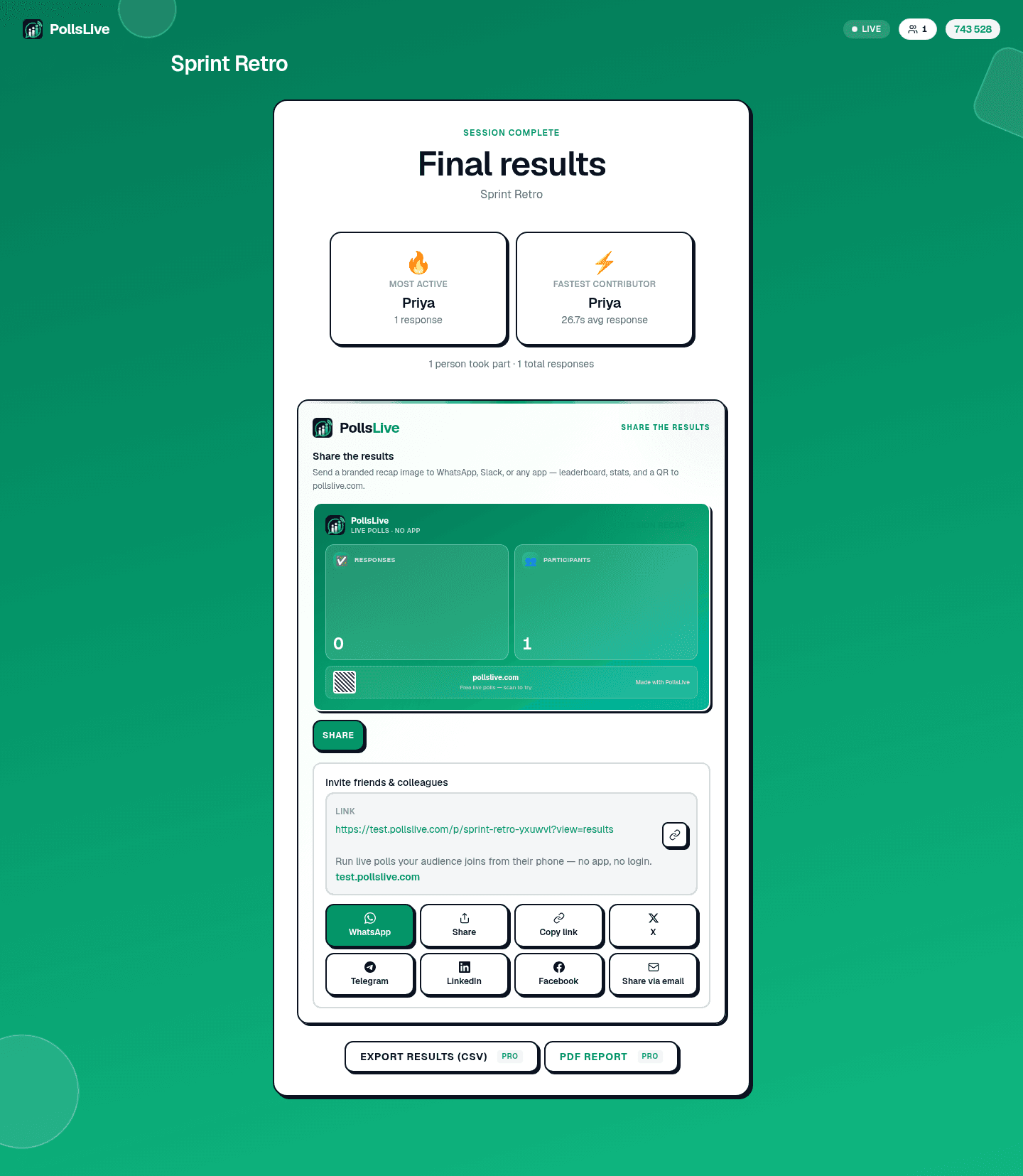
When you are done, click End. PollsLive shows a recap - Most active and Fastest contributor, plus total participants and responses - and a share panel. Copy the results link, send a branded recap image straight to WhatsApp or Slack, or, on a Pro plan, Export results (CSV) or download a PDF report for the full breakdown.
The whole point is that the friction lives with you for two minutes of setup - never with your audience.
That is the entire loop, and it holds up whether you are running a classroom, a conference stage, or a team standup. Running one of those? See PollsLive for education or for events, or browse the full template gallery to start from something ready-made.
Tip
Open PollsLive in a browser tab before the meeting starts - creating under pressure is when typos happen.
Go deeper with build a poll from scratch or polling during presentations.
Spin up a live poll right now - no signup, no app for your audience.
Create a free poll