
For Zoom
Live polls, quizzes and Q&A for Zoom
Zoom's built-in polls are basic and host-locked. With PollsLive you get live animated results, timed quizzes with a leaderboard, word clouds and moderated Q&A, in any Zoom meeting or webinar. Share your screen, drop the join link or QR in the chat, and attendees answer from their phones or a second tab while results update live.
What you can run
Meeting warm-ups
Break the ice with a quick poll so people are engaged from the first minute.
Webinar pulse checks
Check understanding between sections with a fast scale or multiple-choice poll.
Timed quizzes
Run a scored quiz with a live leaderboard to keep remote attendees leaning in.
Moderated Q&A
Collect and upvote questions so you answer the ones that matter most.
Step-by-step setup guide
Follow these steps for your next Zoom session. No add-in is required unless you opt into the optional setup below.
- 1
Create the poll before the call
Build your poll, quiz, or Q&A in PollsLive ahead of the Zoom session. Templates for ice-breakers, pulse checks, and training quizzes save setup time.
Tip: Open the host console in a browser tab before you join Zoom so you're not scrambling mid-meeting.
PollsLive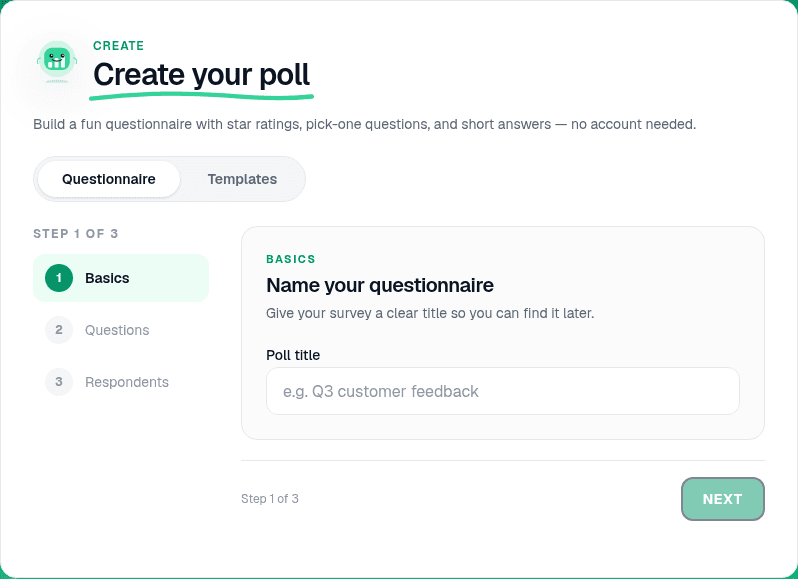
Start from a blank poll, template, or AI prompt — sign in free to build. - 2
Add questions and pick the format
Multiple choice for quick votes, 1–5 scale for sentiment, Quiz mode for scored training with a leaderboard, or Q&A for moderated audience questions.
PollsLive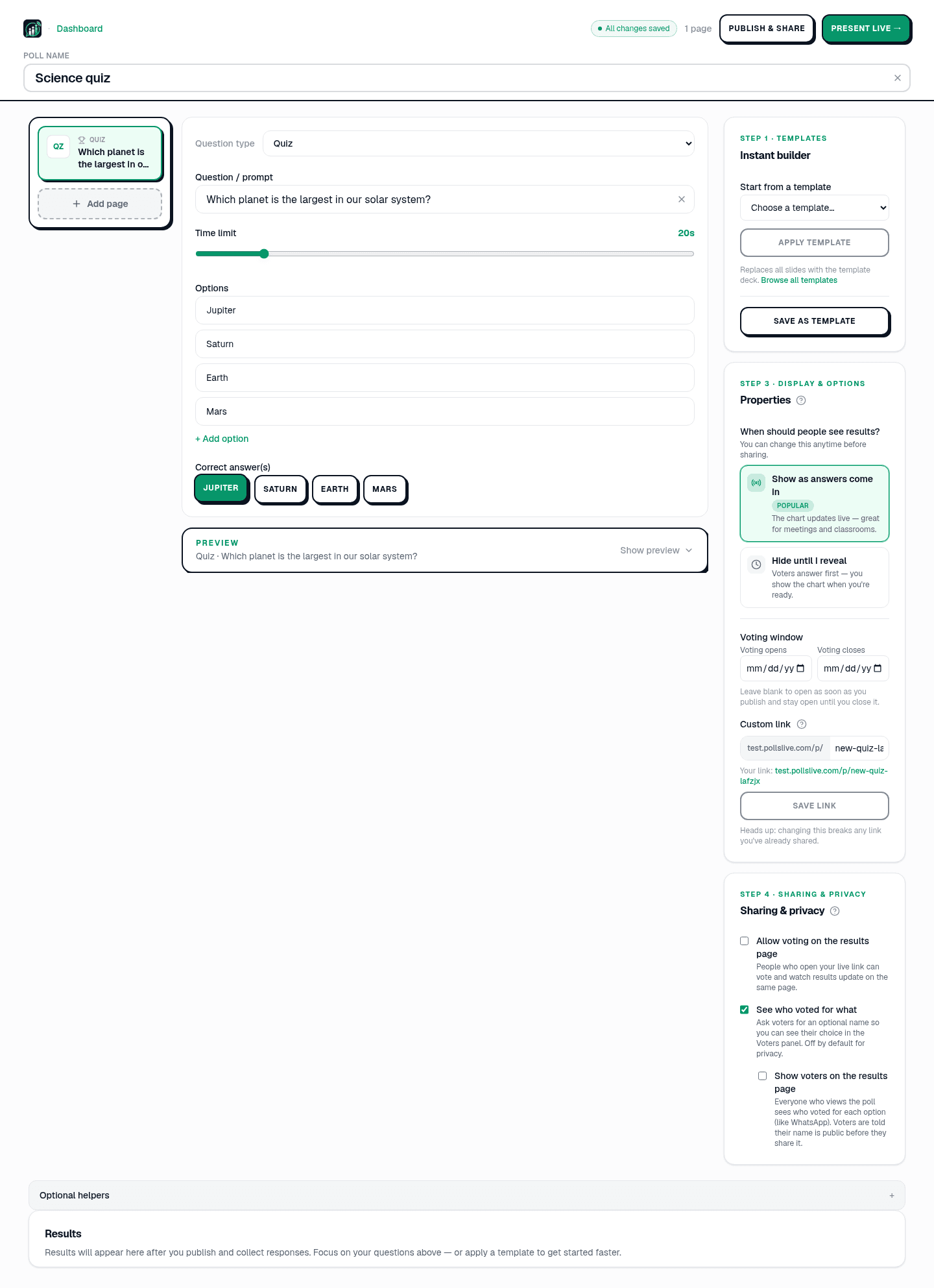
Add questions, set correct answers for quizzes, or pick poll and scale types. - 3
Start the live session
Click Present live in Studio. Copy the join link and PIN from the host console — you'll paste these into Zoom chat when it's time.
PollsLive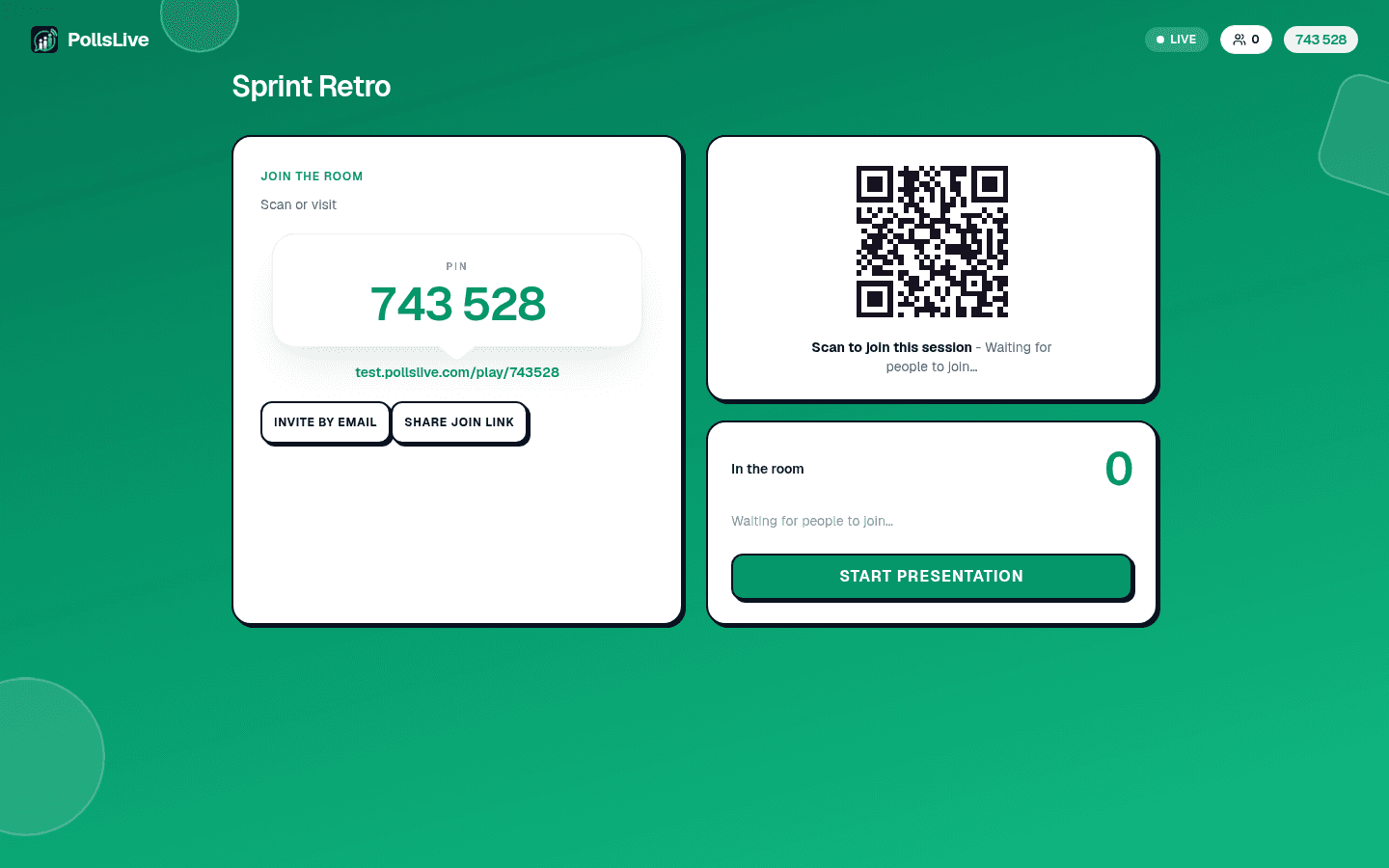
Copy the PIN, download the QR, or share the join link. - 4
Join Zoom and share your screen
Start or join your Zoom meeting. Share your screen on the PollsLive host tab (the live results view), not your slides, so everyone sees bars animate.
Tip: In Zoom, check 'Share computer sound' only if you're also playing media — polls don't need it.
- 5
Drop the link in Zoom chat
Paste the join link and PIN into meeting chat. Tell attendees to open it on their phone or a second monitor. No Zoom account or PollsLive login required.
PollsLive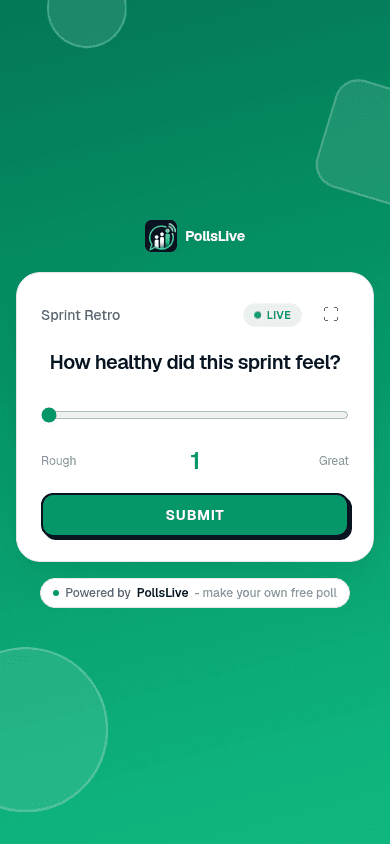
Attendees answer from any phone — no app or login. - 6
Run the poll and discuss live
Watch responses land in real time on your shared screen. Call out trends, ask follow-ups, then move on. Export CSV/PDF from Studio after the call.
PollsLive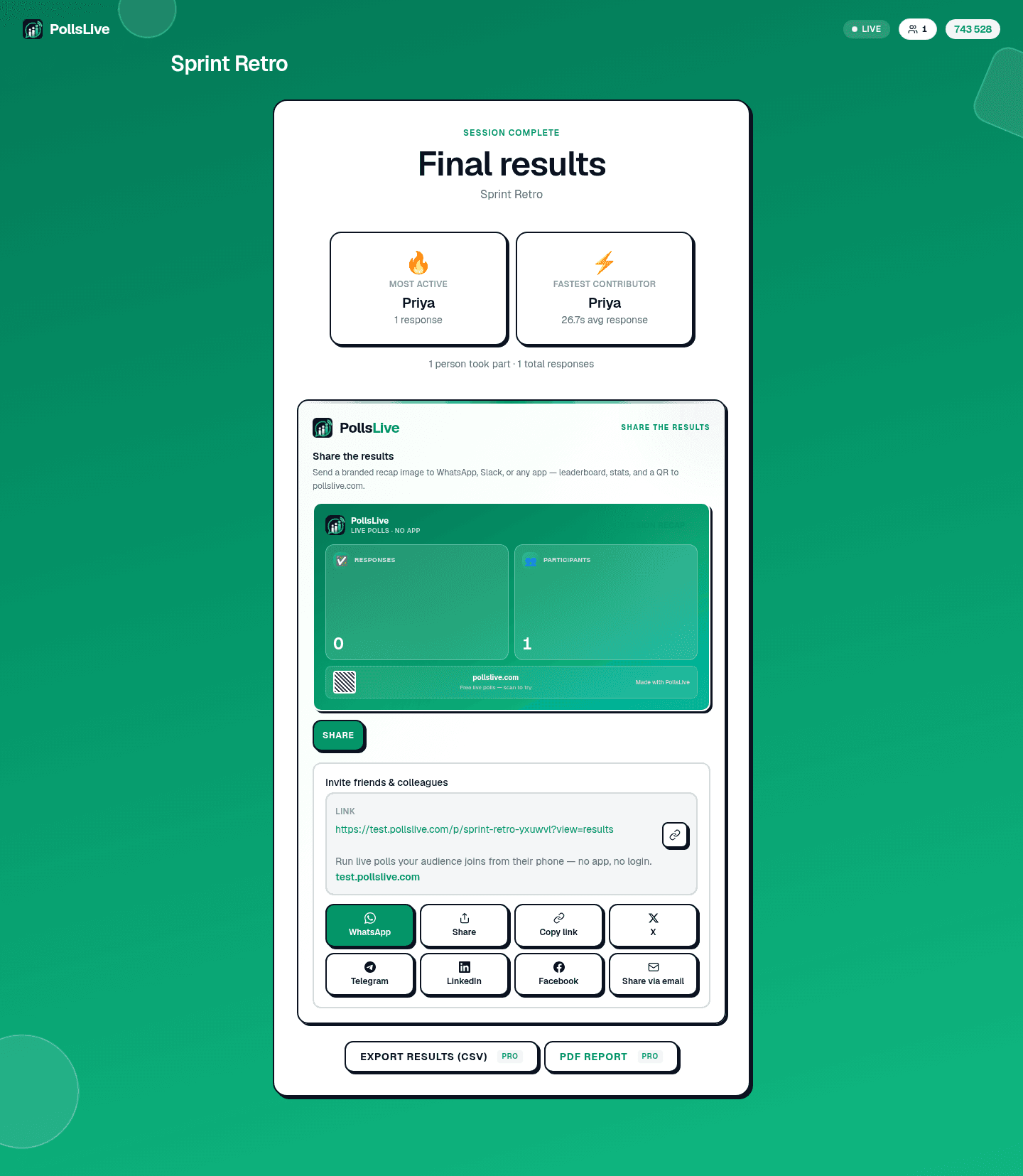
Results update in real time as the room votes.
In-meeting host view (sideload)
The supported path is still share-your-screen plus a join link in chat. There is no published Zoom Marketplace listing. IT teams can optionally sideload a host-console iframe from the manifest JSON so presenters open PollsLive from the Apps panel. Attendees still join via link or PIN.
- Download the Zoom manifest JSON.
- In Zoom, go to Apps → Add app → upload custom app (an admin may need to allow this).
- During a meeting, open PollsLive from the Apps sidebar and sign in.
- Start a session. Paste the join link in chat as usual.
Why hosts run PollsLive alongside Zoom
A one-time Event Pass for big events, richer formats than Zoom's built-in polls, and nothing for attendees to install: they join with a single link or QR. Votes are anonymous, PollsLive is EU-hosted and privacy-first, and it works the same in a small meeting or a large webinar.
Frequently asked questions
Is there a Zoom app to install?
You do not need one. Share your screen and paste the join link or QR in chat. Attendees join in the browser. A published Zoom Marketplace listing is not live. IT teams can optionally sideload an in-meeting host view from the manifest JSON.
How is this better than Zoom's built-in polls?
PollsLive adds live animated results, timed quizzes with a leaderboard, word clouds and moderated Q&A, and it isn't limited to the host or a single meeting.
Do attendees need a Zoom or PollsLive account?
No. They answer from any device with a link or QR, and votes are anonymous, no login of any kind.