
For Microsoft Teams
Microsoft Teams live polls, quizzes and Q&A
Teams' built-in Forms polls are handy but simple and asynchronous. PollsLive adds live animated results, timed quizzes with a leaderboard, word clouds and moderated Q&A to any Teams meeting, and it isn't locked to the Microsoft stack. Share your screen, paste the join link or QR in chat, and your team answers from their phones as results update live.
What you can run
All-hands sentiment
Read the room honestly with anonymous pulse polls during a town hall.
Training checks
Drop knowledge-check quizzes between modules and show a live leaderboard.
Retro word clouds
Ask for one word on how the sprint went and watch the cloud form live.
Moderated Q&A
Gather and upvote questions so leaders answer the ones that matter.
Step-by-step setup guide
Follow these steps for your next Microsoft Teams session. No add-in or plugin is required.
- 1
Build your poll in PollsLive
Create a retro pulse, all-hands sentiment check, training quiz, or moderated Q&A before the Teams meeting starts.
PollsLive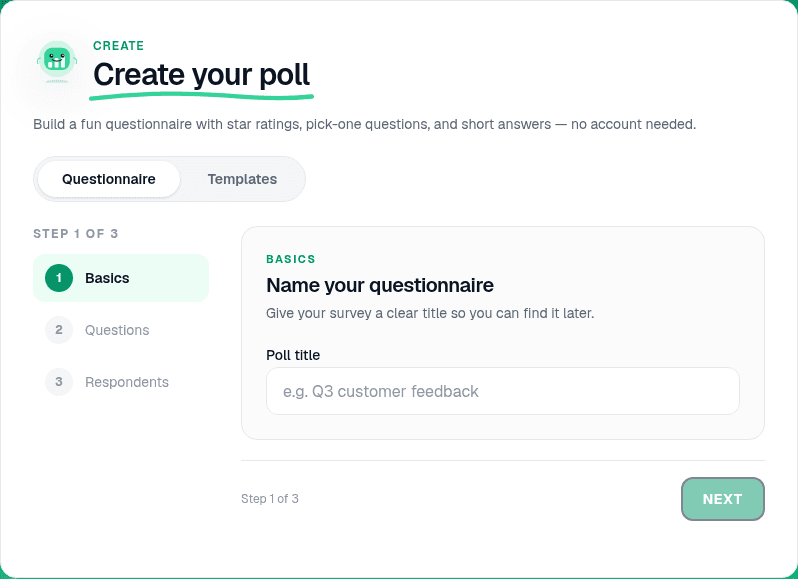
Start from a blank poll, template, or AI prompt — sign in free to build. - 2
Set up questions
Anonymous multiple choice works well for retros. Use 1–5 scale for honest pulse checks. Quiz mode adds a leaderboard for onboarding sessions.
Tip: For recurring team meetings, duplicate the poll in Studio and update the wording each sprint.
PollsLive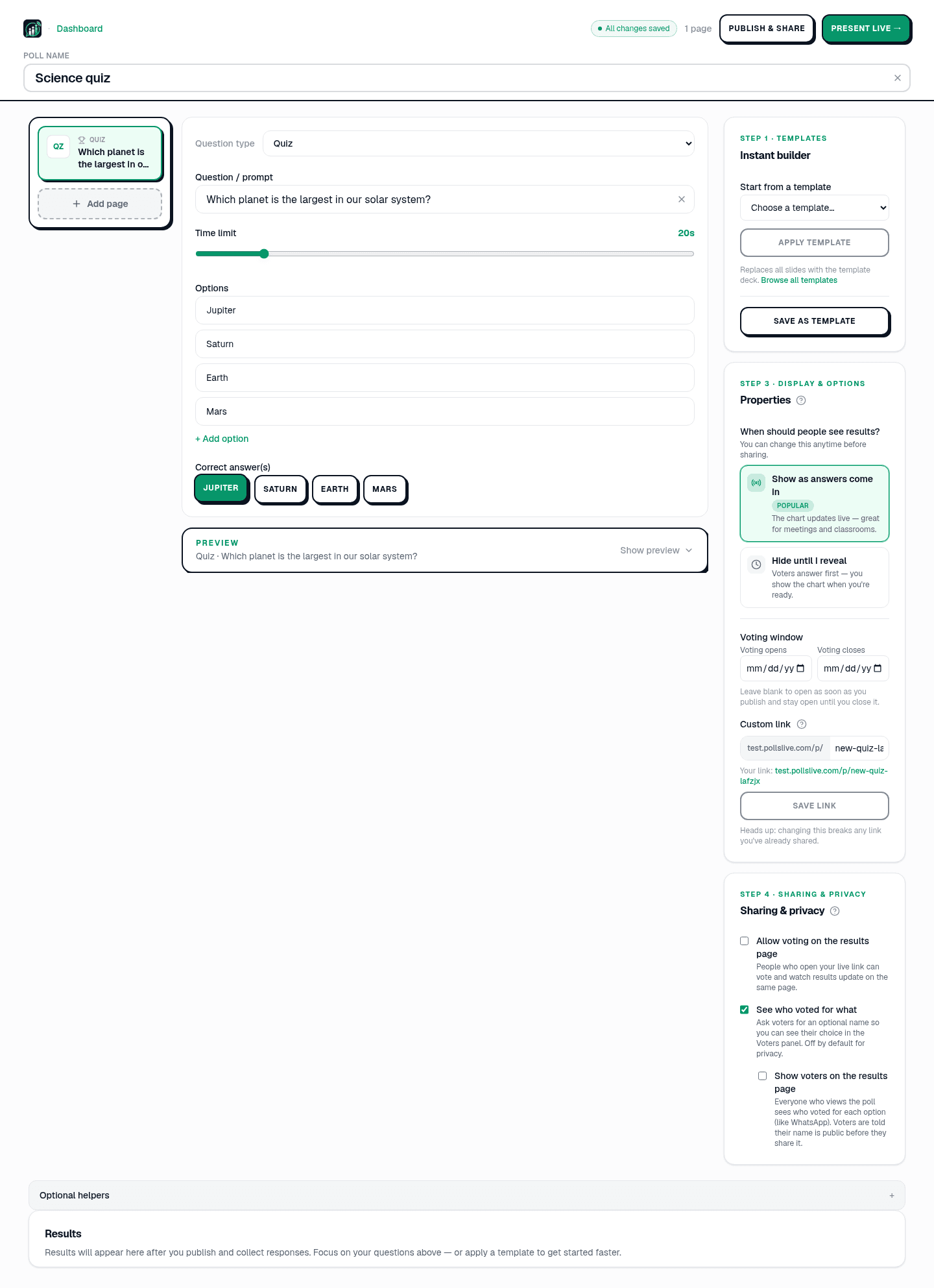
Add questions, set correct answers for quizzes, or pick poll and scale types. - 3
Go live and copy the join link
Present live from Studio. Copy the short link and PIN — you'll post these in the Teams meeting chat.
PollsLive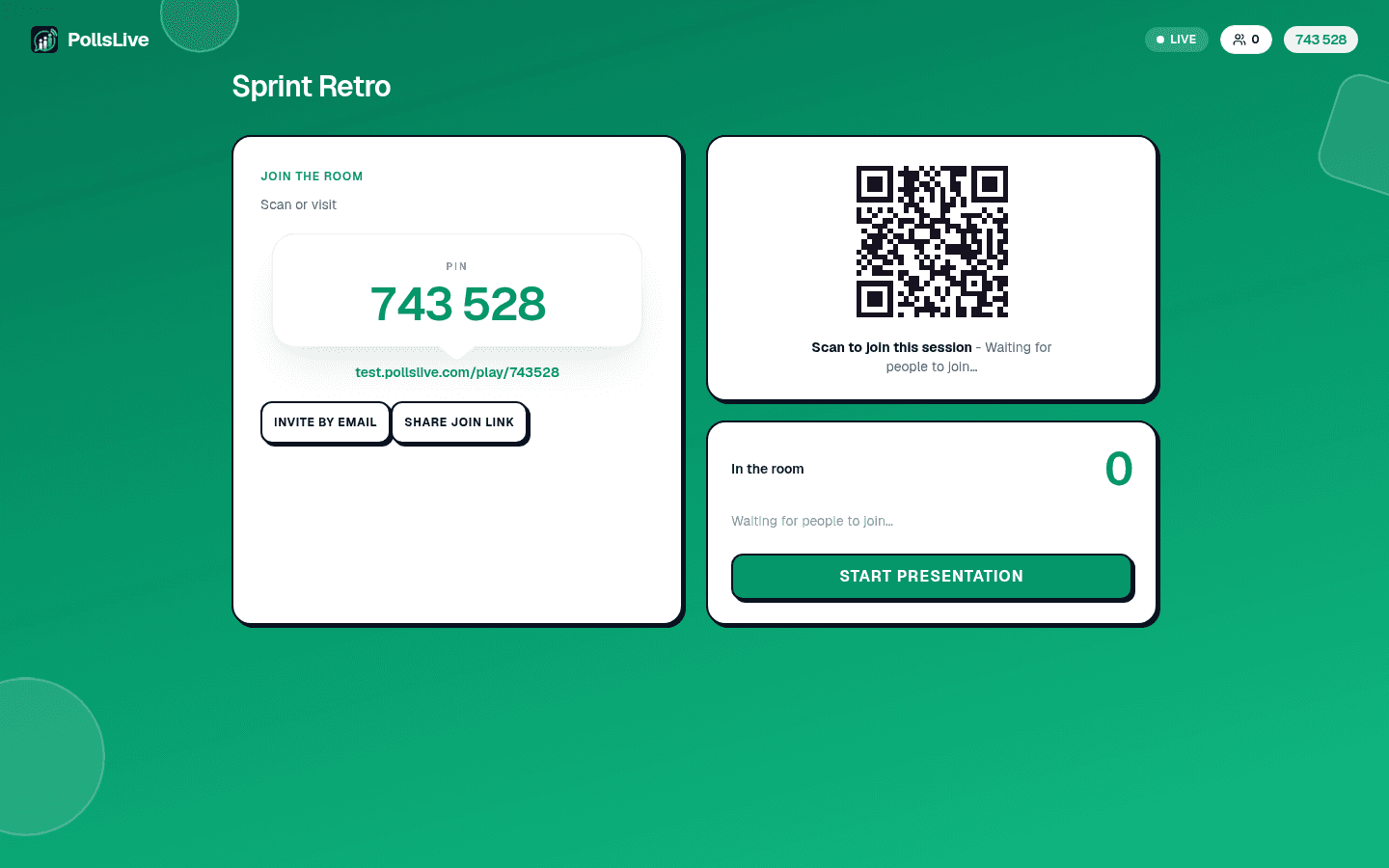
Copy the PIN, download the QR, or share the join link. - 4
Share the PollsLive screen in Teams
In your Teams meeting, share the browser window showing the PollsLive host console. Choose 'Window', not 'Entire screen', so notifications don't leak.
- 5
Paste the link in meeting chat
Post the join link and PIN in Teams chat. Remote and in-room colleagues open it on a phone or laptop — guests outside your tenant can join without a Microsoft account.
PollsLive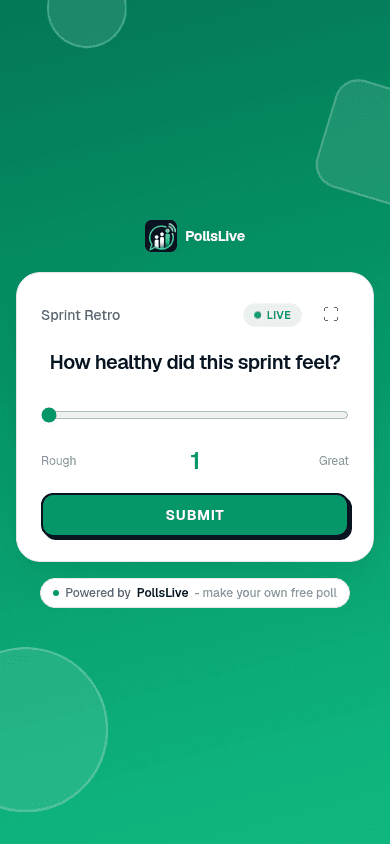
Attendees answer from any phone — no app or login. - 6
Facilitate and export
Discuss what the live chart shows, then end the poll. Download results from Studio for your retro doc or leadership summary.
PollsLive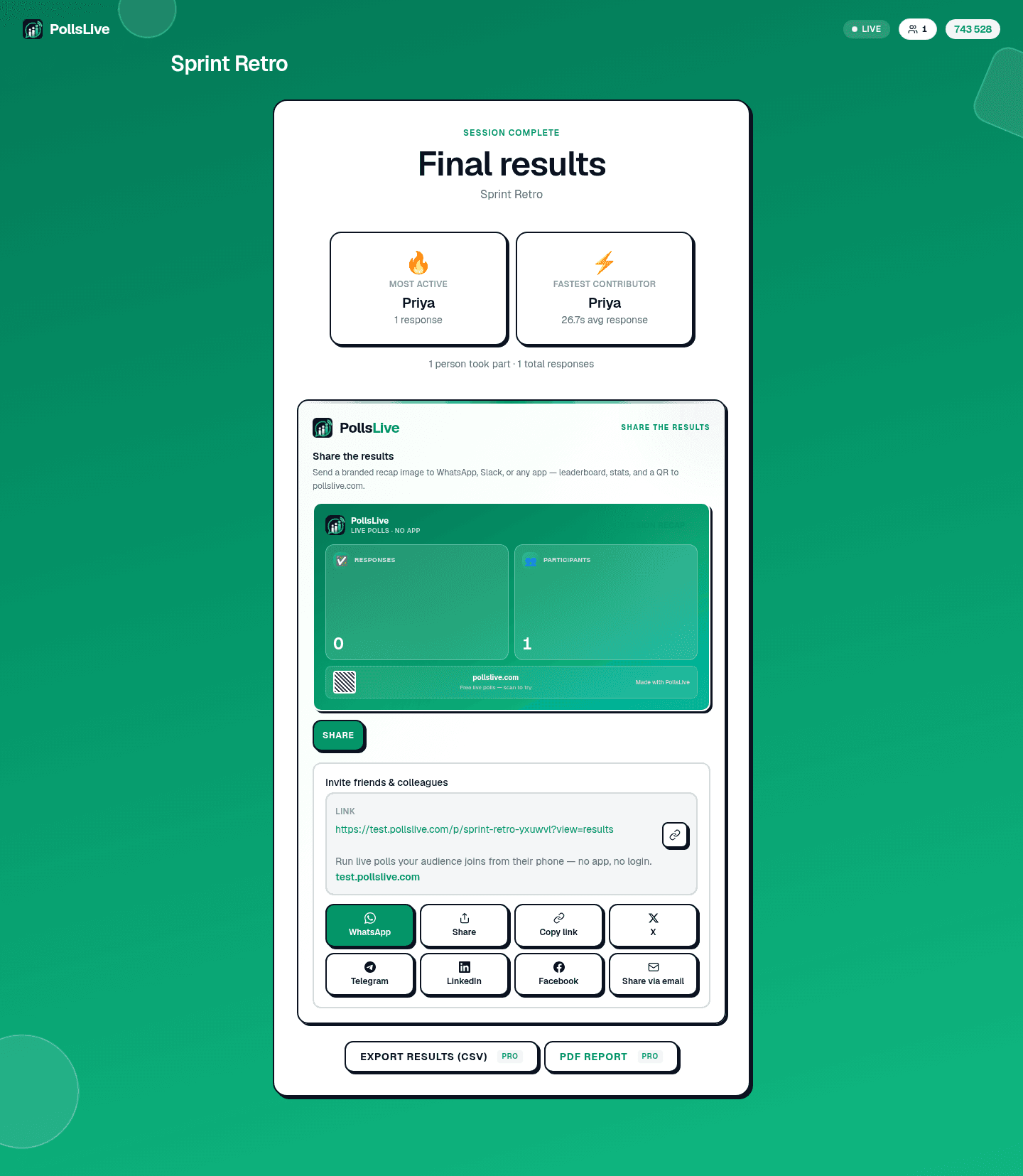
Results update in real time as the room votes.
Why teams run PollsLive alongside Microsoft Teams
Richer formats than the built-in Forms poll, and it works even for guests outside your tenant: anyone can join with a link or QR, no Microsoft account required. Votes are anonymous, and PollsLive is EU-hosted and privacy-first, so honest input shows up without the data worry.
Frequently asked questions
Do I need to install a Teams app?
No. You share your screen and paste the join link or QR in the meeting chat, so attendees join in the browser, no app to install or admin approval to wait on.
How is it different from Microsoft Forms polls?
PollsLive shows live animated results, timed quizzes with a leaderboard, word clouds and moderated Q&A, and works outside the Microsoft ecosystem for guests too.
Do attendees need a Microsoft account?
No. They answer from any device with a link or QR, and votes are anonymous, no login required.
Ready to run your first live poll in Microsoft Teams?