
For Google Meet
Live polls, quizzes and Q&A for Google Meet
Google Meet's built-in polls and Q&A are limited to certain plans and stay basic. PollsLive gives any Google Meet call live animated results, timed quizzes with a leaderboard, word clouds and moderated Q&A. Share your screen on the results view, drop the join link or QR in the chat, and attendees answer from their phones while results update live.
What you can run
Call warm-ups
Start with a poll so everyone is participating from the first minute.
Class or training checks
Check understanding with a quick multiple-choice or 1-5 scale mid-call.
Word clouds
Ask for one word and watch the cloud build on the shared screen.
Moderated Q&A
Collect and upvote questions and answer the top ones live.
Step-by-step setup guide
Follow these steps for your next Google Meet session. No add-in is required unless you opt into the optional setup below.
- 1
Build your poll ahead of the call
Create a warm-up poll, lesson check, word cloud, or Q&A in PollsLive. Works on free and paid Google Workspace plans — no Meet upgrade required.
PollsLive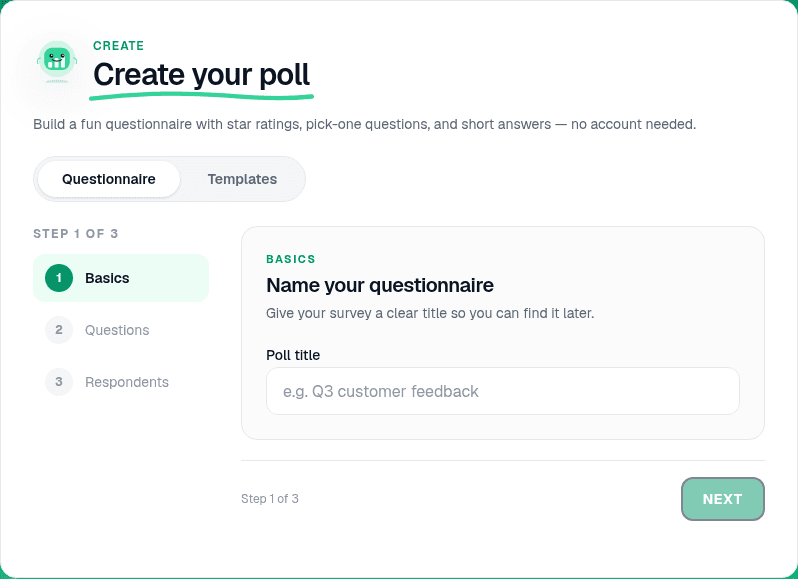
Start from a blank poll, template, or AI prompt — sign in free to build. - 2
Add questions in the editor
Pick multiple choice, scale, quiz, or open Q&A. For classrooms, hide results until everyone has voted so students commit independently.
PollsLive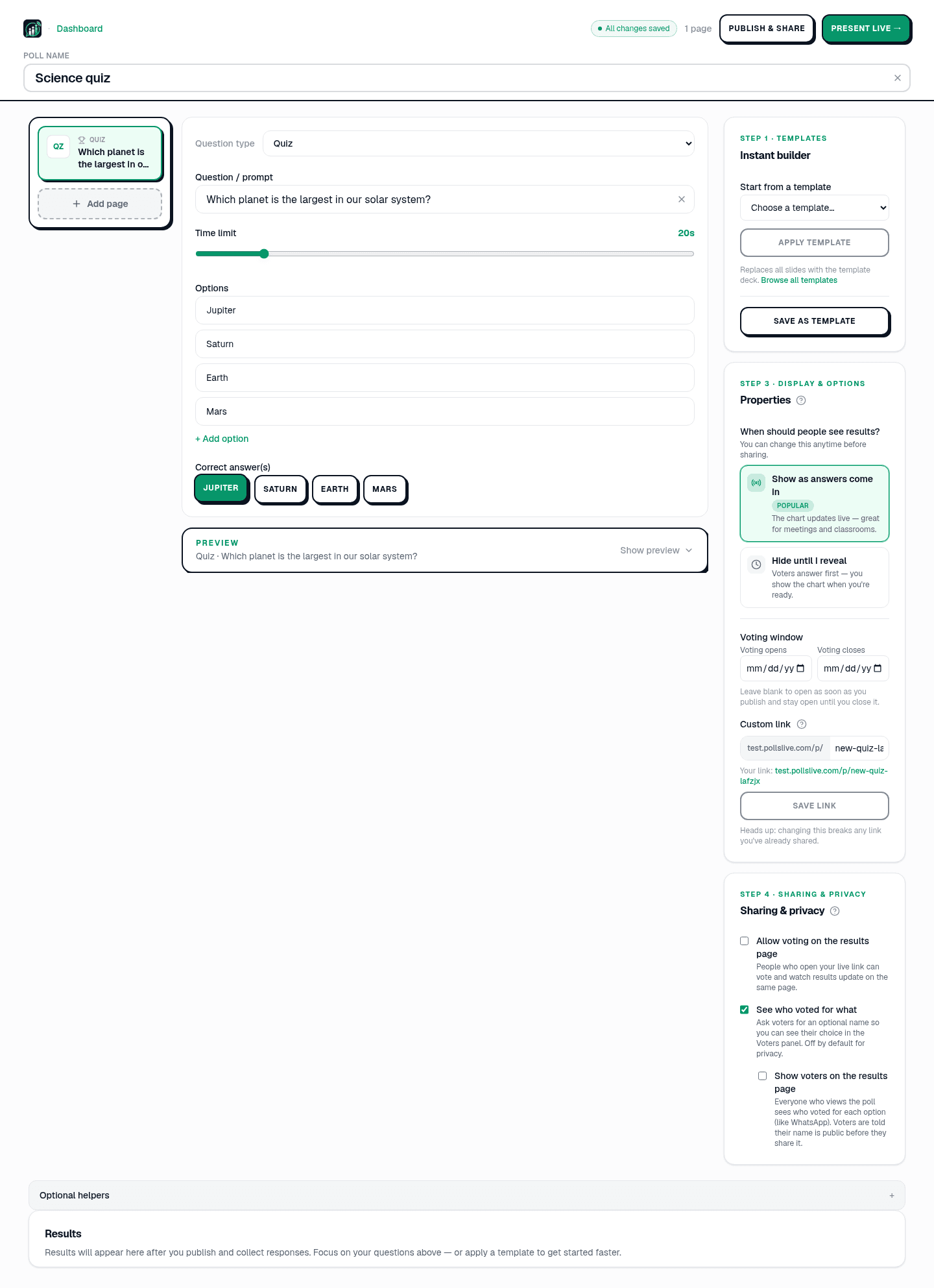
Add questions, set correct answers for quizzes, or pick poll and scale types. - 3
Go live and copy the join details
Click Present live. Keep the host console open in a browser tab next to your Meet window.
Tip: Pin the Meet tab and the PollsLive tab side by side on ultrawide monitors for faster switching.
PollsLive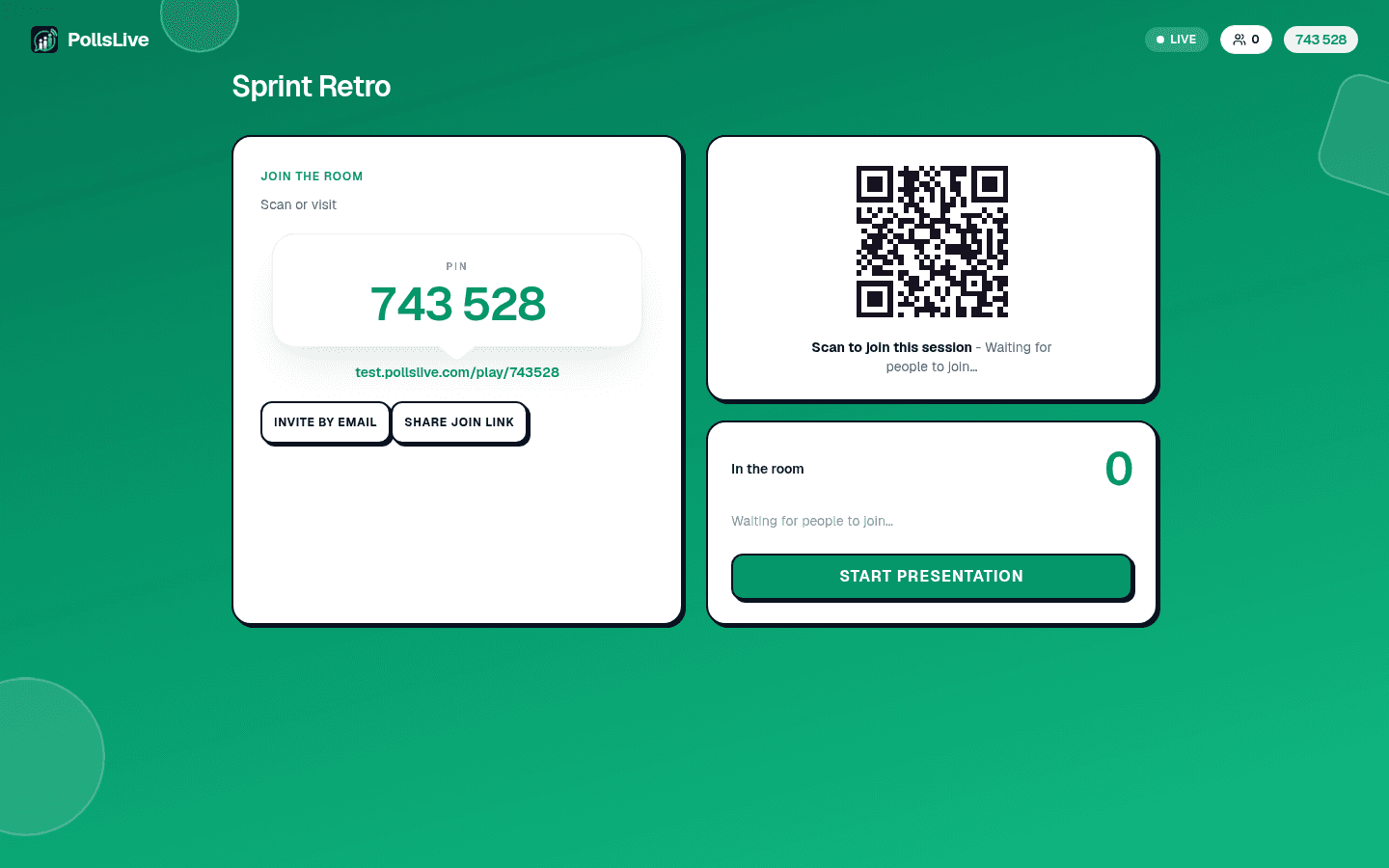
Copy the PIN, download the QR, or share the join link. - 4
Share the PollsLive window in Meet
In Google Meet, click Present now → A window → select the browser tab with live PollsLive results. Everyone sees the chart update as votes arrive.
- 5
Paste the link in Meet chat
Drop the join link and PIN into Meet chat (or speak it aloud). Attendees open it on a phone or second tab — no Google login needed to answer.
PollsLive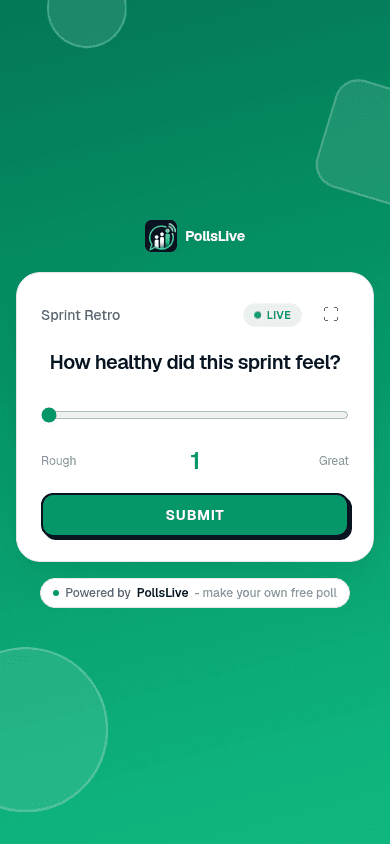
Attendees answer from any phone — no app or login. - 6
Discuss results and export
Talk through what the room chose, then continue the call. Export CSV or PDF from Studio for attendance or lesson records.
PollsLive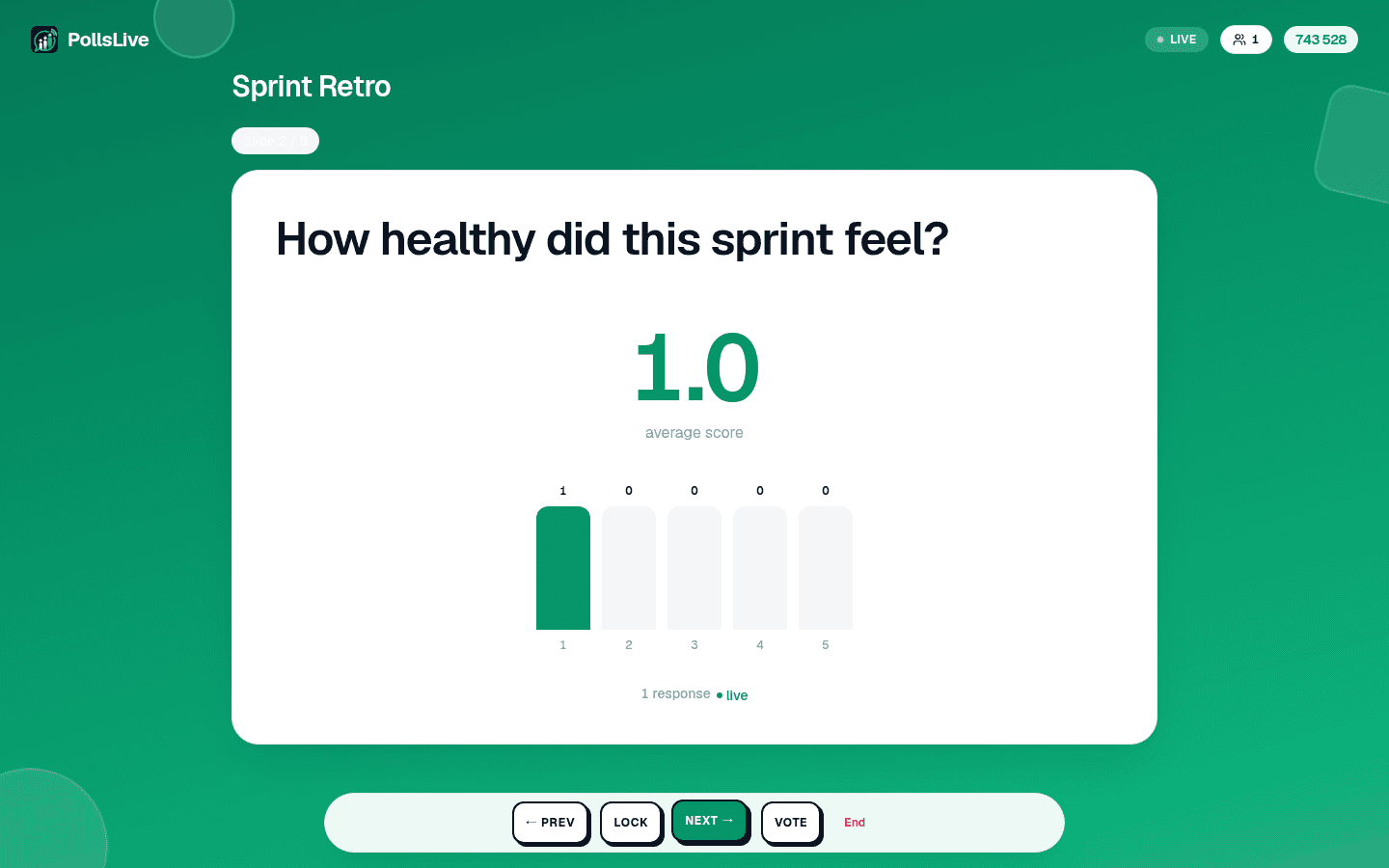
Pulse checks and scale questions work the same way.
Google Meet add-on sidebar
Register the PollsLive Meet add-on so hosts open the sidebar during video calls. Attendees still join via the same PIN or link — the add-on is for presenters, not participants.
- Workspace admins install the add-on from the Google Workspace Marketplace (or internal catalog).
- During a Meet call, open Activities → PollsLive to load the sidebar.
- Sign in, pick a deck, and start a live session without leaving Meet.
- Paste the auto-generated join link into chat — same flow as the browser guide above.
Why hosts use PollsLive with Google Meet
Live formats without a plan upgrade, and nothing for attendees to install: they join with a single link or QR. Votes are anonymous, and PollsLive is EU-hosted and privacy-first, so it's a simple, safe way to make any Meet call interactive.
Frequently asked questions
Do I need a paid Google Workspace plan?
No. Google Meet's own polls are gated to some plans, but PollsLive works on any Meet call: you share your screen and paste a join link in chat.
How do attendees join?
They open the link or scan the QR from the chat, no app and no account. Votes are anonymous.
Is it free?
Yes. Start free with 3 published polls (500 responses each); Pro adds unlimited polls, and responses under our fair-use policy, priced per presenter.
Ready to run your first live poll in Google Meet?