
For PowerPoint
Live polls for PowerPoint: no add-in required
You don't need a PowerPoint add-in to make a deck interactive. Build a poll, quiz or Q&A in PollsLive, drop the QR code on a slide, and your audience answers from their phones while results animate live on the screen. It works with any version of PowerPoint: desktop, web or Microsoft 365.
What you can run
Opening ice-breaker
Start with a quick poll so the room is participating from the very first slide.
Knowledge-check quizzes
Drop a timed quiz between sections and show a live leaderboard to keep attention.
Live word clouds
Ask for one word and watch a word cloud build on your slide in real time.
Audience Q&A
Collect and upvote questions, then answer the top ones without breaking your flow.
Step-by-step setup guide
Follow these steps for your next PowerPoint session. No add-in is required unless you opt into the optional setup below.
- 1
Create your poll in PollsLive
Open pollslive.com and start a blank poll, pick a template, or describe what you need. Sign in free (Google or email) to build polls, scored quizzes, word clouds, and moderated Q&A, or try the live demo first with no account.
Tip: Save to Studio when you want to reuse the deck across meetings.
PollsLive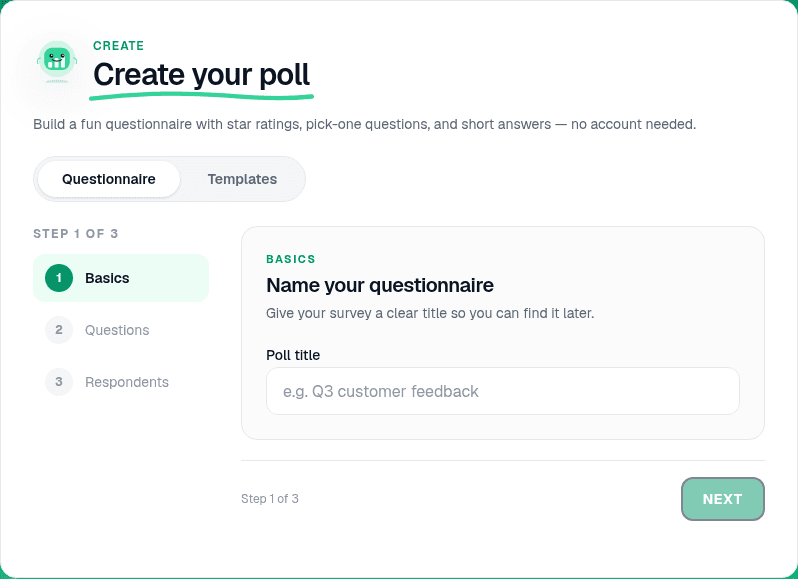
Start from a blank poll, template, or AI prompt — sign in free to build. - 2
Add your questions
Type your question, add answer options, and choose when results show. For a knowledge check, switch to Quiz mode, mark the correct answer, and optionally add a timer.
PollsLive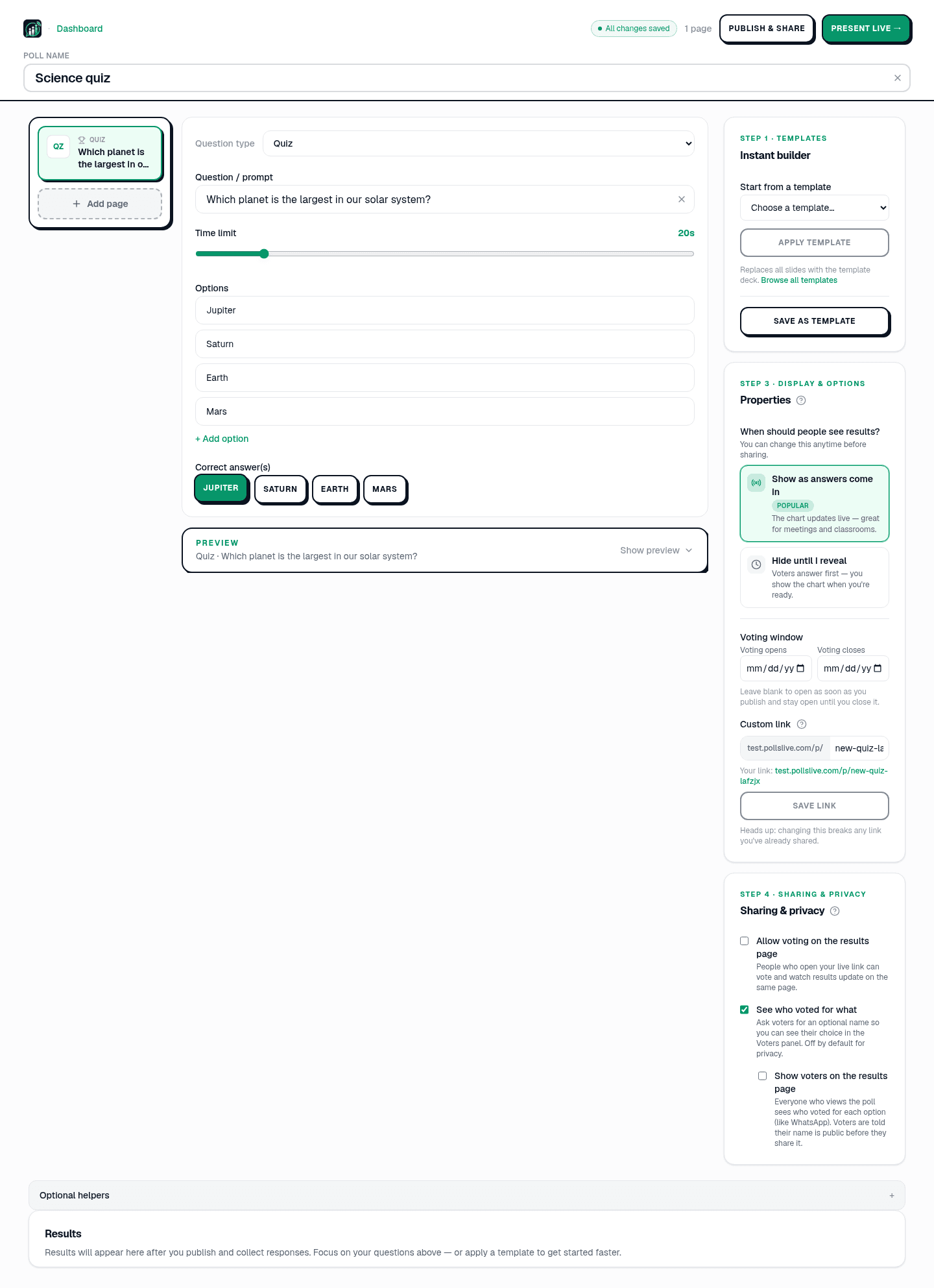
Add questions, set correct answers for quizzes, or pick poll and scale types. - 3
Go live and grab the join code
Click Present live in Studio (or Start from the create flow). The host console shows a 6-digit PIN, a QR code, and a shareable link your audience can open on any phone.
Tip: Keep the host tab open on your presenter machine — you'll switch back to it when it's time to show results.
PollsLive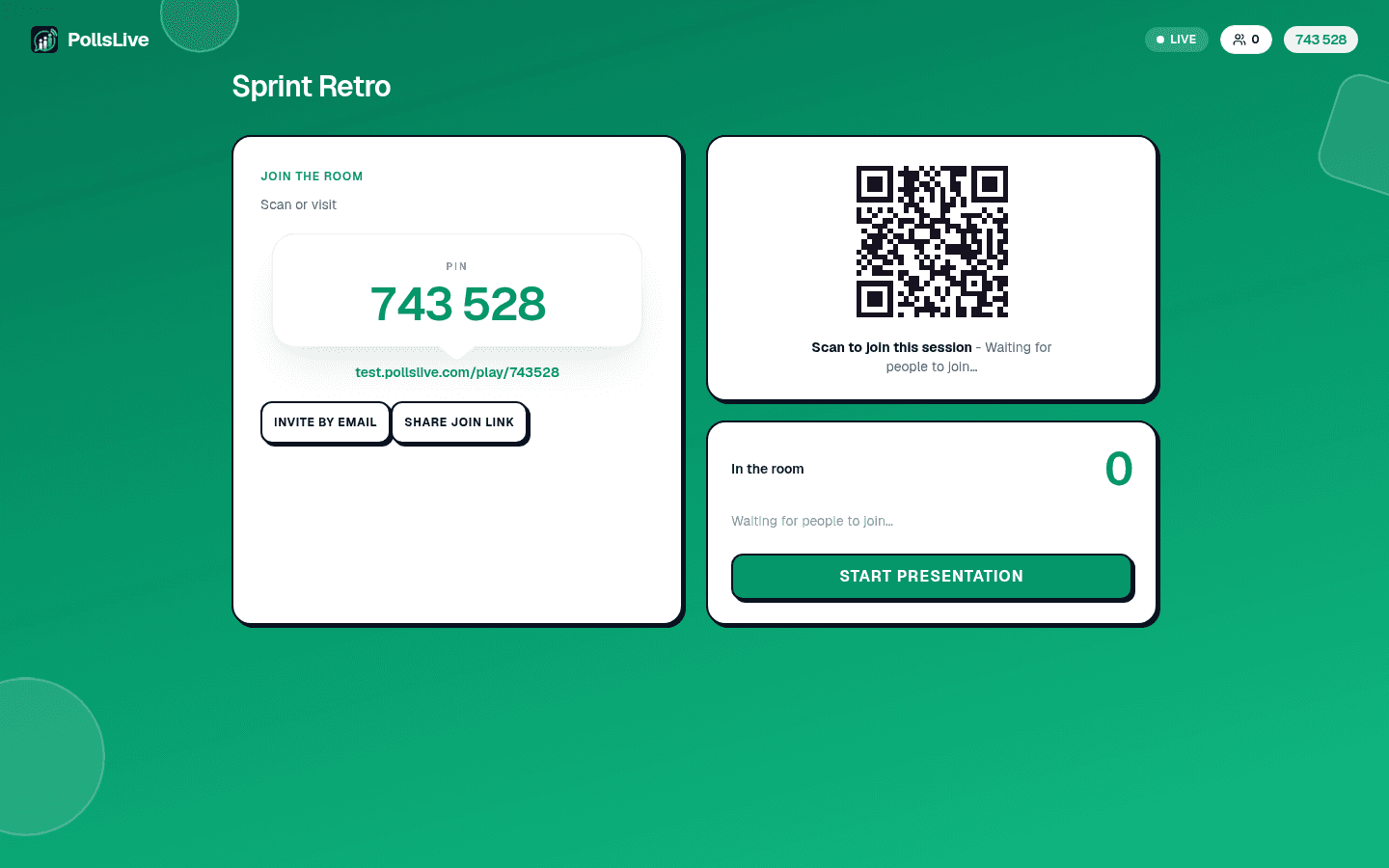
Copy the PIN, download the QR, or share the join link. - 4
Put the QR on a PowerPoint slide
Download the QR image from the host console and insert it on a dedicated slide (Insert → Pictures). Add the PIN in large type underneath so people can type it if the camera won't scan.
Tip: Duplicate this slide before each interactive moment so you can drop in a fresh QR without rebuilding the deck.
- 5
Present and switch to results
Run PowerPoint as usual. When you reach the poll slide, tell the room to scan or enter the PIN, then Alt+Tab (or swipe on iPad) to the PollsLive host tab. Results animate live on screen.
PollsLive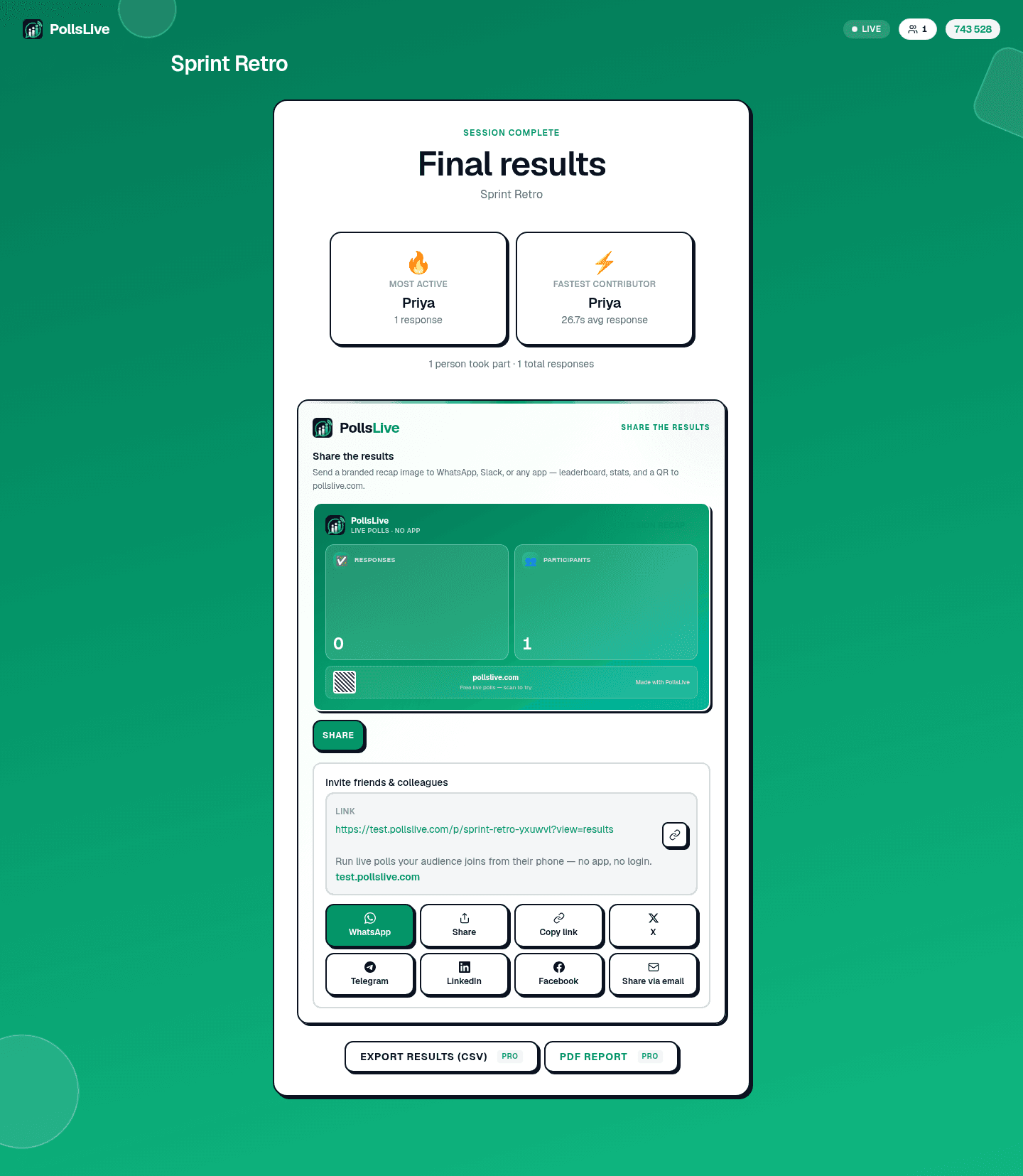
Results update in real time as the room votes. - 6
Discuss, then return to your deck
Talk through what landed, highlight outliers, then switch back to PowerPoint for the next section. Export CSV or PDF from Studio after the session if you need a record.
PollsLive
Attendees answer from any phone — no app or login.
PowerPoint task pane (sideload)
IT teams can sideload the Office add-in manifest so presenters open PollsLive in a task pane beside the deck. Native slide-insert is on the roadmap; today the QR-on-slide path above works on every PowerPoint version.
- Download the Office manifest XML from PollsLive.
- In PowerPoint, go to Insert → Add-ins → My Add-ins → Upload My Add-in.
- Select the manifest file and sign in to your PollsLive workspace.
- Open the task pane, start a live session, and project the host console on your second monitor.
Why presenters pair PollsLive with PowerPoint
No add-in to install or get approved by IT, and nothing for your audience to download. People join in one tap by QR or a short PIN, votes are anonymous, and PollsLive is EU-hosted and privacy-first, so it's an easy yes for schools and enterprises alike.
Frequently asked questions
Do I need a PowerPoint add-in or plugin?
No. PollsLive runs separately in the browser: you add a QR code or link to a slide, so there's nothing to install in PowerPoint and nothing for IT to approve.
How does the audience join?
They scan the QR on your slide or type a short PIN, no app and no account. It works on any phone or laptop.
Does it work with PowerPoint on the web and Microsoft 365?
Yes. Because the poll lives in the browser, it works the same whether you present from desktop PowerPoint, PowerPoint on the web, or Microsoft 365.
Ready to run your first live poll in PowerPoint?